Quickstart
This quickstart creates a Spark job that builds a small DataFrame, aggregates it, writes the result to object storage and exposes it as the job output. It uses fictional data so you can run it as soon as you have an S3 connection.
Before you begin#
You need:
- A project in which you can create ETL jobs.
- Permission to use a compute size (the runtime picker lists the sizes you may use).
- An S3 connection named
acme-s3(any object-store connection works with the matchingread/writemethod; this example uses S3).
Step 1: Create the job#
- Open the project and create a new ETL job.
- In the editor toolbar, open the runtime picker, choose a Spark runtime and a compute size.
- Paste the code below.
from GZ.SparkUtils import sparkSession
from pyspark.sql import functions as F

spark = sparkSession("QuickstartOrders", "WARN")

orders = spark.createDataFrame(
    [
        (1001, "emea", "widget", 3, 19.99),
        (1002, "emea", "gadget", 1, 49.50),
        (1003, "apac", "widget", 10, 19.99),
        (1004, "amer", "gizmo", 2, 120.00),
        (1005, "apac", "gadget", 4, 49.50),
    ],
    ["order_id", "region", "product", "quantity", "unit_price"],
)

revenue = (
    orders.withColumn("revenue", F.col("quantity") * F.col("unit_price"))
    .groupBy("region")
    .agg(
        F.count("*").alias("orders"),
        F.round(F.sum("revenue"), 2).alias("revenue"),
    )
    .orderBy(F.desc("revenue"))
)

spark.writeS3(
    df=revenue,
    connName="acme-s3",
    filePath="quickstart/revenue_by_region",
    format="parquet",
    mode="overwrite",
)

outputDF = revenue
Step 2: Run and read the result#
Select Run. The log panel streams the job log: Spark start-up messages first,
then anything your script prints. When the job completes, the preview shows the
rows of outputDF:
region  orders  revenue
apac    2       397.9
amer    1       240.0
emea    2       109.47
The same revenue_by_region data now exists as Parquet files under
quickstart/ in the bucket of the acme-s3 connection.
Why outputDF?
The runtime looks for a top-level variable named outputDF after your
script finishes. A Spark DataFrame, a pandas DataFrame or a list of dictionaries
can all be used. If the variable is missing, the job still succeeds, but
there is no preview.
Step 3: Try it in a notebook#
Create a notebook, choose the same runtime, and run the first cell. The kernel
has already imported sparkSession, pandas as pd, numpy as np, pyspark
and executeJob:
spark = sparkSession("NotebookScratch", "WARN")
df = spark.createDataFrame([(1, "a"), (2, "b")], ["id", "label"])
df.show()
Step 4: Schedule it#
From the job page, add a schedule. The scheduler dialog has a single RTE field that opens the same runtime and compute picker. Pick a runtime, a compute size, and save. Scheduled runs use the runtime and compute stored with the schedule.
In the UI#
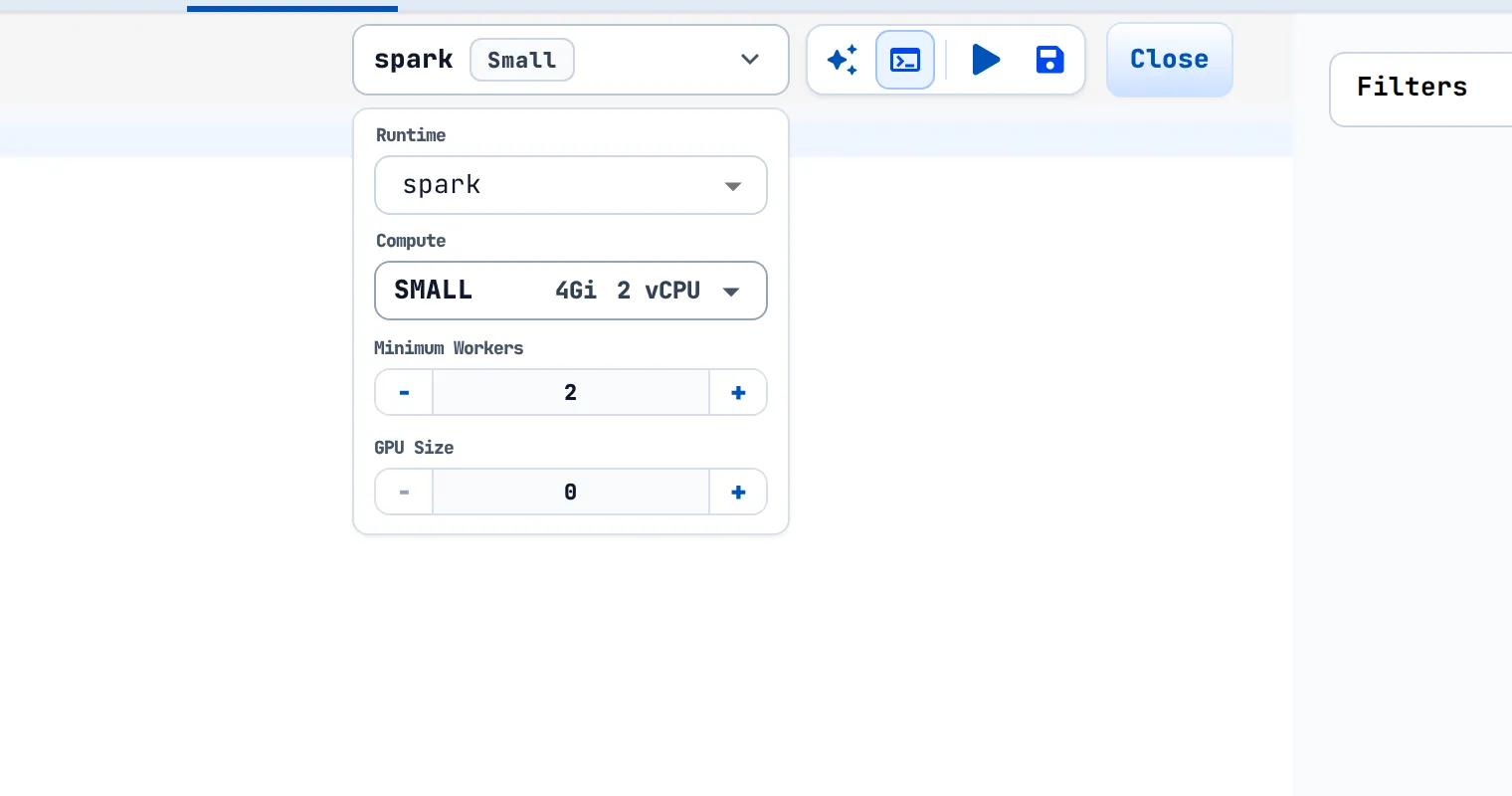
The runtime is chosen in the runtime picker, a compact control that shows the selected runtime name and, next to it, a small badge with the compute name. Selecting it opens a panel with these fields:
| Field | Meaning |
|---|---|
| Runtime | The runtime to use: Standard (datasets only) or one of the registered runtimes |
| Compute | A named size; each entry lists its name, memory and CPU |
| Minimum Workers | Shown for Spark runtimes; the starting worker count, never below 1 |
| GPU Size | Shown for every runtime except Standard; defaults to 0 |
Where you find it:
- ETL job editor. The picker sits in the editor toolbar.
Standardis not offered for jobs, so you choose a registered runtime directly. - Notebooks. The picker is in the notebook header and also omits
Standard. When the notebook's session is disconnected, the control turns red and shows "Session disconnected". - Datasets. The dataset designer lists
Standardfirst, followed by the registered runtimes. ChoosingStandardhides the Compute field; any other runtime requires a compute size before Save is enabled. - Flow builder. The picker sits in the top bar of the flow builder and, like the job editor, lists the registered runtimes.
- Scheduler. The scheduler dialog shows one RTE text field that displays the chosen runtime and compute together. Selecting it opens a menu with Runtime and Compute drop-downs and a Save button.
The Runtime list is loaded from your site, so it shows only the runtimes your administrator has registered. If the list is empty, the picker shows "No RTEs Available".
Compute sizes you cannot see
If the Compute field reads "Insufficient Permission", your user has no access to any compute size. Ask a site administrator to grant you access.