
Connecting from MCP clients
Groundzero can work with the coding assistants you already use. After this chapter your assistant can list your projects, write and run jobs, open notebooks, query datasets and look at MLflow experiments for you.
You sign in with your own Groundzero account, so the assistant can do only what you can do. This works with Codex, Claude Code, Cursor and VS Code with Copilot agent mode, or any client that supports HTTP and OAuth sign-in.
Connect a client#
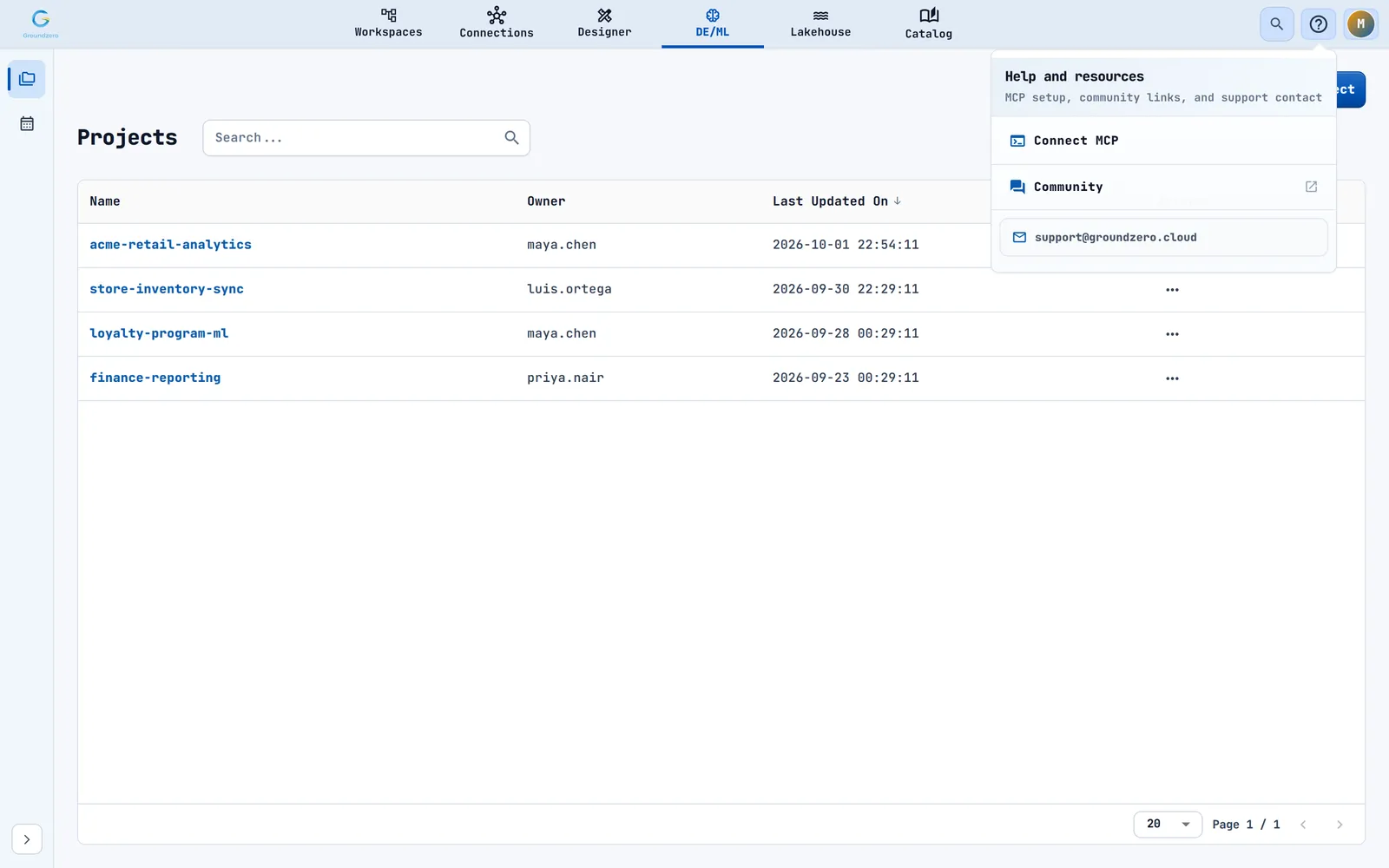
- Select the help icon (question mark) in the top bar.
- Choose Connect MCP.
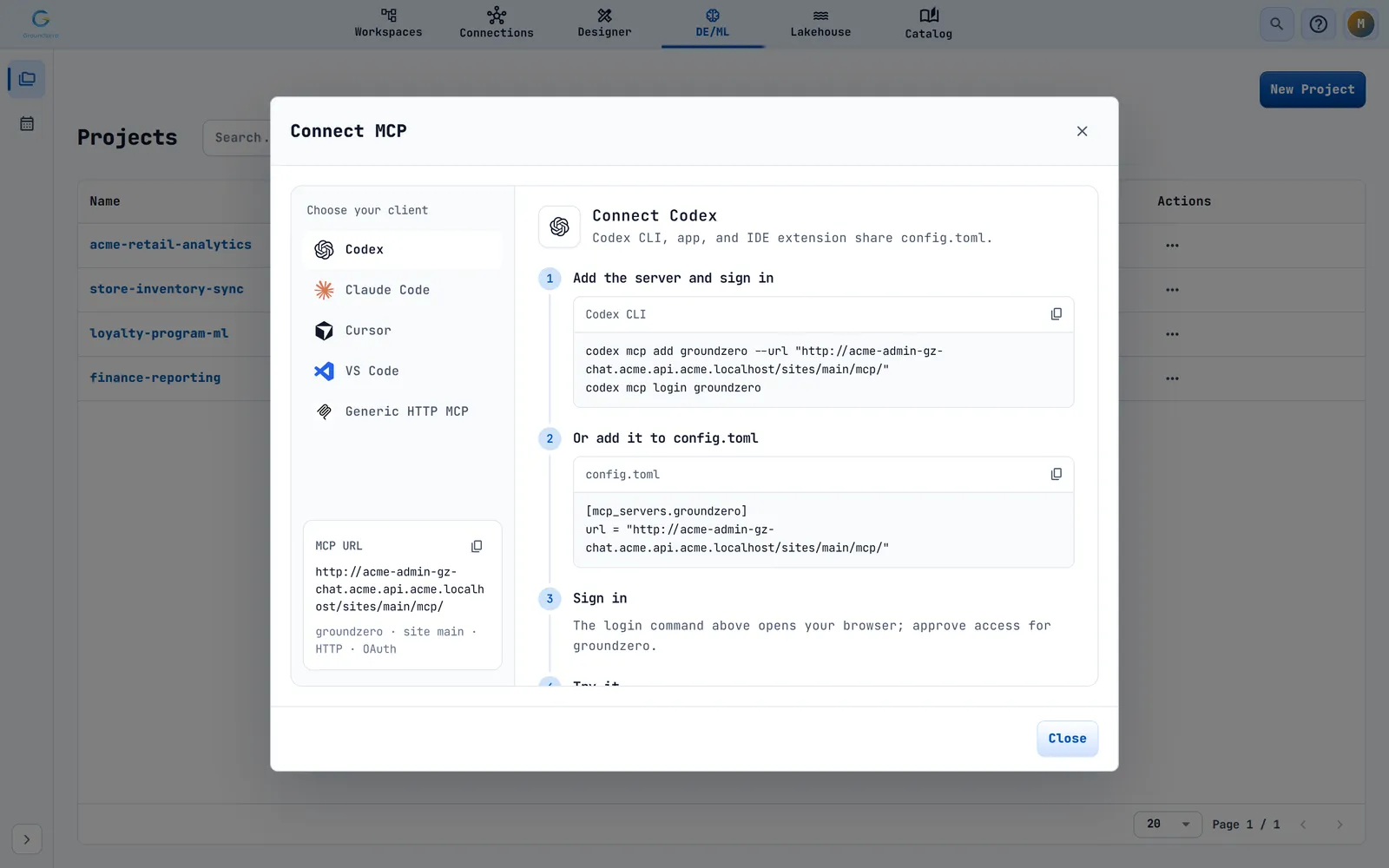
- Pick your client in Choose your client and follow the numbered steps. Each step has a copy button.
| Client | What you do |
|---|---|
| Codex | Run codex mcp add groundzero -, then codex mcp login groundzero. Or add the server to config.toml |
| Claude Code | Run claude mcp add -, then run /mcp inside Claude Code to sign in. Or share a .mcp.json |
| Cursor | Add the server to .cursor/mcp.json |
| VS Code | Add it to .vscode/mcp.json for GitHub Copilot agent mode |
| Generic HTTP MCP | Transport Streamable HTTP, the URL shown, authentication OAuth, scopes openid email profile |
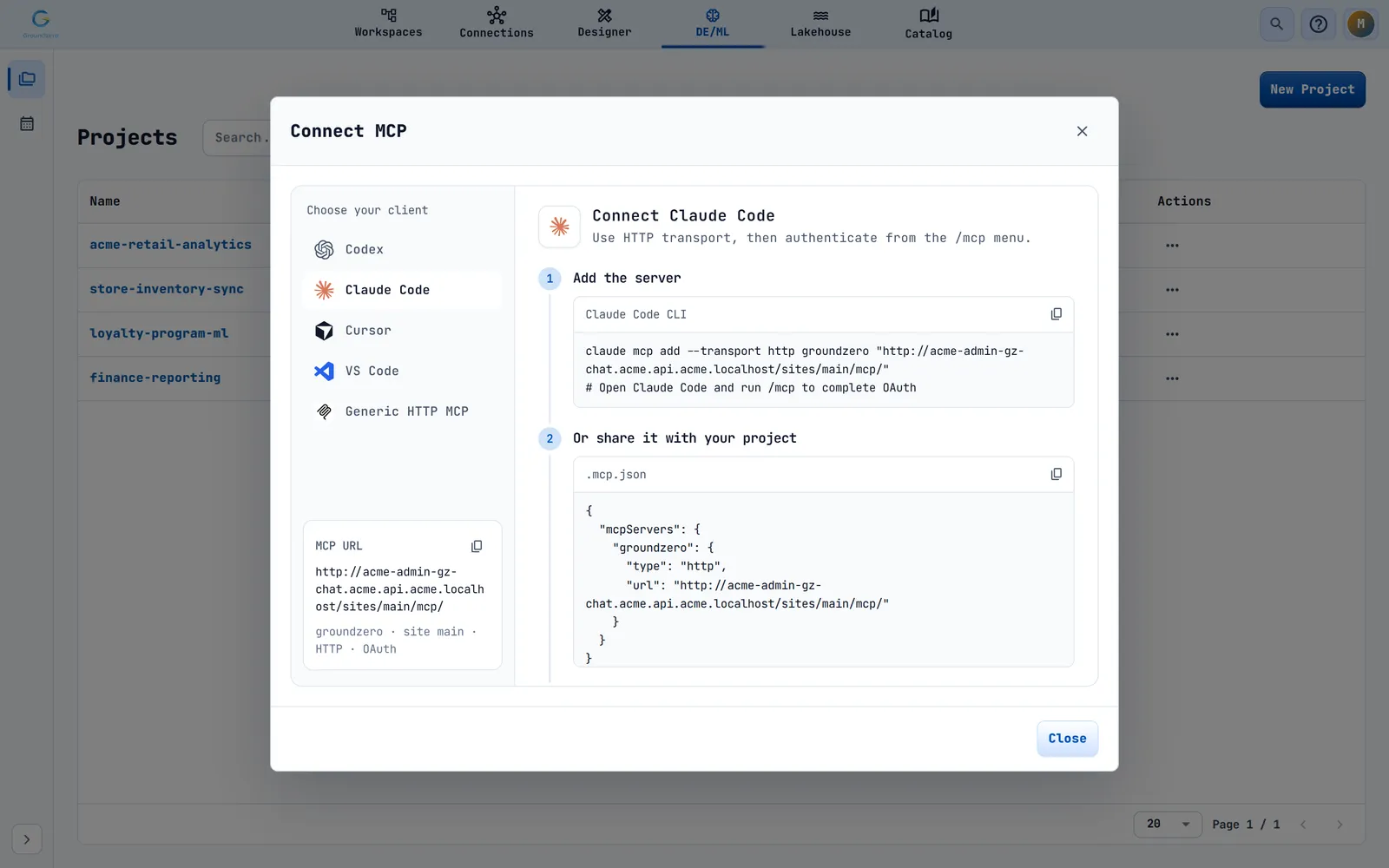
What happens next: Your browser asks you to approve access for the server named groundzero. Approve it, then try the first prompt the guide suggests: List the datasets I can access in Groundzero.
Note
The address in the screenshot is an example. The MCP URL box in your console shows the address of your site. Never share it together with a token.
What your assistant can do#
| Area | Examples |
|---|---|
| Projects and jobs | List projects and jobs, create them, save job code, run a job and read its logs |
| Connector syntax | Look up the right way to read from or write to a connection type |
| Notebooks | List, create, rename, delete, start and stop notebooks, write and run code, publish and import |
| Machine learning | List models, import published models, open MLflow, and list experiments, runs and registered models |
| Datasets and runtimes | List and read datasets, create and save them, list available runtimes |
Ask your assistant to list the Groundzero tools it can use, or to run several independent requests at once (up to 24).
Read and write access#
Actions that create, change, run, start or stop something, such as creating a job, saving job code, running a job, starting a notebook, running notebook code or publishing a notebook, need write access. Read-only actions, such as listing jobs, need only read access.
Tip
Ask your assistant to look up connector syntax before it writes job code. Do not ask it to batch requests that depend on each other's results.
Troubleshooting#
| Symptom | Fix |
|---|---|
| The client cannot sign in | Check that it supports OAuth over HTTP, and that the address ends with /mcp/ |
| A tool returns You do not have … permission | Ask an administrator for the permission on that resource |
| MCP write scope is required for tool: name | The client was approved for read only. Sign in again and approve write access |