
Datasets
A dataset is a saved, named result. You define it with a SQL query on a connection, or with Python code that runs on a runtime. Groundzero runs it when asked and shows the rows in pages. After this chapter you can build a dataset, run it, page through the results and save it for charts and dashboards to use.
Datasets live under Designer, then Datasets. Visualizations, filters and dashboards are built on datasets. This chapter covers the dataset itself.
| Use a dataset when | Use something else when |
|---|---|
| Charts and dashboards need to share a governed table | The work writes data somewhere. Use an ETL job |
| One SQL query, perhaps with a small Python step, gives you what you need | You are exploring. Use a notebook |
| You want to page quickly through up to thousands of rows | The data must be rebuilt on a schedule into a table. Use a job and the Scheduler |
Before you start, you need at least one connection. A SQL dataset on Standard needs no compute. A code dataset needs a runtime and a compute size.
Create a dataset#
- Open Designer, then Datasets.
- Select New Dataset.
- Type a name in Enter Name (same name rule as projects).
- Select Add, then open the new dataset from the list.


| Control | Meaning |
|---|---|
| Search Datasets | Filters by name as you type |
| Created By | Shows datasets of one user, or All users |
| Created On | Any time, Today, Last 7 days or Last 30 days |
| Columns | Name, Last Updated By, Last Updated On, Actions (Rename, Delete) |
Rename and Delete are in the row menu. A deleted dataset shows name deleted successfully. A failure shows Error deleting name.

Write and run a query#
By the end of this task you have rows on screen.
- Open the dataset.
- In the left drawer, open Connections and tick the connection to query. It shows its databases, tables and columns.
- On the Query tab, write your SQL. A table's menu in the drawer inserts the table name at the cursor.
- Leave the runtime picker on Standard, or choose another runtime (see below).
- Select Run. The button turns into a red Stop while it runs.
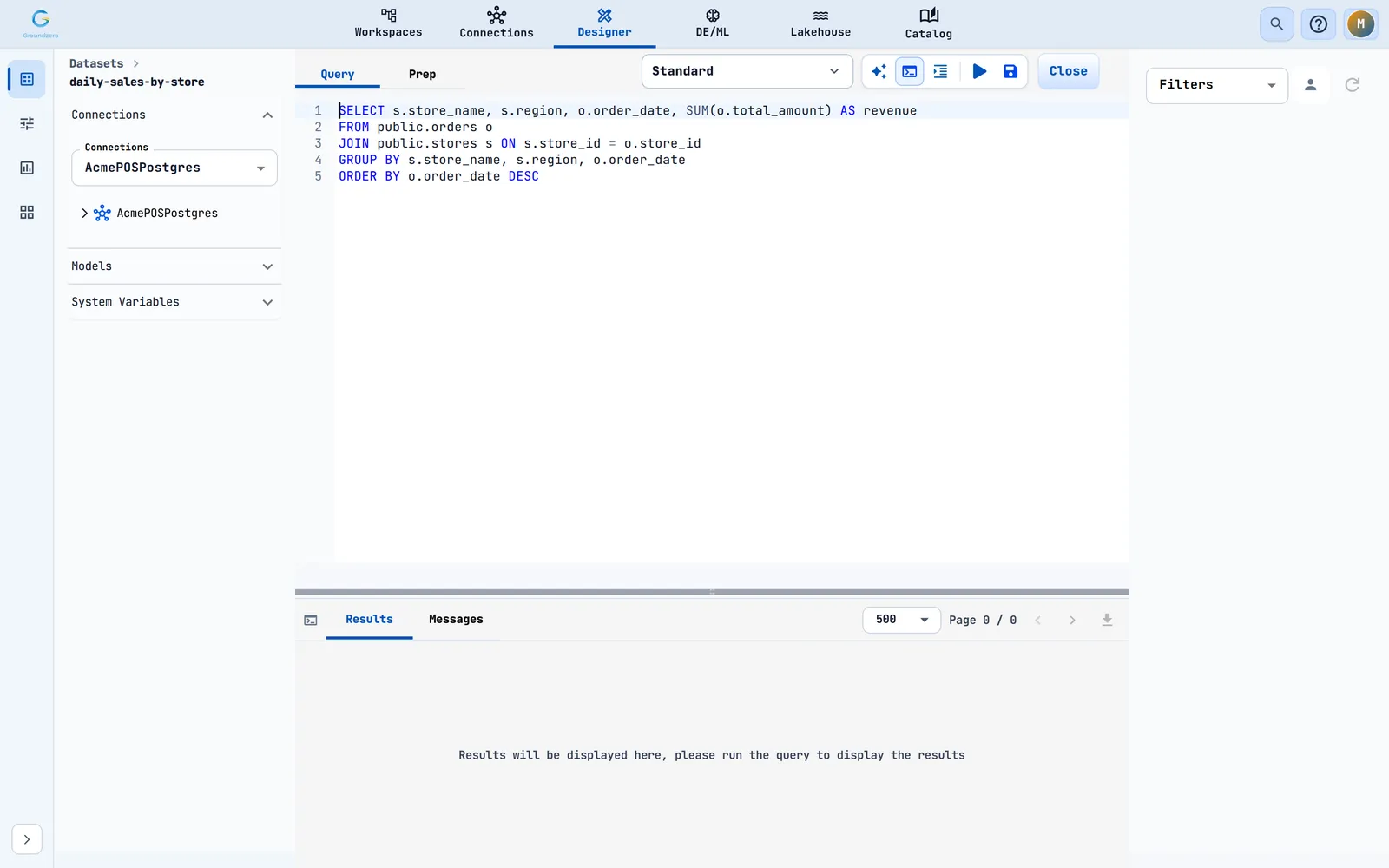
How to check it worked: The Results tab shows the response time, the row count and the rows, and Messages shows success. Run and Save stay greyed out until a connection is ticked.
| Area of the editor | Purpose |
|---|---|
| Connections | Pick one or more connections. A refresh icon on a connection reloads its tables |
| Models | Pick registered models to load into the dataset (see Models and MLflow). This makes it a code dataset |
| System Variables | ${SITENM}, ${CLNTNM}, ${RGN}, ${USR} and ${USRGRPS}. Select the copy icon beside one. You see ${NAME} copied to clipboard! |
| Query tab | SQL on the ticked connection |
| Prep tab | Python that turns the query result into the final result. The default, transformedData = rawData, passes the rows through unchanged |
| Runtime picker | Standard, or a runtime with a compute size |
| Assistant | The code assistant for this dataset |
| Output toggle, Format SQL, Run, Save, Close | Toolbar buttons. Format SQL shows only on the Query tab |
| Filters panel | Dataset filters and their values. See the Analyze, AI and Admin guide |

Choose between a SQL dataset and a code dataset#
The editor picks the mode from your connection and runtime.
| SQL dataset | Code dataset | |
|---|---|---|
| Tabs | Query and Prep | Prep only |
| Runtime | Standard | A runtime with a compute size |
| Connections | One SQL connection, or none | Several connections, or one that is not SQL |
| Page sizes | 50, 100, 500, 1,000 | 50, 100, 500, 1,000, 10,000 |
| Default page size | 500 | 10,000 |
Standard works with these SQL connections: SQL Server, PostgreSQL, MySQL, Oracle, Teradata, DB2, SAP HANA, Exasol, Snowflake, Redshift, Google BigQuery, Athena, Cassandra, Cosmos DB, Elasticsearch, TimescaleDB, Firebolt, SkySQL and GZ Lakehouse.
You get a code dataset when you choose another runtime, tick more than one connection, tick a connection that is not in that list, or pick a model. The Query tab then disappears, and your Prep code is the whole dataset.
Choose a runtime#
Open the runtime picker in the toolbar.
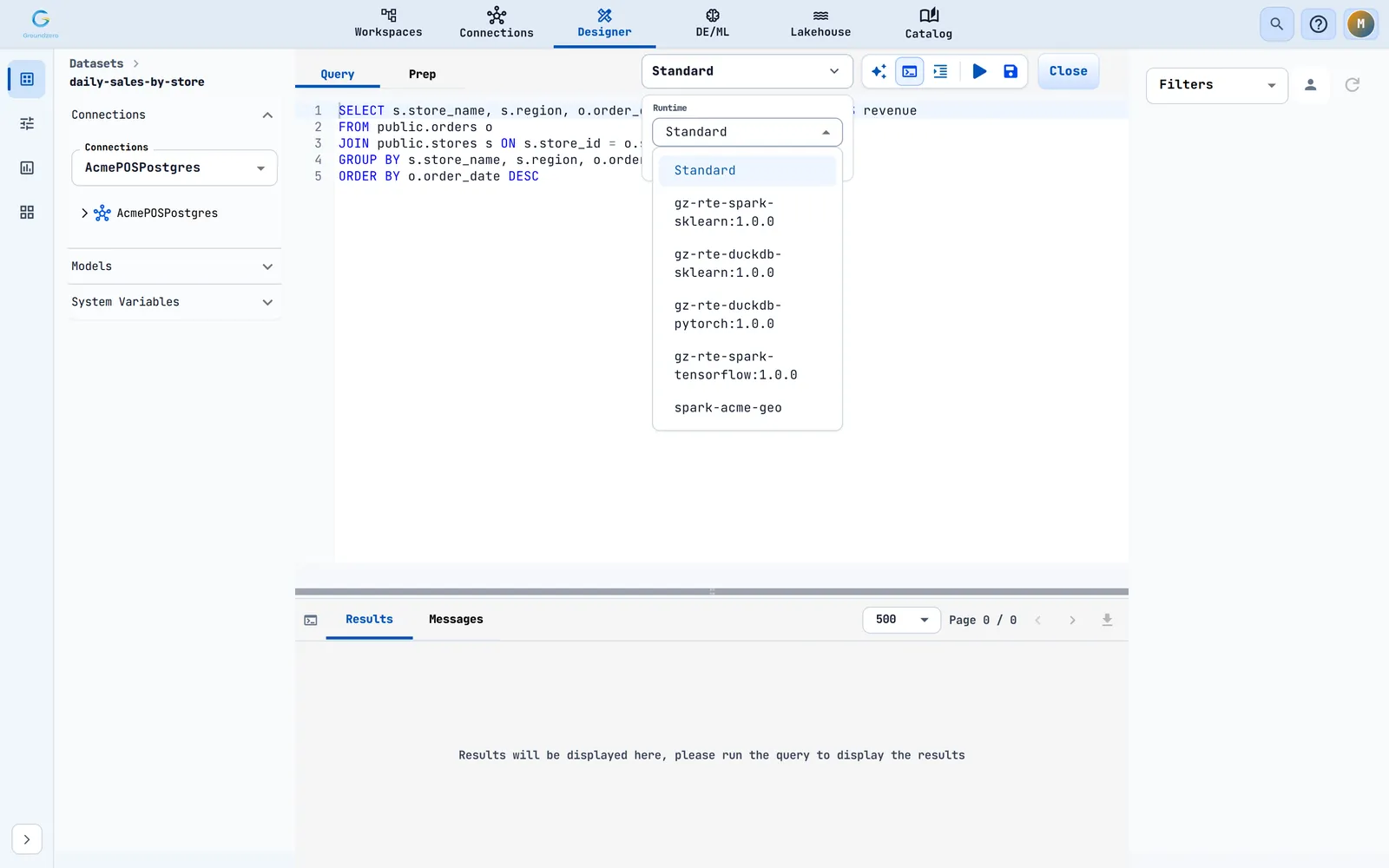
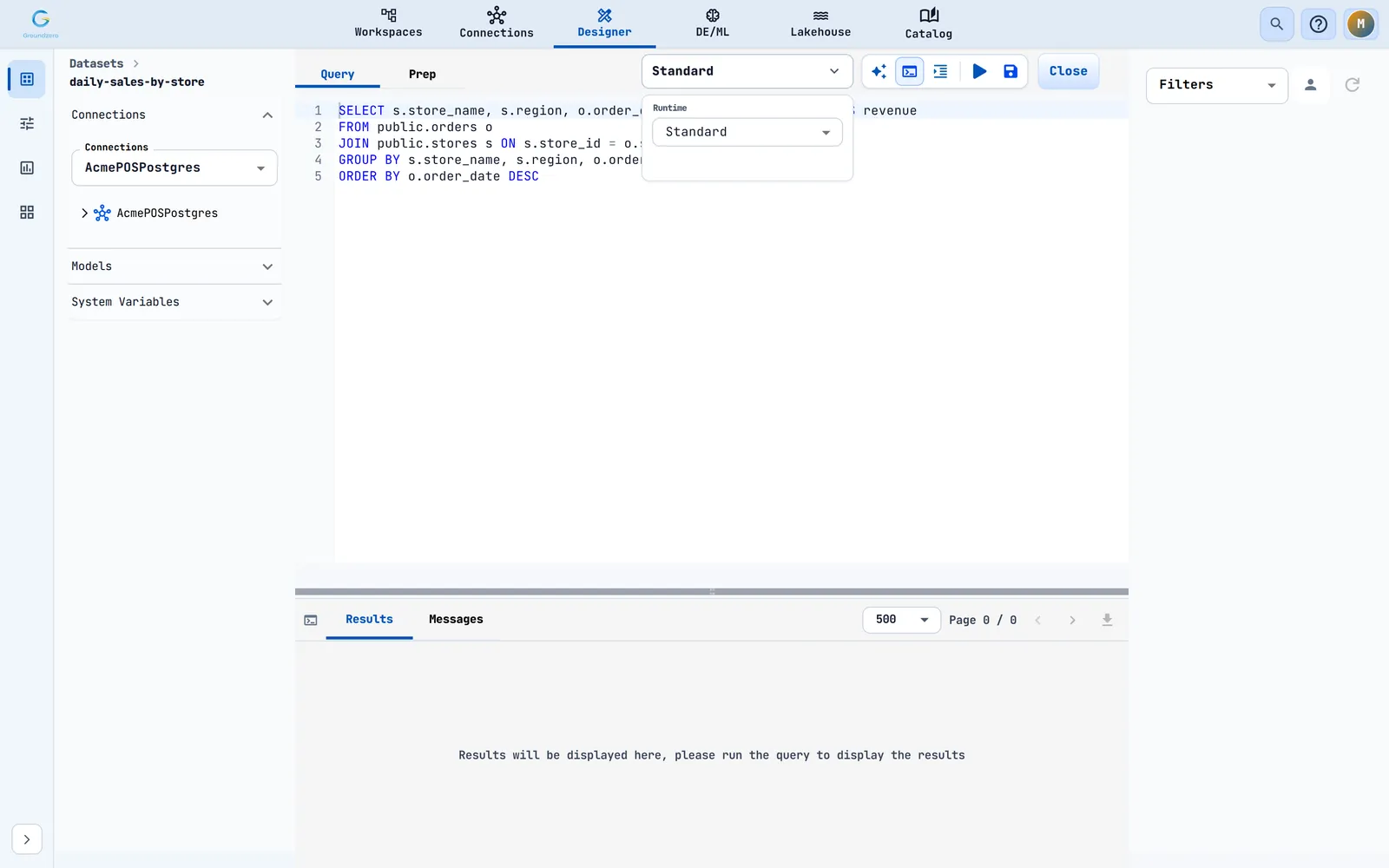
Standard has no compute list. Any other runtime shows Compute and, for Spark, Minimum Workers. See Runtimes and compute.
Read the results#

| Item | Meaning |
|---|---|
| Response | How long the request took. Reads Running with a spinner during a run |
| Row count | Total rows, for example 1248 rows |
| Page size | Rows per page |
| Page 1 / 3 with arrows | Move through pages |
| Download icon | Download current data as CSV saves the page you see. You see CSV downloaded successfully |
Each column header shows its name and data type. The Messages tab shows success or the error text, in red when it contains error, failed or not.
Change the page size#
Choose a size from the page-size list. Groundzero runs the dataset again from page 1. The next-page arrow works while more rows exist.

A code dataset shows at most 10,000 rows per page.
Get fresh results#
Groundzero keeps the result of an identical query and page in your browser for 10 minutes, so running it again within that time shows the stored result. Reload the page to start fresh.
Tip
Use the circular refresh arrow beside Filters to reload filter values. Use the refresh icon on a connection to reload its tables after a table changes.
Save a dataset#
Select Save. Groundzero saves the connections, queries, runtime, compute, minimum workers, GPU size, models and filters.
What happens next: You see Dataset updated. A failure reads Error occurred while updating.
Use filters in a query#
Filters you attach to a dataset put their values into your code as {{placeholder}} tokens. Before a run, the editor checks that every token has a value.
| Message | Cause | Fix |
|---|---|---|
| Select values for: {{region}} | A placeholder in the code has no filter value yet | Pick a value in the Filters panel |
| Select values for all filters before running the dataset | An IN clause has no values |
Pick values for every filter |
Troubleshooting#
| Message | Cause | Fix |
|---|---|---|
| Please select Connection | You ran with no connection | Tick one in the left drawer |
| Please select Compute | A runtime is chosen but no compute | Choose a Compute size |
| Please select RTE and Compute | Neither is chosen | Choose both |
| Connection details are not valid / The connection selected is not available | The connection was edited or removed | Pick another, or fix it on the Connections page |
| Error occurred while running the code | The run failed | Open Messages to read why |
| No SQL query to format / Unable to format this SQL query | Format SQL on an empty query or one that cannot be formatted | Write or fix the SQL |
| No data available to download | You downloaded CSV with no rows | Run the dataset first |
| The dataset session stopped responding before it took the run. Run the dataset again to start a new session. | The dataset session stopped | Run again |