
ETL jobs
An ETL job is Python code that reads data from your connections, transforms it and writes the result somewhere else. After this chapter you can create a job, run it, read its log, stop it, and share it with other projects.
Jobs live in a project, on the Jobs tab. A job can also run on a schedule (see Scheduling and run history).
Is a job what you need?#
| Use a job when | Use something else when |
|---|---|
| The work should run without you, on a schedule, or repeatedly with the same code | You are exploring data. Use a notebook |
| The result should be written to a lakehouse table, file store or database | You only need rows for a chart. Use a dataset |
| The work is too heavy for a dataset, such as Spark transformations or joins across sources | The data fits one SQL query. A dataset on Standard is quicker |
You need a project, at least one connection, permission to run ETL jobs and a compute size you may use. Jobs never run on Standard.
Create a job#
- In a project, open the Jobs tab and select New Job.
- Type a Job Title that follows the name rule.
- Select Add.

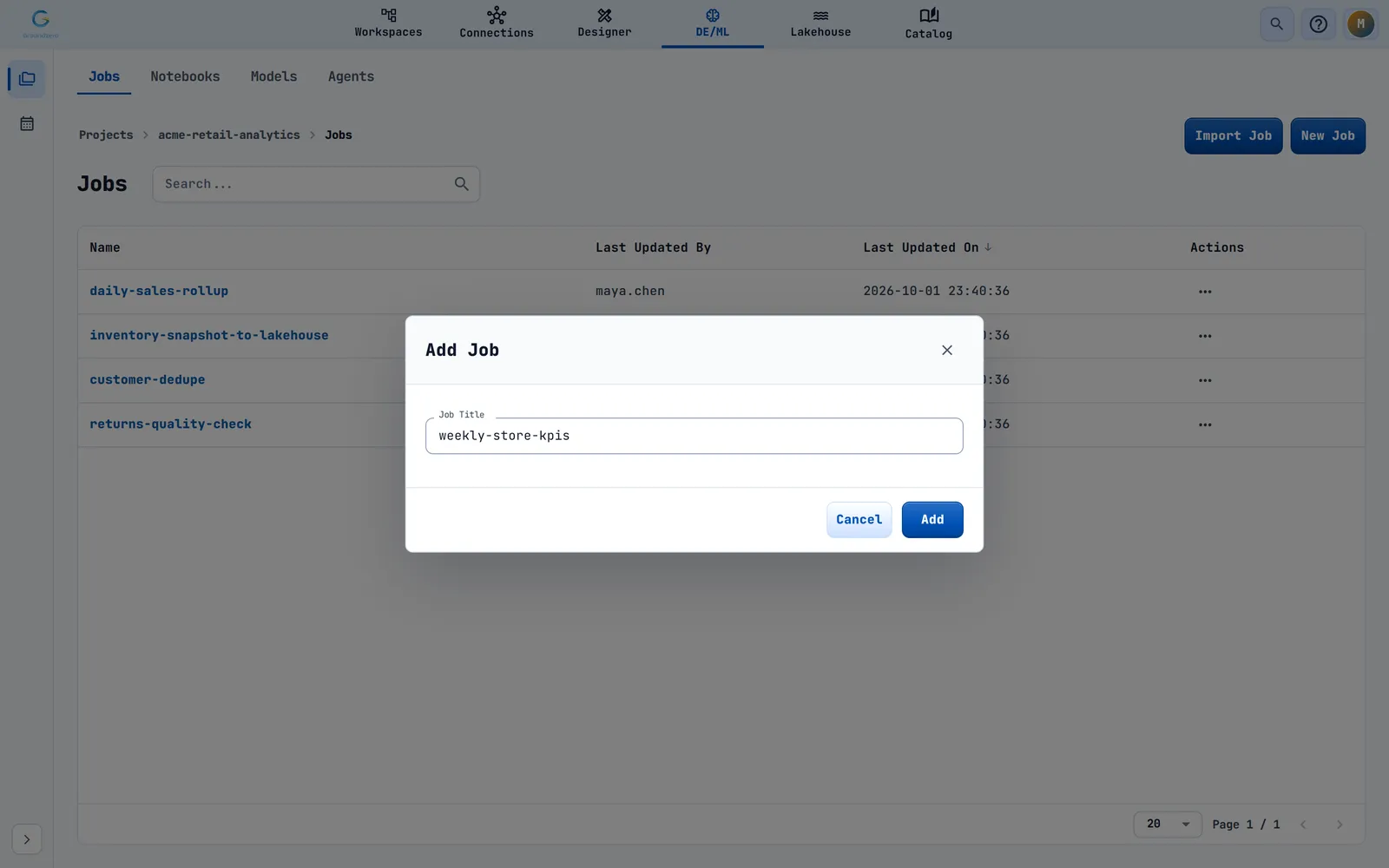
What happens next: You see Job Added successfully, and the job appears in the list. Select its name to open the editor.
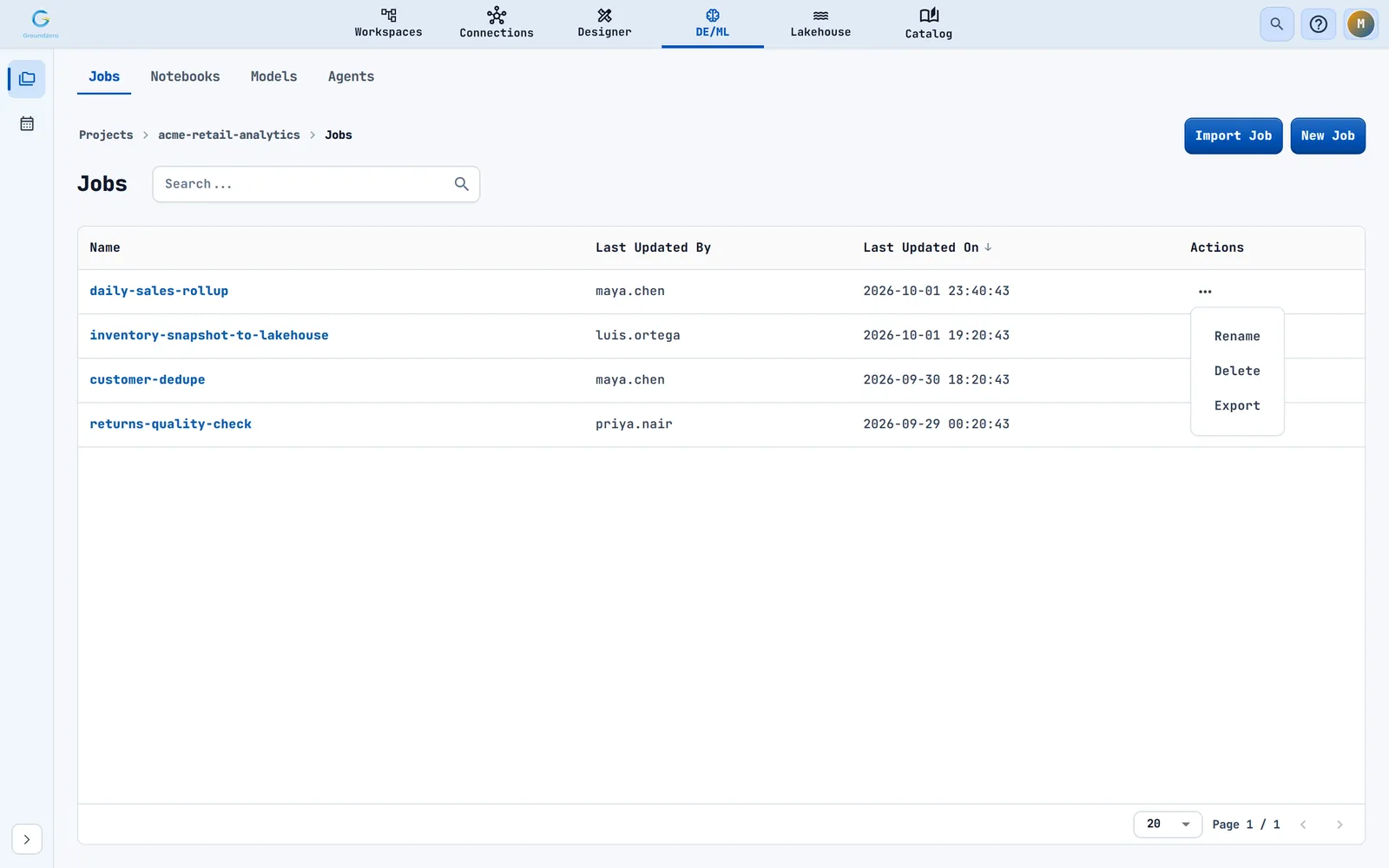
The list shows each job's name, who saved it last and when. The row menu has Rename (Job renamed successfully), Delete (Job deleted successfully) and Export.
Write and run a job#
By the end of this task your job has run and you have read its log.
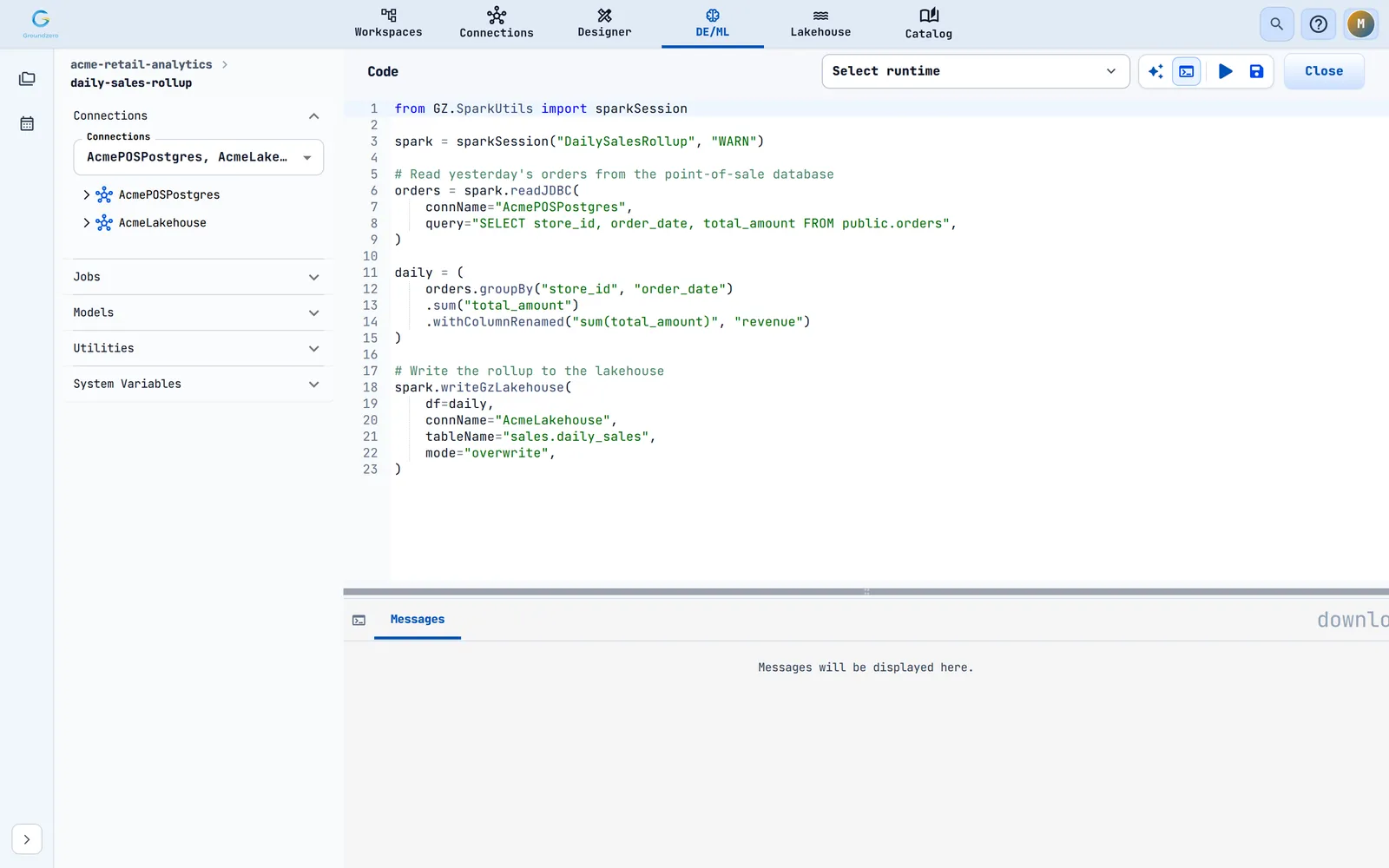
- Select the job name to open the editor.
- In the left drawer, open Connections and tick the connections the job uses. Your code can use only the connections you tick.
- Write your code (see the examples below). The editor suggests connection, database, table and column names as you type.
- Open the runtime picker and choose a Runtime and Compute size. See Runtimes and compute.
- Select Run. Groundzero saves the job first. If the save fails, nothing runs.
- Watch the Messages pane. It fills with log lines while the job runs.
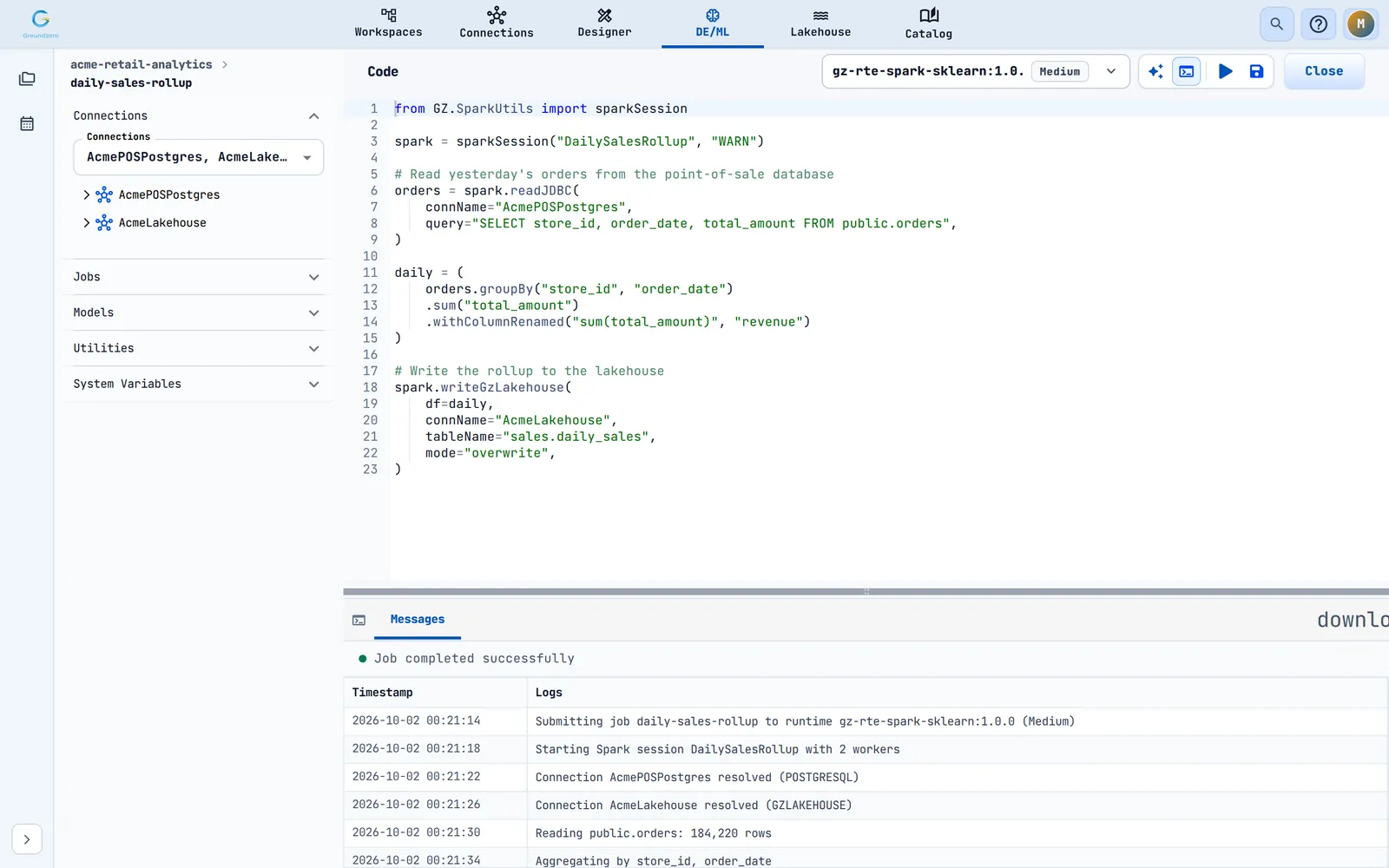
How to check it worked: The message ETL job submitted successfully appears, and the log ends with Job completed successfully. If it ends with Job failed. Check the logs for the cause., read the last log lines.
Tip
Tick only the connections the job actually uses. The ticked connections are saved with the job and decide which connections your code can reach.
The editor toolbar#
| Control | What it does |
|---|---|
| Runtime picker | Opens the Runtime, Compute and GPU Size panel |
| Assistant (sparkle icon) | Opens the code assistant for this job. Type @logs to hand it the latest log lines. See the Analyze, AI and Admin guide |
| Output pane toggle | Shows or hides the Messages pane |
| Run (play icon) | Saves, then starts the job. While a run is active the icon turns into a red Stop |
| Save (disk icon) | Saves code and settings. Greyed out while the code is empty. You see Job saved successfully |
| Close | Returns to the project |
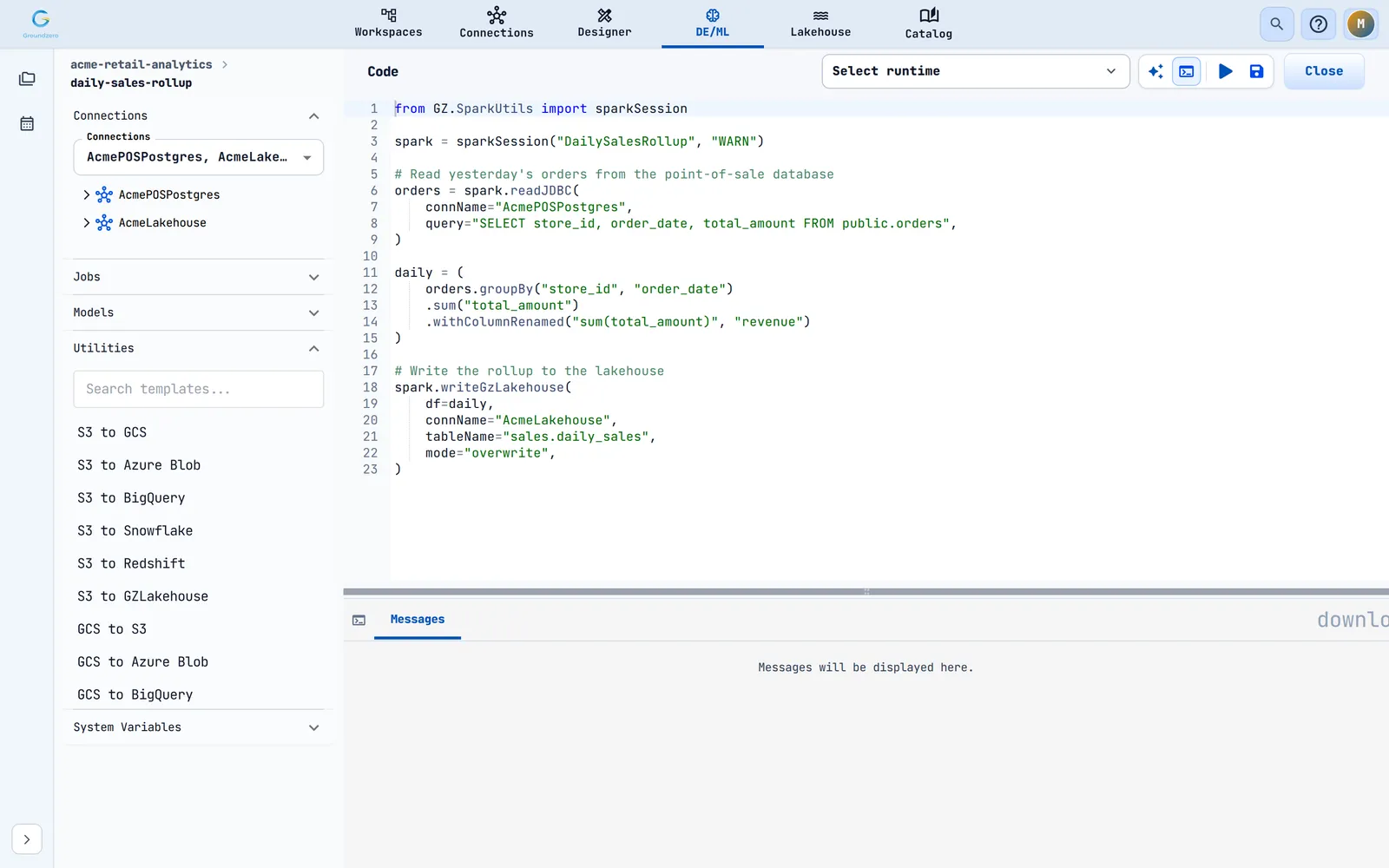
The left drawer#
| Section | Use it to |
|---|---|
| Connections | Tick the connections to use. Each one shows its databases, tables and columns |
| Jobs | Pick other jobs from the same project to run together with this one (sub-jobs) |
| Models | Pick registered models to load before your code starts |
| Utilities | Search ready-made code templates. Hover over one and select the copy icon. You see Template name code copied to clipboard! |
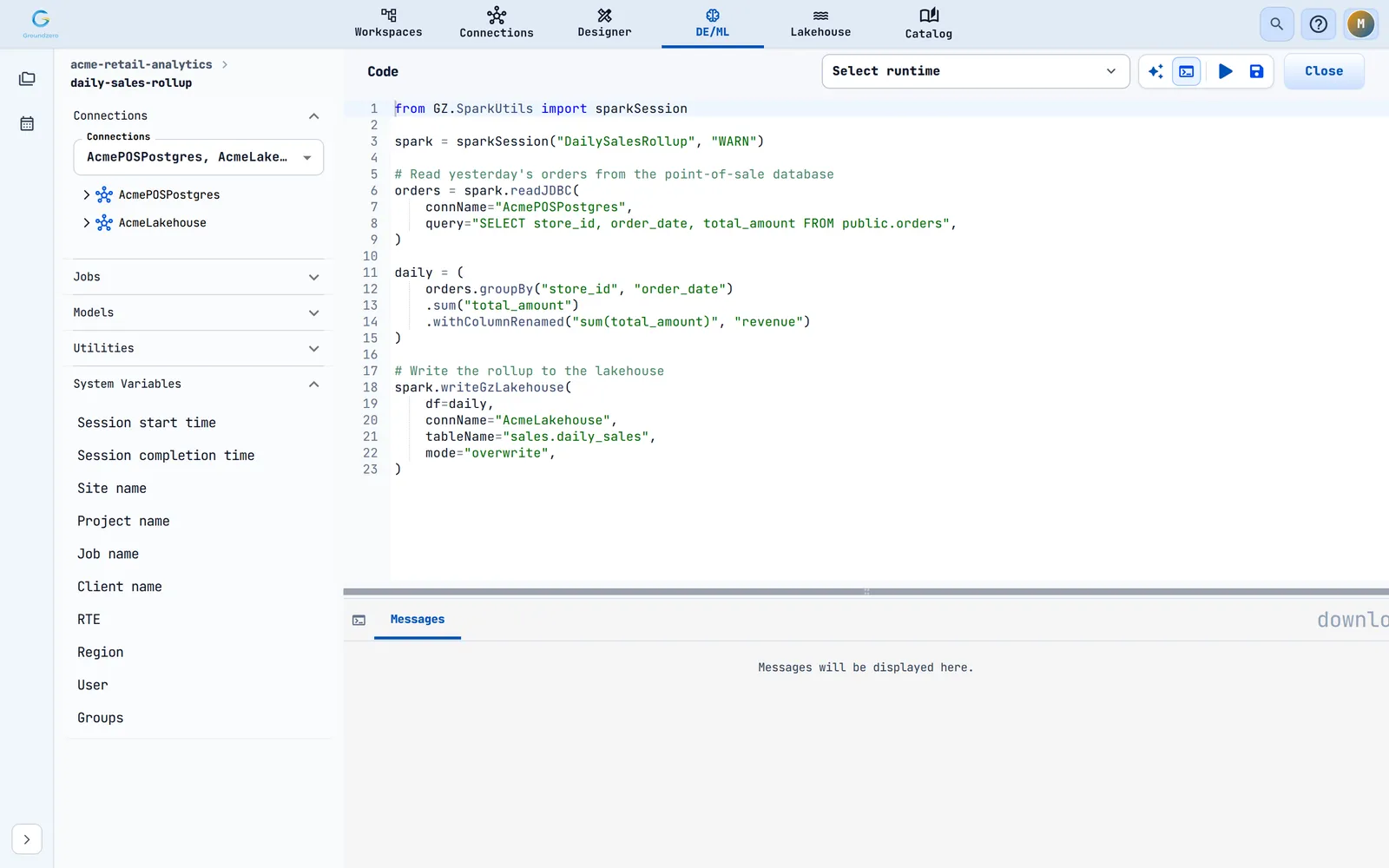
| System Variables | Copy placeholders to paste into code. You see ${NAME} copied to clipboard! |
Write job code#
Every job starts by creating a session, then reads, transforms and writes through the connection names you ticked.
A Spark job#
from GZ.SparkUtils import sparkSession

spark = sparkSession("DailySalesRollup", "WARN")

orders = spark.readJDBC(
    connName="AcmePOSPostgres",
    query="SELECT store_id, order_date, total_amount FROM public.orders",
)

daily = (
    orders.groupBy("store_id", "order_date")
    .sum("total_amount")
    .withColumnRenamed("sum(total_amount)", "revenue")
)

spark.writeGzLakehouse(
    df=daily,
    connName="AcmeLakehouse",
    tableName="sales.daily_sales",
    mode="overwrite",
)
sparkSession(appName, logLevel="WARN") returns a Spark session with extra methods that read from and write to your connections. Give it a meaningful application name.
A DuckDB job#
from GZ.DuckDBUtils import duckSession

session = duckSession()
sales = session.readGzLakehouse(
    connName="AcmeLakehouse", tableName="sales.daily_sales"
)
session.register("sales", sales)
top = session.query("SELECT store_id, SUM(revenue) AS r FROM sales GROUP BY 1")
result_df = top.df()
Read and write other systems#
Each connection type has its own read and write methods. You pass the connection name as it appears on the Connections page, never a password.
| Connection | Read | Write or run |
|---|---|---|
| Amazon S3 | readS3(connName, fileName, format="parquet", schema=None, options=None) |
writeS3(df, connName, filePath, format, mode, options=None, coalesce=False) |
| JDBC databases (PostgreSQL, SQL Server, MySQL, Redshift) | readJDBC(connName, query, options=None) |
writeJDBC(df, connName, tableName, mode, options=None); executeJDBC(connName, query) |
| Snowflake | executeSnowflake(connName, query, options=None) |
writeSnowflake(df, connName, tableName, mode="append", extraOptions=None); executeSnowflakeStatement(connName, statement) |
| Google BigQuery | executeBigQuery(connName, tableName, query=None) |
writeBigQuery(df, connName, tableName, writeMethod, mode) |
| Kafka | readKafka(...) |
writeKafka(...) |
| REST | readREST(...) |
writeREST(...) |
| GZ Lakehouse | executeQuery(connName, sqlQuery, siteName=None) |
writeGzLakehouse(df, connName, tableName, database=None, mode="overwrite", partitionBy=None, options=None, . |
Common DuckDB session methods are readGzLakehouse(connName, tableName), readS3File(connName, bucketName, filePath, fileType), register(name, relation) and query(sql). Call .df() on a result to get a pandas DataFrame.
Not sure of the exact syntax? Open Utilities in the left drawer. It has templates for moving data between S3, GCS, Azure Blob, BigQuery, Snowflake, Redshift and GZ Lakehouse, such as S3 to GZLakehouse and Snowflake to S3. Replace each {{PLACEHOLDER}} value and any optional parameters in the comments. You can also ask the code assistant, or your MCP client, to look up the syntax for a connection type.
Note
Template placeholders such as {{S3_CONNECTION_NAME}} are for you to edit before you save. They are not system variables.
Use system variables#
System variables are placeholders in the form ${NAME}. Groundzero fills them in just before your code runs.
| Placeholder | Value |
|---|---|
${STRTTM} |
Session start time |
${ENDTM} |
Session completion time (set when the code reaches that line) |
${SITENM} |
Site name |
${PRJNM} |
Project name |
${JOBNM} |
Job name |
${CLNTNM} |
Client name |
${RTE} |
Runtime name |
${RGN} |
Region |
${USR} |
User who started the run |
${USRGRPS} |
The user's groups |
Warning
Each placeholder is replaced by text that already has single quotes around the value, so you can drop it straight into a SQL statement. For example ${USR} becomes 'maya.chen'. If you need the bare value, remove the quotes in your code.
What your code may not do#
Job code runs in a protected space on the Spark and DuckDB runtimes. This keeps credentials safe.
| You cannot | What you see | Do this instead |
|---|---|---|
Import network and system modules such as socket, urllib, http, ssl, smtplib, asyncio, threading, multiprocessing, pickle, shutil, pathlib, glob or sqlite3 |
Import of 'name' is not allowed for security reasons | Reach outside systems through a connection (REST, S3, a database) |
| Read secret environment variables | The values are hidden | Keep secrets in a connection |
Read or write files outside /tmp, /home/workspace and /home |
Access to 'path' is restricted | Write to /tmp or to a connection |
Call os.system-style functions or sys.exit() |
… is not allowed for security reasons | Let the script end normally |
Run jobs together#
Run other jobs along with this one#
- Open Jobs in the left drawer.
- Pick other jobs from the same project.
- Select Run.
Groundzero runs the picked sub-jobs together with the main job and gives each its own saved connections. A run can include up to 255 sub-jobs, and each job can appear once. This needs a Spark, DuckDB or pandas runtime. Otherwise the run fails with Invalid RTE for orchestration.
Load models#
Open Models in the left drawer and pick registered models. They are loaded before your code starts. See Models and MLflow.
Read the log and stop a run#
The Messages pane shows lines about once a second while the job is logging. The download icon above the pane saves the log lines.
| You see | What it means | What to do |
|---|---|---|
| Job completed successfully | The run finished with status Success | Nothing |
| Job failed. Check the logs for the cause. | The run failed | Read the last log lines |
| Job was aborted / Job aborted successfully | The run was stopped | Run again if you want it to finish |
| Reconnecting… | A log request failed. Groundzero is trying again | Wait |
| Log streaming stopped after 2 minutes without a response. The job may still be running. | The retries did not succeed | Select Resume log streaming |
| No new logs for 15 minutes. The job may still be running. | The run is quiet | Select Resume log streaming |
| The run could not be found. | Groundzero has no record of the run | Run the job again |
| Reconnected to the running job | You reloaded the page and Groundzero picked the run up again | Nothing |
To stop a run, select the red Stop icon. Job aborted successfully confirms it. If a run cannot be stopped, a message gives the reason.
Tip
If you close the browser while a job runs, open the job again. Groundzero picks up the run and carries on showing the log.
If the run does not start#
| Message | Cause | Fix |
|---|---|---|
| please select Compute | No runtime and compute chosen | Choose both in the runtime picker |
| please select connection | No connection ticked | Tick a connection in the left drawer |
| Failed to save job | The save did not work, so the run did not start | Try again |
| Failed to run job | The run could not be started | Try again. If it keeps failing, contact an administrator |
| Invalid parameters | The run request was incomplete, for example no compute | Choose a runtime and compute |
| Invalid RTE. | The chosen runtime cannot run jobs | Choose a Spark or DuckDB runtime |
Share a job#
Published jobs form a shared library for your site.
Publish a job#
- In the Jobs list, open the row menu and select Export.
- If no published job has that name, you see name exported successfully.
- If one exists, the Override Export dialog asks whether to replace it. Choose Override to replace it, or cancel.
Import a job#
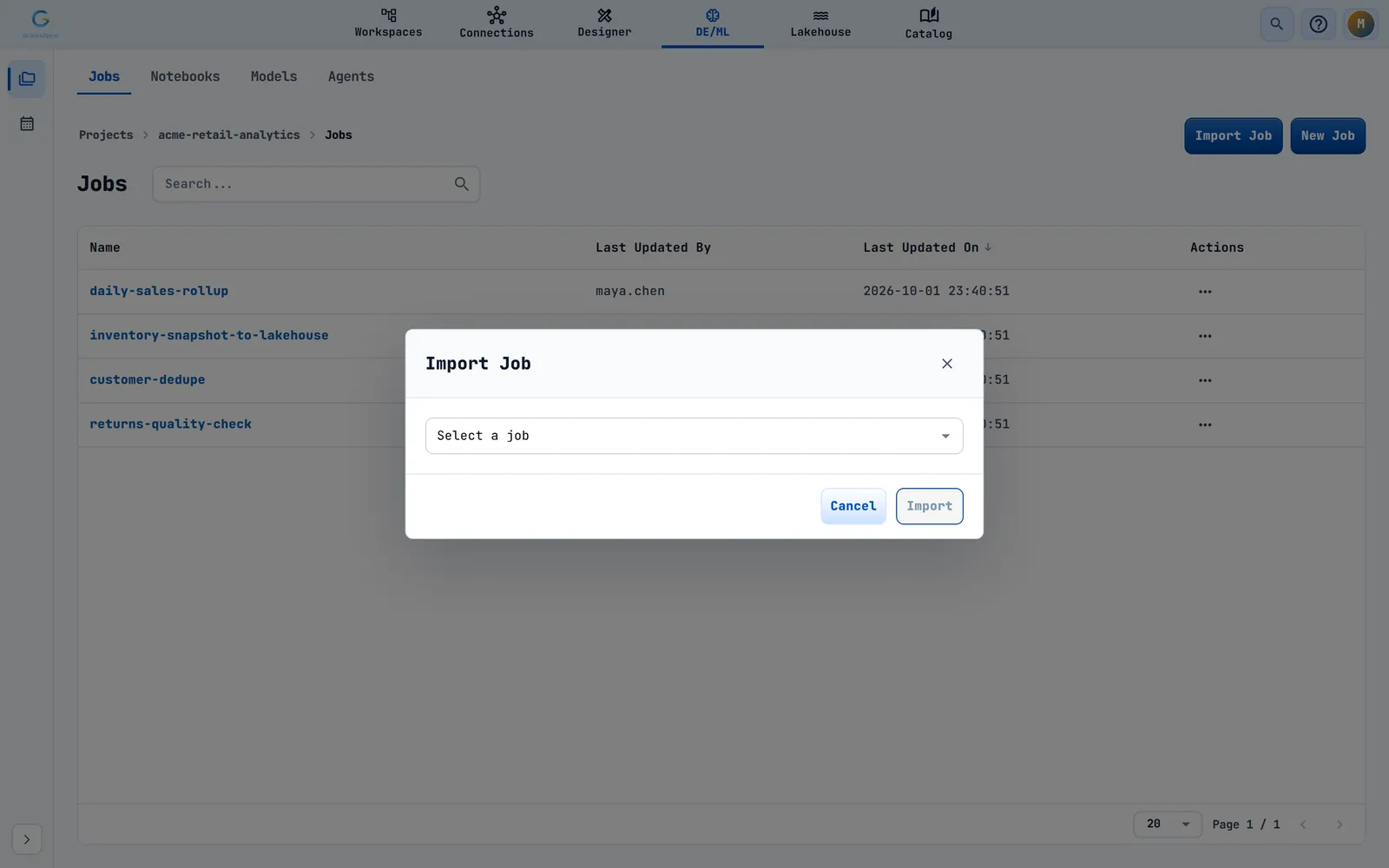
- On the Jobs tab, select Import Job.
- Choose a published job in Select a job and select Import.
- If your project already has a job with that name, the Job Name Conflict dialog offers Replace, Keep Both (adds a timestamp to the new name) and Cancel.
Administrators can review and delete published jobs, and import them across sites, in the admin console.
Troubleshooting#
| Symptom | Cause | Fix |
|---|---|---|
| The log table stays empty after Run | The runtime is still starting | Wait. The pane reads Running job… until lines arrive |
| Import of 'x' is not allowed for security reasons | The code imports a blocked module | Use a connection instead |
| The job cannot see a table | The connection is not ticked, or its tables have not loaded yet | Tick the connection and wait for its tables to appear |
| A run says Success but a table is missing | The write used mode="append" or a different tableName than you checked |
Check tableName and mode |