
5. Sites, theme and logo
A site is a separate workspace with its own data, users, theme and budgets. Use Sites to create sites and give each one its own look.
Open Sites in the side menu.

Columns are Name, URL, Created Date, Status (Active or Inactive) and Actions (Upload Logo, Choose Theme, Upload Background Image, Delete Site). The admin site cannot be opened or deleted.
Create a site#
Outcome: a new site with its own address and user group.
- Choose Add Site.
- Type a Site Name. Use letters, numbers and hyphens.
- Choose Add. Groundzero sets up everything the site needs, including its address and a user group with the site's name.
How to check it worked: the site appears in the list. The row may be incomplete at first, so reload the page to see its URL.
If the name is taken, or setup fails, you see "Error while adding a site" or another error message.
What next: add people to the site (chapter 2), give them access (chapter 4) and set a theme and logo (below).
Choose a colour theme#
Outcome: buttons, selected navigation and focus rings on that site use your colour.
- On the site's row, open Actions and choose Choose Theme.
- Pick one of the 12 swatches: default, orange, blue, green, red, purple, yellow, gray, teal, pink, cyan or brown.
- Choose Save. The toast says "Theme updated successfully to <code>".
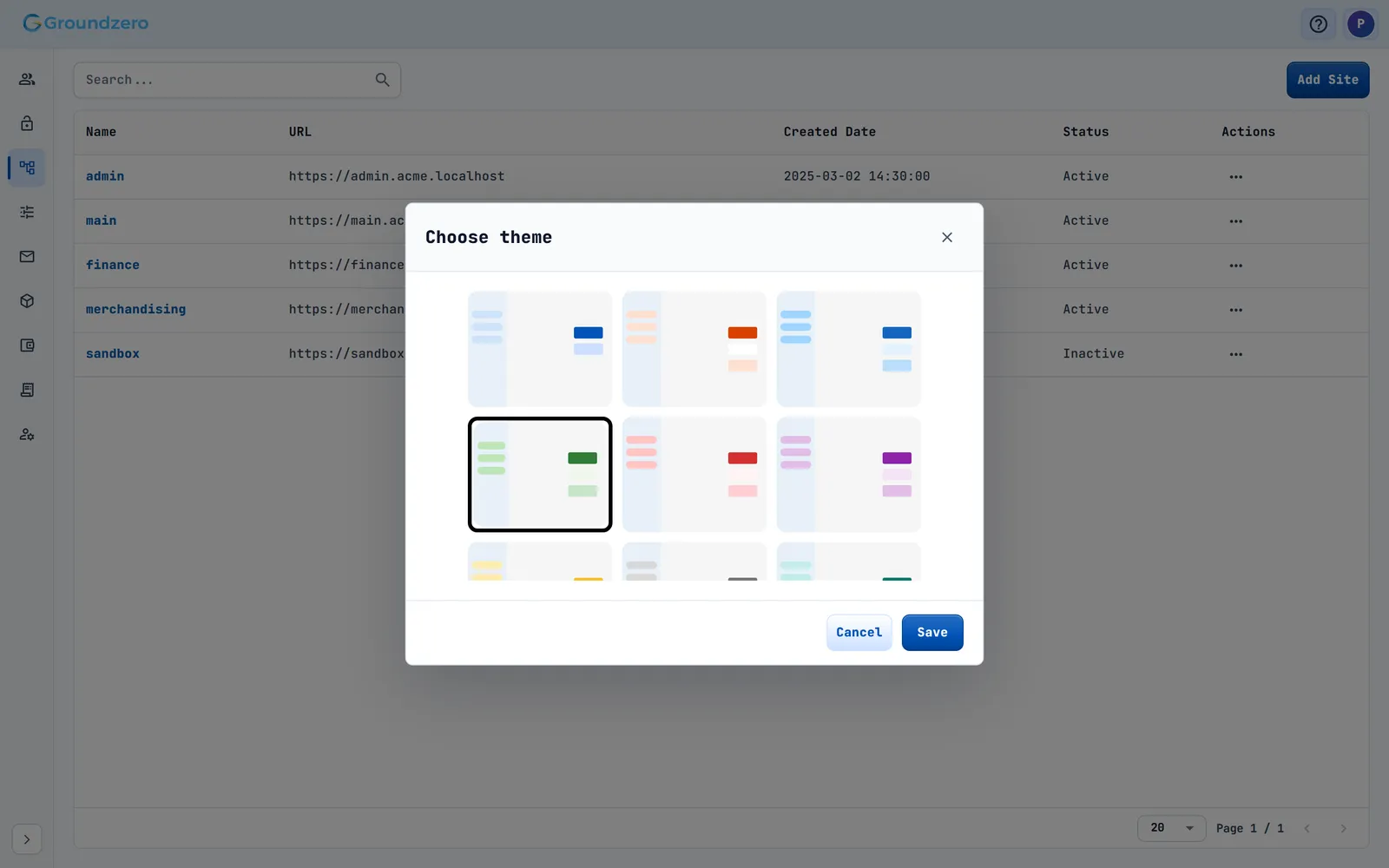
The theme applies to everyone on that site.
Add a logo and a background image#
- On the site's row, open Actions and choose Upload Logo or Upload Background Image.
- Choose a file and check the 100 by 100 preview.
- Choose Save.
| Image | File types | Where it appears | Size |
|---|---|---|---|
| Logo | JPG, PNG, SVG | The header of the site (up to 240 by 44 pixels). Without one, the Groundzero logo shows | Up to 240 by 44 pixels |
| Background image | JPG or PNG | The sign-in and two-step-verification pages | At least 1280 by 720, best 1920 by 1080 |
The toasts say "Logo uploaded successfully" or "Image uploaded successfully". If it fails: "Upload failed".
Make runtime images available to a site#
Choose a site's name (not admin) to open Site settings, which has an RTE tab. Add RTE opens a two-pane list of runtime images you can make available to that site. See the Build and Run guide.
Delete a site#
- On the site's row, open Actions and choose Delete Site.
- Confirm
Are you sure you want to delete site "<name>"?
The site becomes Inactive and its address stops working. Its data is kept.
Warning
People on an inactive site can no longer reach it. Confirm with the site's owners before you delete it.
Troubleshooting#
- The new site's row has no URL. Cause: the row was not complete when it was added. Fix: reload the page.
- "Error while adding a site". Cause: a site with that name may already exist. Fix: choose another name, using only letters, numbers and hyphens.
- "Upload failed". Fix: check the file type and size against the table above, and try again.