
5. AI agents
An AI agent is a saved assistant with one fixed job. You give it instructions, a model and a set of tools. After a reviewer approves a version, your own systems can call the agent over the internet using a client token. Agents live inside a DE/ML project and use that project's data tools.
Decide between chat and an agent#
| Use chat when | Use an agent when |
|---|---|
| You are exploring interactively | The task repeats and must behave the same way each time |
| You want the assistant to decide as it goes | You need a narrow tool set, approvals and a recorded history |
| Only you use it | Other systems or customers call it |
Before you start:
- Your administrator controls access with permissions on Agent: List, Create, Read, Modify, Delete, Invoke and Approve (Administration guide, chapter 4). A refused action shows
You do not have "All" or "<Action>" permission on GZ Agent. - Creating an agent needs an AWS S3 connection to store its conversation history. If you want a model other than the built-in Groundzero models, you also need an LLM connection.
Find your agents#
- Open DE/ML in the top navigation and choose a project.
- Choose the Agents tab (next to Jobs, Notebooks and Models).
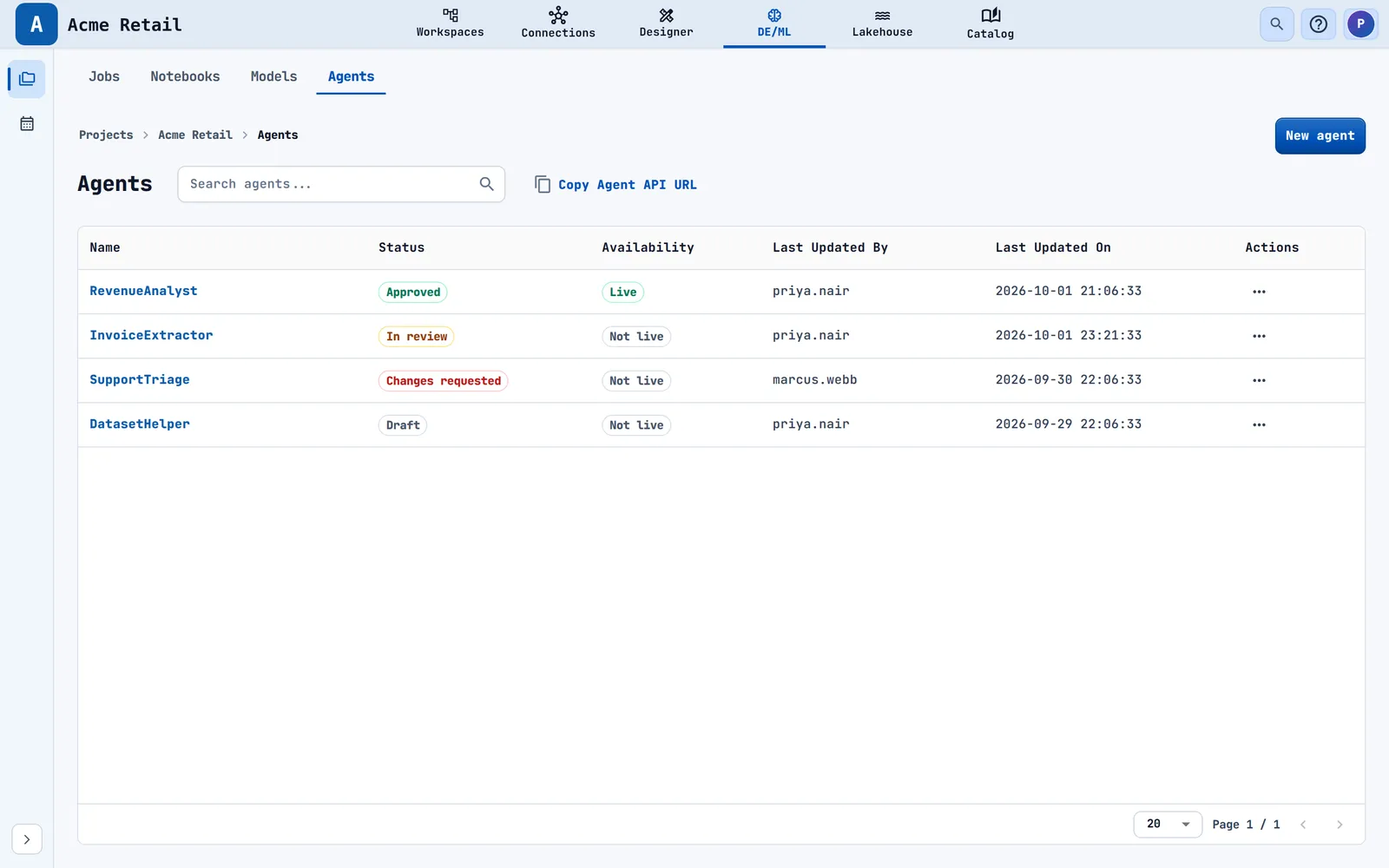
Agents belong to the project they were created in. The list has a search box (Search agents..., by name or model), New agent and Copy Agent API URL. The columns are:
| Column | Meaning |
|---|---|
| Name | A link to the edit page |
| Status | Draft, In review, Approved or Changes requested |
| Availability | Live when an approved version is being served to callers, otherwise Not live |
| Last Updated By / On | Who saved last, in your local time |
| Actions | Row menu |

The row menu has Edit & test, View details, Copy agent ID, Review request (only for an In review agent, and only if you may approve) and Delete. Delete asks "Delete <name>? This action cannot be undone." and shows the toast "Agent deleted".
Build an agent#
Outcome: a saved draft agent you can test.
Choose New agent. The builder has six steps, and a guide panel on the right explains each one. Nothing is saved until the last step.
Step 1: Identity#

| Field | Rules |
|---|---|
| Name (required) | Starts with a letter, then letters, numbers, _ and -, up to 100 characters. Names are unique across the site. A clash shows "An agent named '<n>' already exists" |
| Description | Optional, up to 500 characters |
| Agent instructions (required) | Up to 100,000 characters. Describe the job, the inputs, the workflow, the evidence needed, the boundaries and the expected output |
Tip
Write instructions as you would brief a new colleague: what the job is, what they get, what good looks like and what they must never do.
Step 2: Model and behaviour#

- Model: Groundzero models (the default is marked) and one group per saved LLM connection. If a saved model is gone it shows "unavailable".
- Business context: Latest published (uses the current definitions on every run), Pinned release (one fixed release, with an Ontology model choice) or Off. For latest, When business context is unavailable is "Continue with a warning" or "Stop the run".
- Runtime controls:
| Control | Range and default |
|---|---|
| Context management | Automatic (recommended) or Recent messages only |
| Temperature | 0 to 1, default 0 |
| Top P | 0 to 1, blank for the model default |
| Max tokens | 1 to 100,000 and not above the model's limit, default 4096 |
| Max turns | 1 to 300, default 300 |
| Memory window | 4 to 200 messages, default 40 |
Temperature and Top P are disabled for models that do not support them.
Step 3: Tools and resources#

- History S3 connection (required): the AWS S3 connection that stores conversation history. If you have none, the step says "Create an AWS S3 connection before saving this agent." Leaving it empty shows "Choose an AWS S3 history connection."
- MCP connections: up to 10 of your saved MCP connections.
- Tool catalog: search with Filter tools and pick up to 50 of the 38 built-in tools, grouped as Connections, Datasets, Data provider, Visualization, Dashboard, Filter, ETL and Documents. Tools that change things carry an amber Elevated chip.

Elevated tools are the ones that create or save datasets, query a data provider, create projects, create or save jobs and submit ETL jobs. When you select one, Require approval is switched on by default.
The tool S3 Document Reader needs a PDF source S3 connection (the bucket). In each message you give the exact object key of the PDF or image. Folders are not read. Prepared PDF Reader never pauses for approval.
Step 4: Governance#

All four cards are optional.
| Card | What it does |
|---|---|
| AI governance | Switch Enable AI governance, then Configure AI governance: Risk tier (low to critical), Accountable owner (a site user), Data classification (Public, Internal, Confidential, Restricted), Evidence retention (1 to 3,650 days), Intended use, Affected populations, Known limitations, Jurisdictions, Regulatory scope, and advanced controls (prohibited uses, denied tools, blocked terms, maximum tool calls, required evaluations) |
| PII redaction | Replaces detected personal data with typed placeholders before the model, tools, history or response can see it. 23 detectors (for example email, phone, credit card, IBAN, several national IDs) and up to 10 custom patterns |
| Content guardrails | Blocks Prompt injection, Toxic language, and Credentials and secrets, plus up to 20 restricted topics and 100 blocked phrases. A blocked run returns "This content was blocked by the agent guardrails." |
| Tool approval | One Require approval switch per selected tool. A paused run waits until the person running the agent approves or denies |
Step 5: Response#

Choose a Response format: Text, or Structured JSON, which makes every successful run return checked JSON. For structured output you can describe the result in words (What should the agent return?) and choose Generate contract, then review the fields or edit the JSON. If you ask for a change, the button becomes Refine. A failed request keeps your current contract.
Step 6: Review and create#

Review the summary cards (the pencil icon jumps back to a step) and choose Create agent. The toast says "Agent created as a draft". The agent's edit page opens.
If you leave with unsaved changes, Groundzero asks "Discard unsaved changes?".
Test an agent#
Outcome: you see how the agent behaves before anyone else can use it.
The Test agent panel runs the saved agent with real tools and billable tokens. It is locked until the agent exists ("Create this agent before testing.") and again after you edit ("Save your changes before testing.").
- In Test prompt type a request. Press Cmd or Ctrl+Enter to run.
- Leave Stream response ticked to see text as it arrives.
- Choose Run test. Use Stop to cancel a streaming run.

If the agent calls a tool that needs approval, the run pauses with Waiting for your decision and a preview of the input. Choose Approve or Deny. Approved calls run once. Denied calls are cancelled and the agent is told they did not run.

The reply shows chips for Governance, Safety and Evaluation, and Run details: tokens, cache reads and writes, duration, steps, tool calls and estimated cost. A test does not remember earlier tests.
Get a version approved and live#
Saving creates a new version, and every new version needs approval before callers get it.
- Open the agent and choose Submit for approval. The button is disabled while you have unsaved edits and reads Awaiting approval once submitted.
- A reviewer with the Approve permission opens the project's Agents list and chooses Review request on the row.

- The reviewer reads the version (model, tools, guardrails, governance and instructions) and chooses Approve this version or Request changes. A comment is required when requesting changes (up to 1,000 characters).
What happens next: an approved version makes the agent Live. Later saves create a new draft, and callers keep getting the last approved version until the new one is approved. When changes are requested, the builder shows the reviewer's note as Admin feedback. Fix the issues and choose Resubmit for approval.
If approval is blocked, a red Approval is blocked notice explains why (for example, missing governance evidence) and offers a Review governance button.
Look at an agent's details#
Choose View details on the agent row. The page has four tabs.

Overview#
A left rail has Agent, API, Metrics, Tools and Governance.
- Agent: a snapshot (current, latest approved and served versions), the instructions, the configured tools with Require approval switches, and the Agent quota. If you change a switch and save, that creates a new version that needs approval.
- Agent quota: a spending limit in USD. When spend reaches it, runs are refused with "This agent has spent its USD quota". Set it with Set agent quota or change it with Edit agent quota (Save quota, Remove quota).
- API: how to call the approved agent (see "Let another system call your agent").
- Metrics: Runs, Completion rate, Known estimated cost, P95 run duration, Tokens and Unique users, with panels for outcome, cost, customer and model. Ranges are 7 days, 30 days, 90 days, All time or Custom. Percentiles say "Not enough data" under 20 runs.
- Tools: how often each tool was used.
- Governance: lifecycle (Suspend, Reactivate, Retire permanently), release readiness and fairness attestation.
Let another system call your agent#
Outcome: a customer or system can use the approved agent, and you can see its usage and cost separately.
First check that the agent is Live. Callers get only the latest approved version. Before approval the API tab says "This endpoint becomes usable after an administrator approves a version."
- Open the agent's Overview > API page. It shows Standard, streaming (SSE) and Continue modes, each with cURL and Python examples to copy.
- Open the Client access tab and create a token for each customer or system.

Create a client token#

- Choose the Agent connection (an Agent API connection). Manage connections opens the connections page.
- Enter a Token label (up to 100 characters).
- Enter a Customer reference (up to 128 characters; letters, digits and
. _ : @ / -). - Optionally set Expires.
- Choose Create token. The dialog Client token created shows the token once: "Copy this token now. It will not be shown again."
- Put the token in the calling system's settings and use it in the examples from the API tab.
Warning
Store the token on your server. Groundzero cannot show it again.
A message sent to the agent can be up to 64 KB.
How to check it worked: the Client tokens table lists each token's status (Active, Expired or Revoked), usage, estimated cost and last use. After the first call, the token shows usage.
To stop a customer, choose Revoke. New requests are refused at once, and the recorded usage stays.
Review runs and audit history#
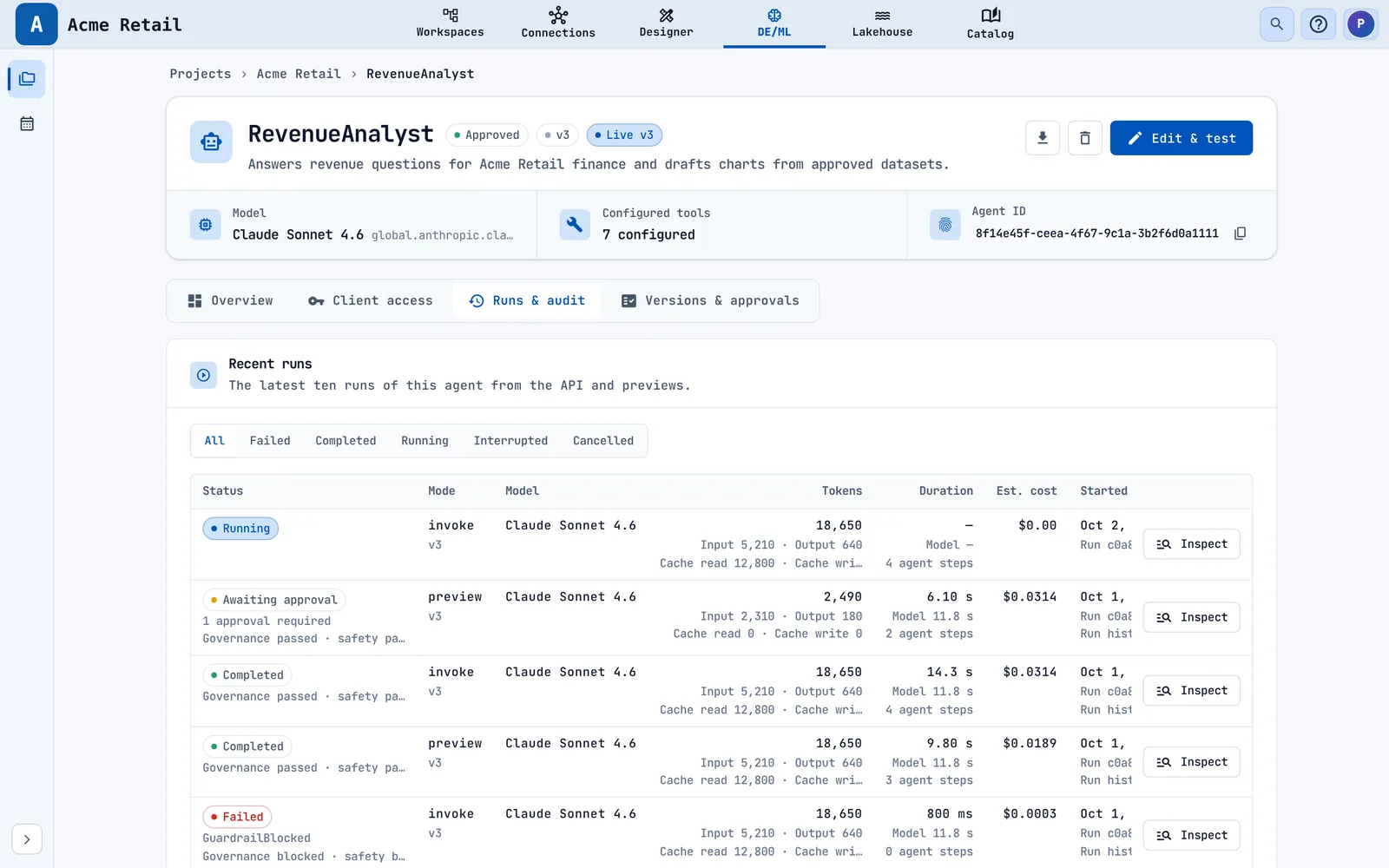
Open the Runs & audit tab. Recent runs shows the latest ten, filterable by All, Failed, Completed, Running, Interrupted or Cancelled, with mode, model, tokens, duration, cost and start. Actions & recorded reasons lists the latest 20 audit events. Choose Inspect on a run to open the run inspector.

The inspector has Overview (identity, cost, model calls, interventions), Trace, Governance and Quality tabs. Interrupted runs show Waiting for your decision at the top, so you can approve or deny and carry on. In Quality, Run evaluation scores a finished run, and you can leave a rating from 1 to 5 with a comment.
See versions and approvals#
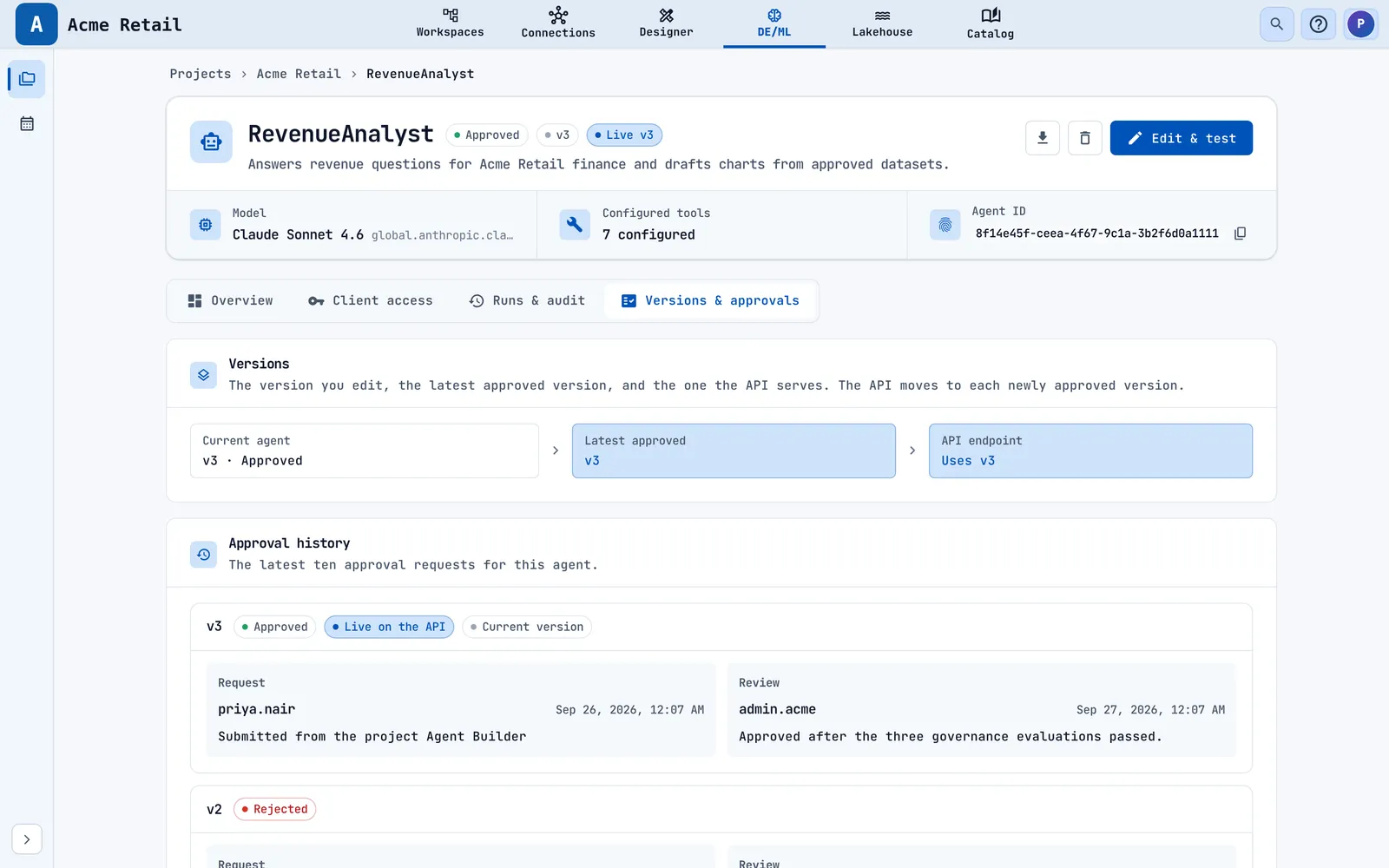
The Versions & approvals tab shows which version you are editing, the latest approved version and the one callers get, plus the last ten approval requests with the requester's note and the reviewer's decision.
Limits#
| Item | Limit |
|---|---|
| Name | 100 characters, starting with a letter, then letters, numbers, _ and - |
| Description | 500 characters |
| Instructions | 100,000 characters |
| Tools | 50 per agent (38 exist) |
| MCP connections | 10 per agent |
| Max turns | 300 |
| Message size | 64 KB |
Troubleshooting#
- "This agent does not belong to this project." Cause: you opened the agent from another project. Fix: open it from its own project.
- "An agent named '<n>' already exists". Cause: names are unique across the site. Fix: choose another name.
- "Choose a model." or "The selected model or LLM connection is no longer available." Fix: pick another model or repair the connection.
- "Create an AWS S3 connection before saving this agent." Cause: the agent has nowhere to keep its history. Fix: create an AWS S3 connection (Data guide), then choose it in step 3.
- Approval is blocked. Cause: the version cannot be submitted yet. Fix: read the message and use Review governance.
- "These tool calls were already answered." Cause: someone else decided. Fix: open the latest run.
- "The paused run can no longer continue because its saved context expired." Fix: run the agent again.
- "This agent has spent its USD quota". Fix: raise or remove the quota in Agent quota.
- "You do not have "All" or "<Action>" permission on GZ Agent." Fix: ask an administrator for the permission named in the message.
Related chapters#
- Chapter 4 for interactive chat and approvals.
- Chapter 6 for agent metrics across the whole site.
- Chapter 7 for tokens, keys and MCP.
- The Administration guide, chapter 4, for the Agent permissions.