
4. AI chat assistant
The AI chat assistant (Groundzero AI) is the home page of Groundzero. You describe what you want in plain language and it answers with text, tables, charts and links to things it created for you: datasets, dashboards, ETL jobs, filters and more. When an action would change something, it stops and asks you to approve first.
Use it to:
- Ask questions about your data, pipelines, jobs and errors.
- Draft SQL, datasets, filters, visualizations and dashboards.
- Attach a file and ask questions about it.
- Use tools on your saved MCP connections, with your approval.
Your account needs the AI Chat permission (All). Without it the assistant shows the card You don't have access to chat with "Your account doesn't have permission to use the chat feature. Contact your administrator to request access." Your administrator may also set a rolling 30-day spending budget for you or your group (Administration guide, chapter 7). When it is used up, chat shows Usage limit reached.
Ask a question#
Outcome: an answer about your data, in the chat.
- Choose the site logo in the header to go to the home page.
- Click Message Groundzero AI (it says "Type your message here...") and type your request. Press Shift+Enter for a new line. The box grows as you type.
- Press Enter or choose Send message.

The page has a Chats sidebar on the left and the conversation on the right. The sidebar starts collapsed. Choose Expand sidebar to open it. Groundzero remembers your choice.
Six starter prompts fill the box when you click them but do not send: Debug SQL, Create dataset, Explain error, Build ETL job, Analyze logs and Trace lineage.
The buttons in the box, left to right, are Attach files, the chat options pill (for example "Auto context"), the model and thinking pill, Enhance prompt with AI and the send button.
The send button changes with what is happening:
| Send button | When you see it |
|---|---|
| Send message | Idle. Disabled when there is nothing to send, a file is uploading, the model has a problem, a scope is required, or an approval is waiting |
| Queue message | A response is streaming and you typed something. Queued messages send in order afterwards |
| Send steering note | A run is working and live steering is on |
| Stop response | A response is streaming and the box is empty |
A message can be up to 200,000 characters.
Improve a prompt before you send it#
Choose Enhance prompt with AI. It is enabled when the box is not empty and nothing is streaming. Groundzero rewrites your text in place using the selected model, up to 8,000 characters. If it fails you see "Could not enhance the prompt. Try again."
Attach files#
Choose Attach files, drag files onto the box ("Drop to attach") or paste them.
| Limit | Value |
|---|---|
| File types | . |
| Size per file | 50 MB |
| Files per message | 100 |
Each file shows Uploading, Ready or Queued. Remove one with Remove <name>. If you attach files without text, Groundzero sends a prompt for you.
If something goes wrong you see "Please upload only CSV, Excel, PDF, text, or image files.", "File size must be less than 50MB." or "Failed to upload one or more files. Please try again."
Choose what the answer can draw on#
The pill next to the paperclip reads Auto context, No context, Choose scope or "N models". It starts with "Plan" when plan mode is on. Open it to set options.

| Option | Effect |
|---|---|
| Plan mode | The assistant builds and tracks an execution plan, shown as a plan card |
| Business context | Whether the answer uses your published ontology (your business definitions): Automatic context, Context off, or Choose models |
| Approvals | Lists your standing approvals (see "Approve or deny an action"). It appears only when approval grants are enabled for your site |

Automatic context works when there are 20 or fewer ontology models. With more, you must choose between 1 and 20 models. The pill reads Choose scope until you do.
Choose a model and how hard it thinks#
The pill shows the model and a thinking level. Open it for the Thinking effort slider (Low, Medium, High, Extra high, Max). The levels offered depend on the model, and the default is Low. Choose the header row to pick a model.
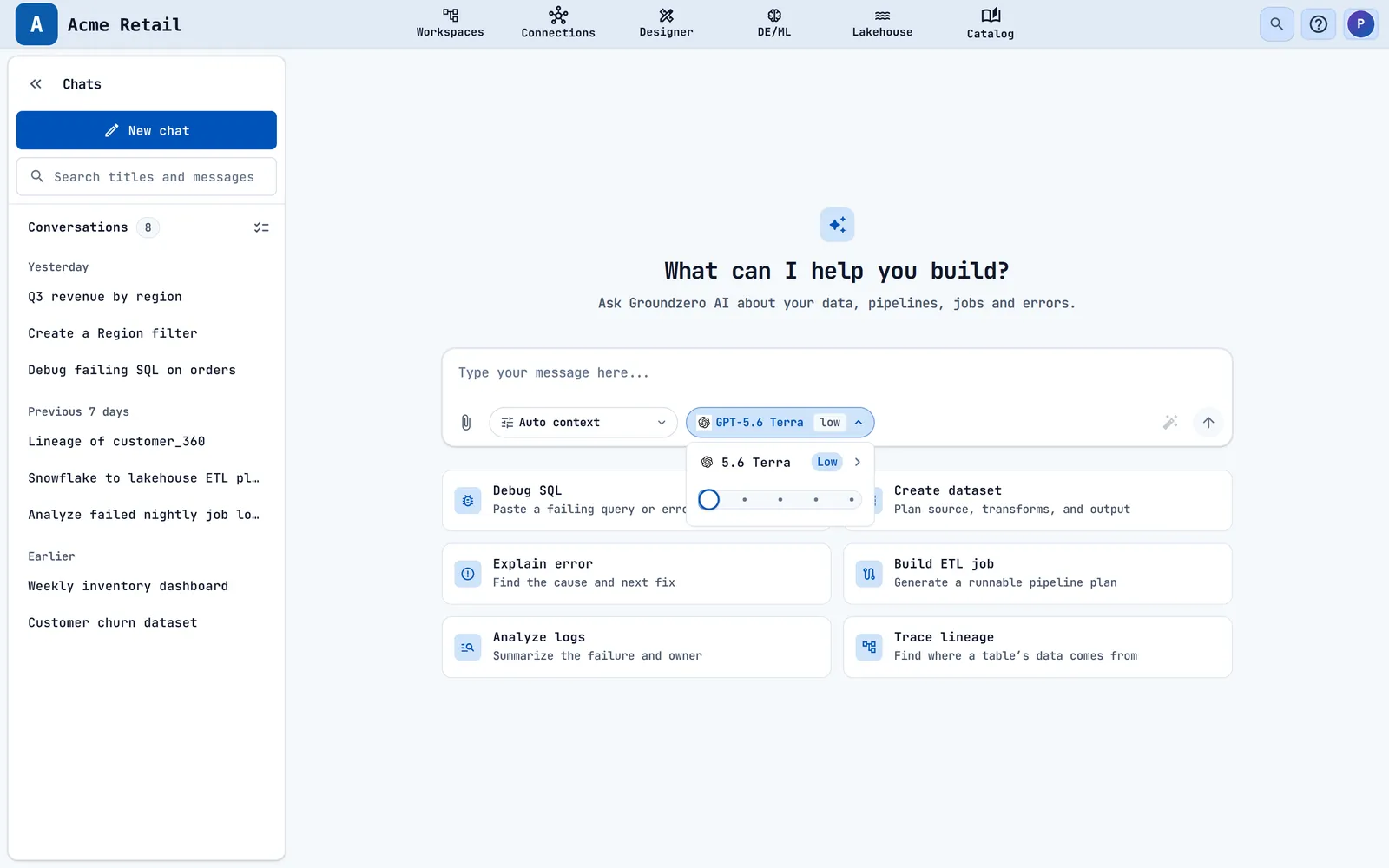

The list has Groundzero modes (for example GPT-5.6 Terra, Claude Sonnet 5, Claude Haiku 4.5) and a Connections section with one row per provider that has a saved LLM connection (Anthropic, AWS Bedrock, Azure OpenAI, Cohere, Custom LLM, Fireworks AI, Gemini, Hugging Face, OpenAI, Together AI, xAI). A connection with no model saved shows "Model not configured" and cannot be chosen. A conversation remembers its model.
If there is a problem with the model, sending is blocked and a notice explains it: "Choose a model connection.", "Edit <name> and add its model.", "<name> is no longer available. Choose another model." and similar. Fix the connection or pick another model.
Read an answer#
Answers appear as they are written. Before text arrives you may see Working.... A Thinking panel shows the model's reasoning summary when there is one.

An answer can contain:
- Text with headings, lists, tables, code blocks (with a copy button) and diagrams.
- Citations: markers like
[1]and a collapsed Sources panel. - Cards for charts, tables (a one-row table shows as summary tiles), pivot tables and maps.
- An Execution plan card (plan mode).
- An Artifacts group: cards that open items the assistant created (dashboard, dataset, ETL job, visualization, filter, project, notebook, AI agent, ML model) or download generated files (PDF, DOCX, CSV, XLSX). Download links expire, so save files you need.
- A Context warning panel, for example "regional_targets.csv was cut to its first 10,000 rows."

Check how an answer was produced#
Under every answer are three panels you can open and a row of actions.

| Panel | Shows |
|---|---|
| Run details | Each tool the assistant used with its status (Running, Completed, Failed, Cancelled, Incomplete) and result, plus the request and run IDs that support may ask for |
| Context used | Files, business context and context status. "This answer used only the conversation itself." when none |
| Response details | Tokens, timing (latency, first token, speed), cost, an Agent cost table, and your 30-day budget meter |
The action icons are Copy response, Retry response (starts a branch named "Retry:
Tell Groundzero if an answer was good#
Choose the thumbs up to save at once. Choose the thumbs down to open What should improve?, pick Incorrect, Not relevant, Incomplete, Unsafe, Poor code or Other, add optional Details (up to 2,000 characters) and choose Send feedback. The toast says Feedback saved. If it fails: "Could not save feedback. Please try again."
Stop, queue and steer a response#
- Stop response stops the answer, keeps the text so far (marked "Generation stopped") and cancels the run.
- While a response is being written you can keep typing and choose Queue message. The Queued messages card lists them ("Next", "#2"...) and each has a remove button.
- If you reload the page or switch tabs, the run carries on. Chats with active runs show Running, Background or Needs approval badges in the sidebar.

Steer a run while it works#
When live steering is turned on for your site, the box becomes a Steer box while a run works.
- Type a note (1 to 2,000 characters).
- Choose Send steering note.
The note appears in the conversation as You steered (Queued, then Applied). If the run finishes without reading it, Groundzero offers Dismiss or Send as next message. While an approval is waiting, steering is disabled ("Answer the pending action first").
Approve or deny an action#
Actions that create, change or delete things pause the run. Calls to tools on your MCP connections always pause. Groundzero shows an Action approval required card.
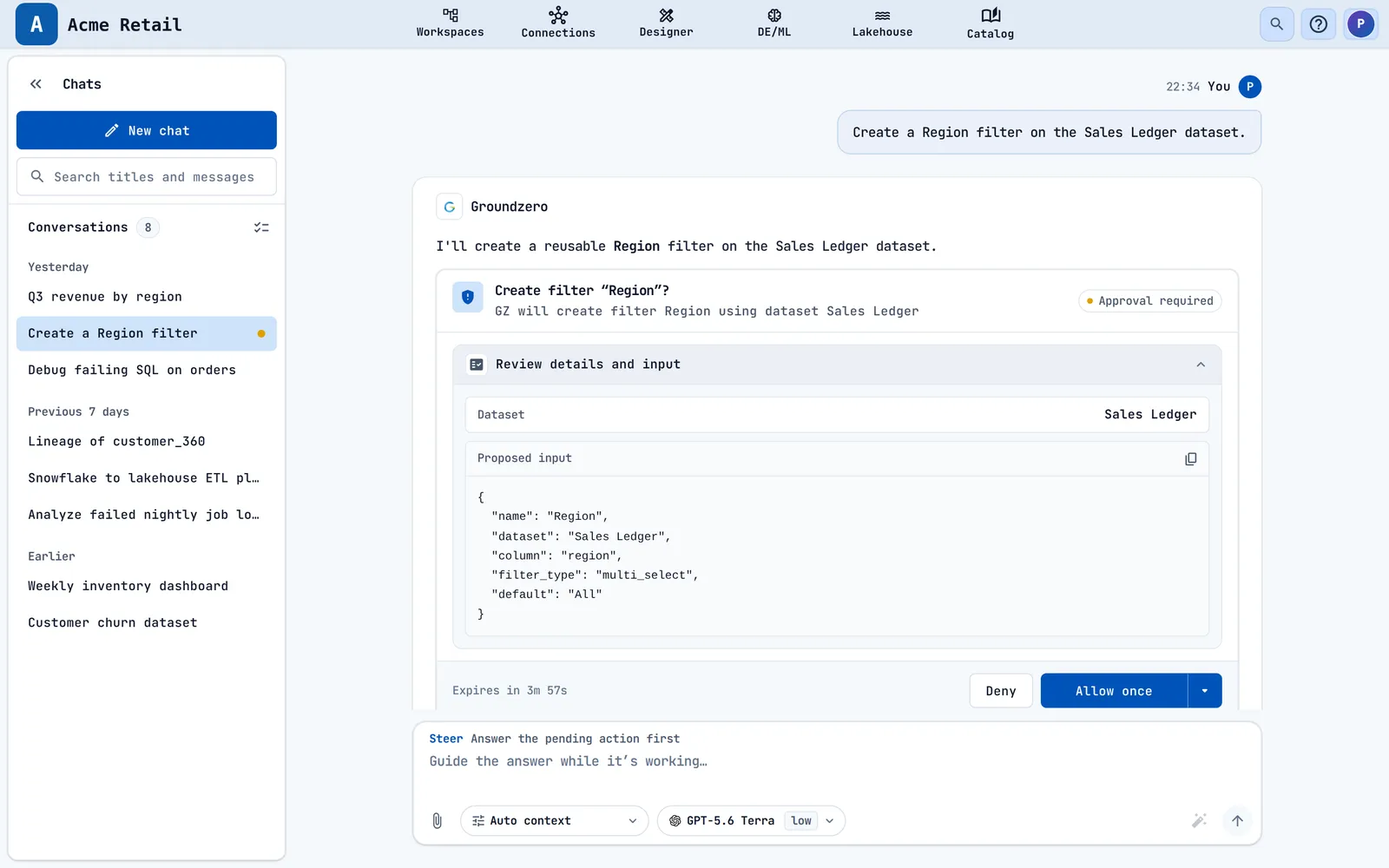
- Read the card. It shows the action, the target and a countdown ("Expires in 3m 53s"). Open Review details and input to see exactly what will be sent, with secrets hidden.
- Choose a button:
| Button | Effect |
|---|---|
| Deny | The tool does not run |
| Allow once | Runs this call only |
| Caret > Allow for this chat | Runs this call and later calls of the same tool in this chat |
| Caret > Always allow | Runs it from now on in every chat. Not offered for tools that delete or destroy things |
You cannot send another message until you decide. The box says "Waiting for your decision". If you reload, the card comes back. An expired card says "This action preview expired. Ask GZ to run it again."
Warning
Always allow lets that tool run without asking in every chat. Use Allow for this chat unless you are sure.
Review or cancel standing approvals#
Calls covered by a standing approval run without a card. The conversation shows "Auto-approved create filter - allowed for this chat" (or "always"). To review them, open Chat options > Approvals. The sections This chat and Always list each tool (MCP tools show their connection). Choose Revoke to remove one. With none, you see "No tools run without asking. Allow one for this chat or always when GZ asks."
Find an earlier conversation#
The Chats sidebar lists your conversations grouped into Today, Yesterday, Previous 7 days and Earlier. A new chat is called "New chat" until Groundzero gives it a title.

| To do this | Do this |
|---|---|
| Start a chat | Choose New chat |
| Search | Type in Search titles and messages. Titles filter at once, then Groundzero searches message text. The result line reads "Searched titles and messages" and "N found". No match: "No chats found" |
| Rename | Hover a row, choose Rename, type and press Enter. Escape cancels |
| Delete one | Hover, choose Delete. The dialog says "Messages, files and run history go with it. This can't be undone." Toast: "1 conversation removed." |
| Delete several | Choose Select conversations (the checklist icon), tick rows, choose Delete N selected conversations |

Warning
Deleting a conversation also deletes its files and run history. It cannot be undone.
You can delete up to 100 conversations at a time. Select-all picks the first 100 and further rows are disabled ("You can select up to 100 conversations."). Running chats are skipped. If some fail, the toast says "X removed. Y failed; select Delete to retry."
Search everything with Ctrl+K#
Press Ctrl+K (Cmd+K on macOS) anywhere in Groundzero, or choose Search in the header, to search pages and resources.

- Type to search datasets, filters, visualizations, dashboards, connections, workspaces, projects, jobs, AI agents, warehouses, saved queries and ontology models.
- To narrow the search, start with a prefix:
ds:,viz:,dash:,conn:,ws:,job:,agent:,q:ormodel:(for exampledash: sales). - Use the arrow keys and Enter to open a result.
Results show at most 8 rows and respect your permissions. With an empty box, your recently opened items appear.
If something goes wrong#
- You don't have access to chat. Cause: you lack the AI Chat permission. Fix: ask an administrator to grant it.
- Usage limit reached ("You have reached your current chat usage limit. Contact your administrator to request additional access."). Cause: your budget for the last 30 days is used. Fix: ask an administrator for more budget.
- Temporarily unavailable. Cause: the model could not answer right now. Fix: choose Try again or pick another model.
- Approval pending. Cause: an action is waiting for you. Fix: choose Deny or Allow on the card, then send.
- Model credentials rejected, Model billing problem or Model not available. Cause: a problem with your own LLM connection. Fix: edit the connection.
- "Too many requests. Please wait and try again." Cause: you sent requests too quickly. Fix: wait a moment and retry.
- "Couldn't load your conversations. Refresh the page to try again." Fix: refresh the page.
- "Search is temporarily unavailable." Cause: message search could not run. Fix: title filtering still works. Try again shortly.
Limits#
| Limit | Value |
|---|---|
| Message length | 200,000 characters |
| Enhance prompt length | 8,000 characters |
| Attachment size | 50 MB; 100 files per message |
| Deleting conversations at once | 100 |
| Steering note | 2,000 characters |
| Business context scope | 20 ontology models |
| Feedback details | 2,000 characters |
Related chapters#
- Chapter 5 for AI agents that other systems can call.
- Chapter 6 for chat usage and cost reports.
- Chapter 7 for connecting external tools (MCP) to Groundzero.
- The Administration guide, chapters 4 and 7, for the AI Chat permission and budgets.