
4. Data catalog
The Catalog is where you find out what data your team has and what it means. It lists three kinds of resource:
- Datasets built in Designer;
- ETL jobs built in DE/ML (a job moves or transforms data);
- Lakehouse warehouses, with their databases, tables and columns.
For each resource you can read a description, see who owns it and when it changed, add tags, browse a warehouse's tables and columns, and copy the call that runs a dataset or job from another tool.
A tag is a short label written as key: value, for example tier: gold or classification: pii. Tags make data easy to find and govern.
Open Catalog in the top navigation bar. A collapsible menu on the left switches between Catalog, Consumption Metrics, Data Lineage and Ontology Studio. The last two have their own chapters; Consumption Metrics is in the Analyze and Admin documentation.
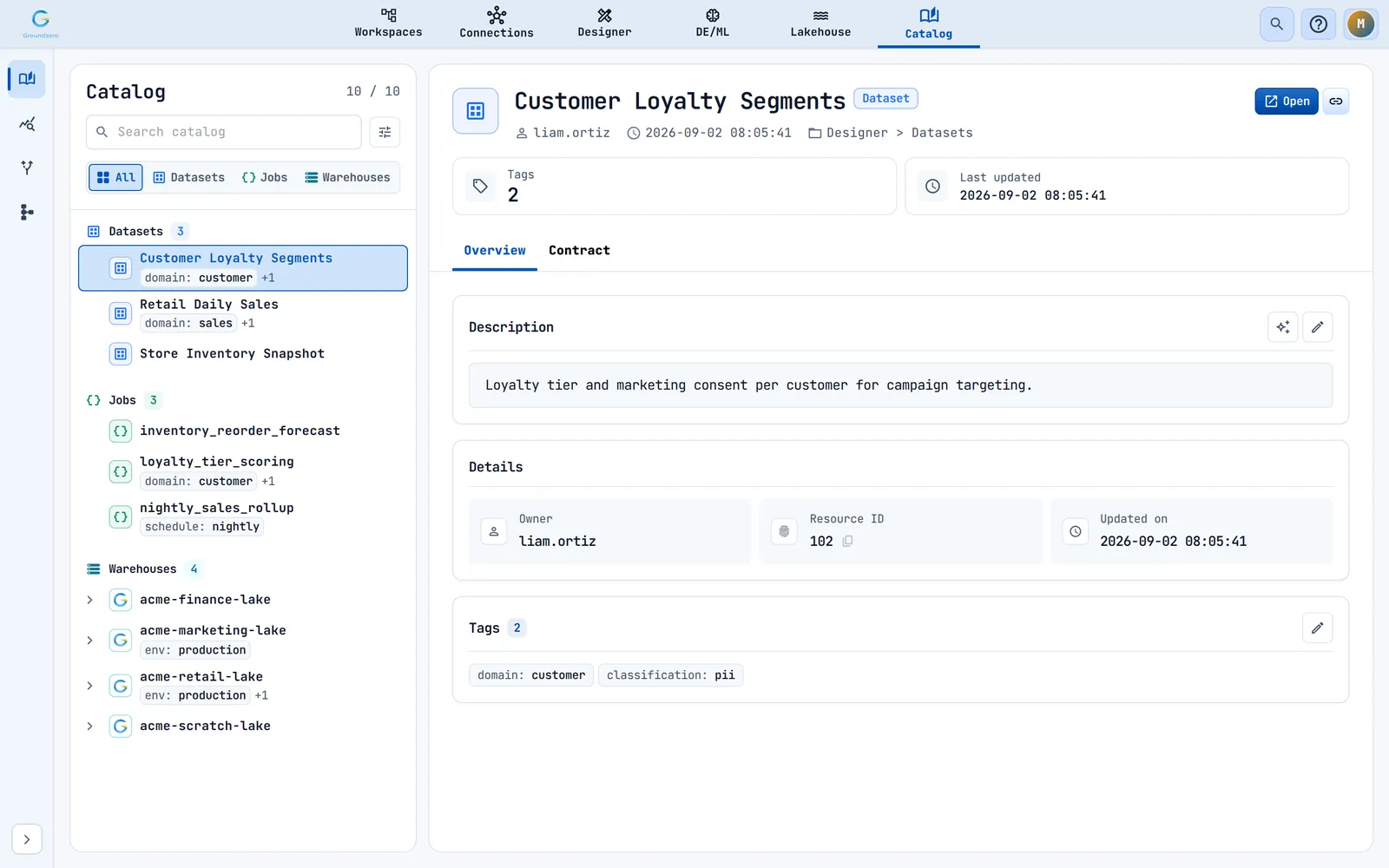
The page has two halves. The navigator on the left lists resources. The inspector on the right shows the one you selected. The first resource is selected for you.
| I want to... | Go to |
|---|---|
| Find a table or column | "Find the data you need" |
| Understand what a resource is | "Understand a resource" |
| Label data so others can find it | "Tag data" |
| Write or draft a description | "Describe a resource" |
| Call a dataset or job from another tool | "Copy the call for a dataset or job" |
Who can do what:
| Action | Who can do it |
|---|---|
| Open the catalog | Any signed-in user of the site |
| See a warehouse and its tables | Users who may list that warehouse |
| Change tags on a warehouse, database, table or column | Administrators; other users can look but not save |
| Edit a warehouse description | Users with All permission on that warehouse |
| Edit dataset or job tags and descriptions | As your permissions on that dataset or job allow |
| Draft a description with AI | Anyone who can use Groundzero chat |
Find the data you need#
Search#
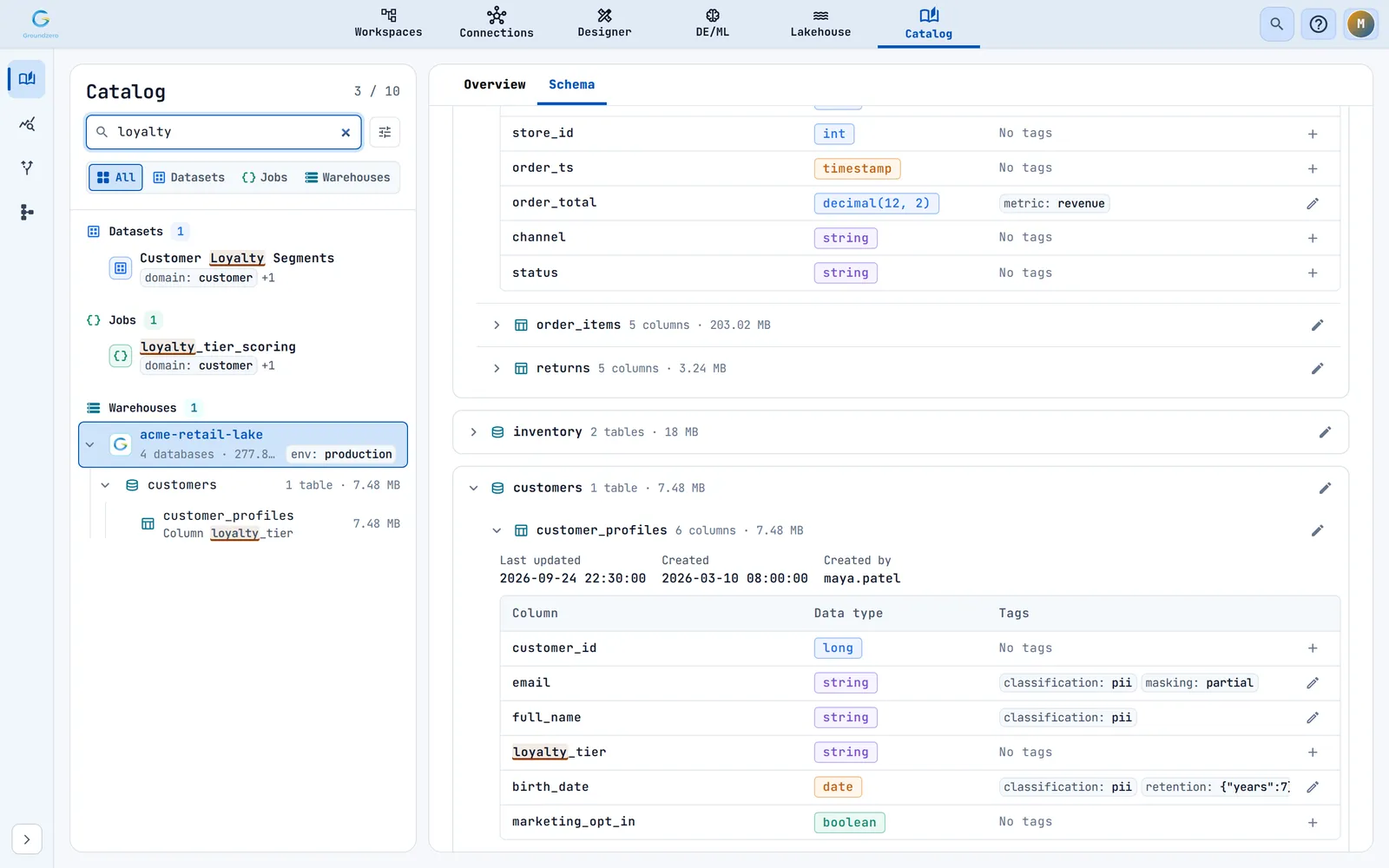
Type in Search catalog. Matching ignores capital letters, and _, - and / count as spaces, so order_items, order-items and order items all find the same thing.
The search looks at names, locations, owners, projects and tags (as key: value). For warehouses it also looks at database, table and column names.
Type at least two characters to search column names in every warehouse. Groundzero then loads the warehouse tables in the background, which can take a moment.

What happens as you type:
- Matching text is highlighted. Under a matching table the tree shows the matching column names.
- If the search matches something inside the selected warehouse, the inspector opens its Schema tab at the best match.
- If the selected resource no longer matches, the first result is selected.

Narrow by kind#
Use the buttons All, Datasets, Jobs and Warehouses under the search box. The counter next to the title shows how many resources match out of the total.

Filter by tag or date#
Click Filters. The button shows how many filters are active. All filters combine with the search and the kind buttons.
| Filter | What it does |
|---|---|
| Tag | Keeps resources that have exactly one chosen key: value tag. |
| Tags | Tagged keeps resources with at least one tag; Missing tags keeps resources with none. |
| From / To | Keeps resources updated on or after / on or before a date. Resources with no update date drop out once you set a date. |
Clear filters resets these four filters. It does not reset the search or the kind buttons.

Walk through a warehouse#
Warehouses have an arrow. Open it to see its databases, and open a database to see its tables with their sizes. Click a table to jump to the warehouse's Schema tab at that table.

You can also use the keyboard: Tab into the tree, Arrow Up and Down to move, Home and End to jump, Enter or Space to open.
Understand a resource#
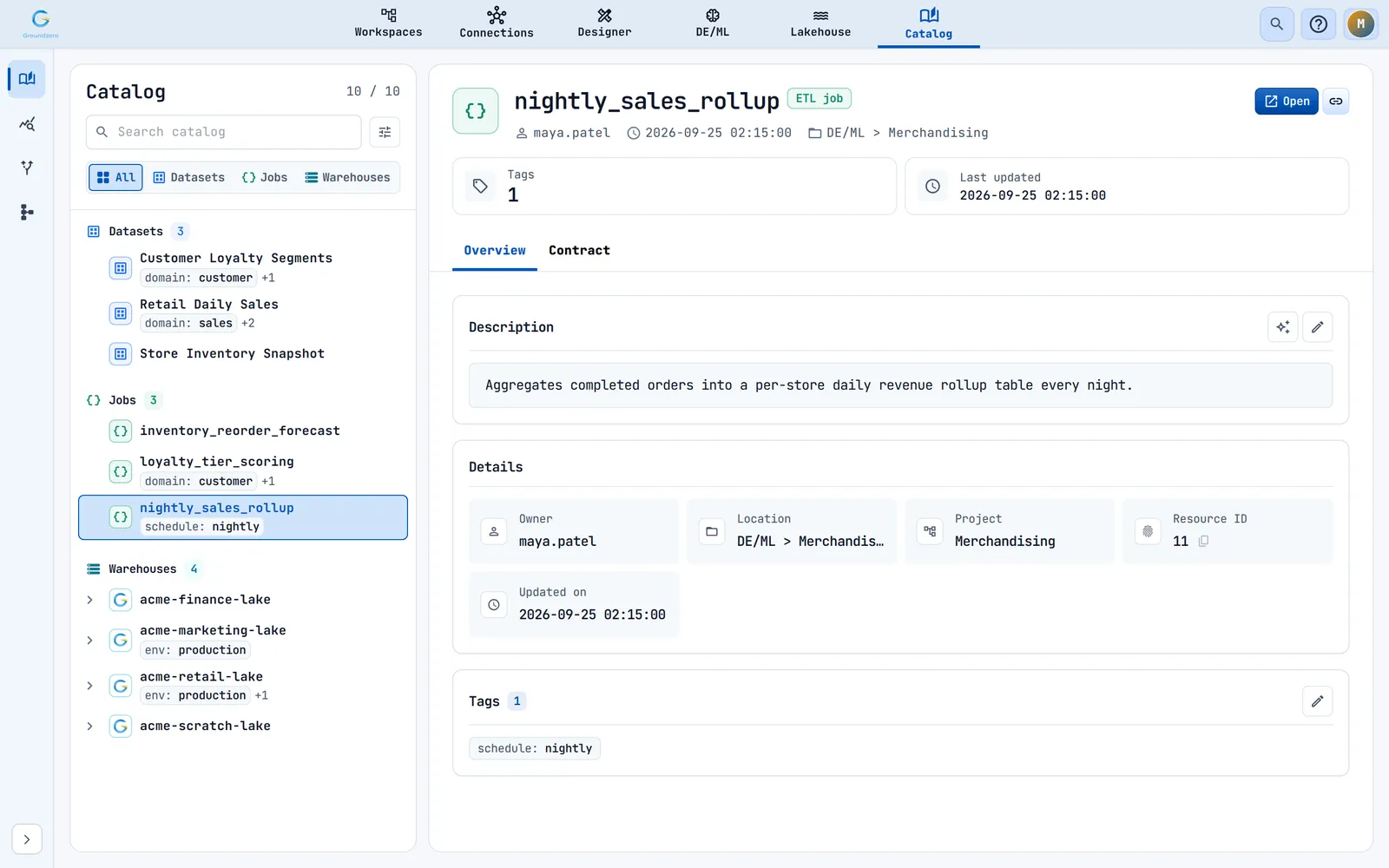
The inspector header shows the name, the kind (Dataset, ETL job or Lakehouse warehouse), the owner, the update time and the location. Two buttons help you move on:
- Open goes to the resource's own page: the dataset in Designer, the job in DE/ML, the warehouse in the Lakehouse editor.
- Copy link copies the address of that page. You see "Copied link".
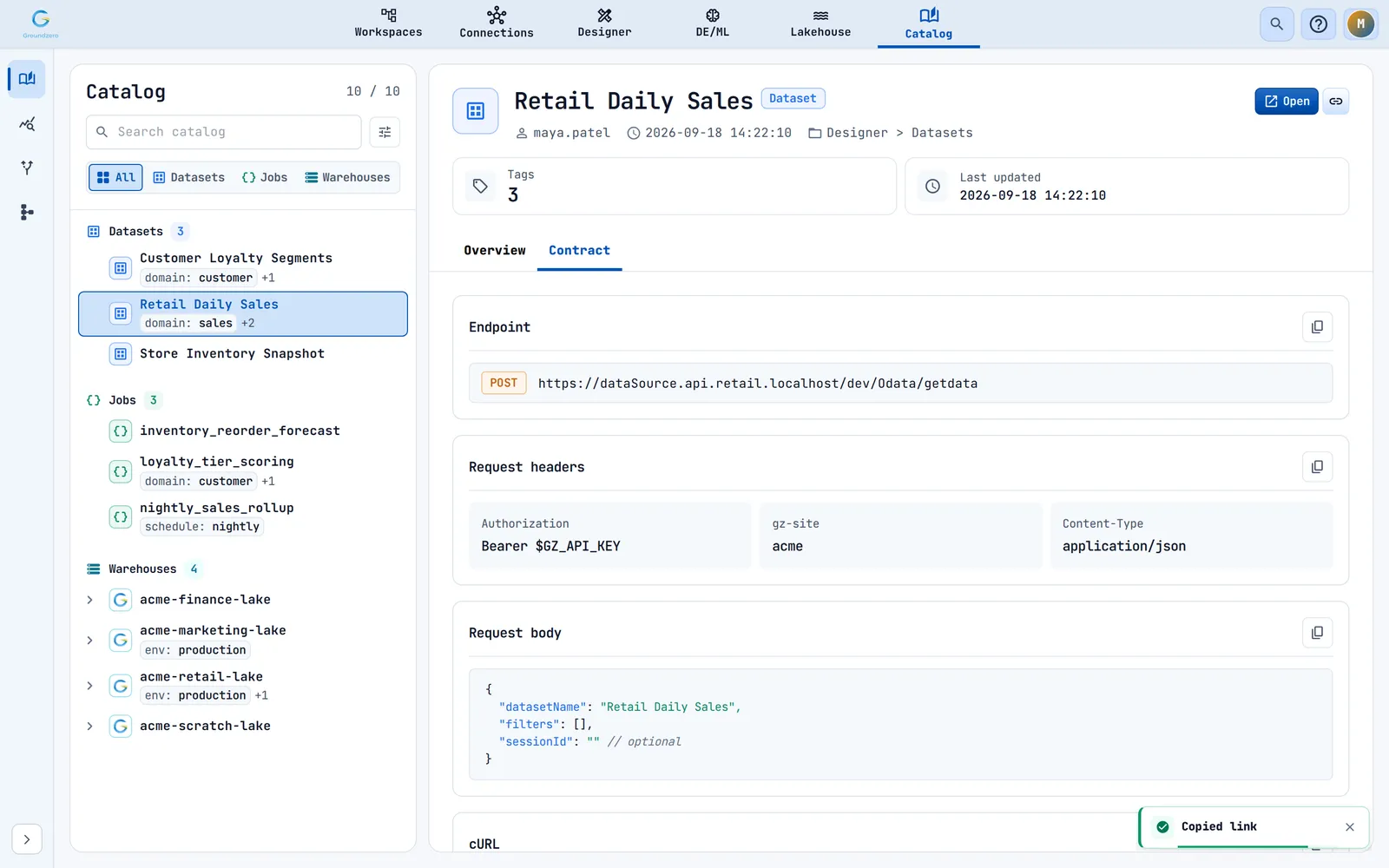
Cards under the header show counts: tags and last update for datasets and jobs; databases, tables, size and last update for warehouses.
Datasets and jobs have the tabs Overview and Contract. Warehouses have Overview and Schema. The tab returns to Overview whenever you select another resource.
The Details card on Overview lists the owner, location, project (jobs), bucket (warehouses), resource ID and update time, with copy icons where useful. Empty values read "Not available".

For a warehouse, the Databases card lists each database with its table count and size. Click one to open the Schema tab there.
See the tables and columns of a warehouse#
Open a warehouse and choose the Schema tab. Databases are collapsible sections; open a table to see its columns, their data types and their tags.

-
Type in Filter columns to keep only columns whose name or data type matches. If nothing matches you see
No columns match "<text>".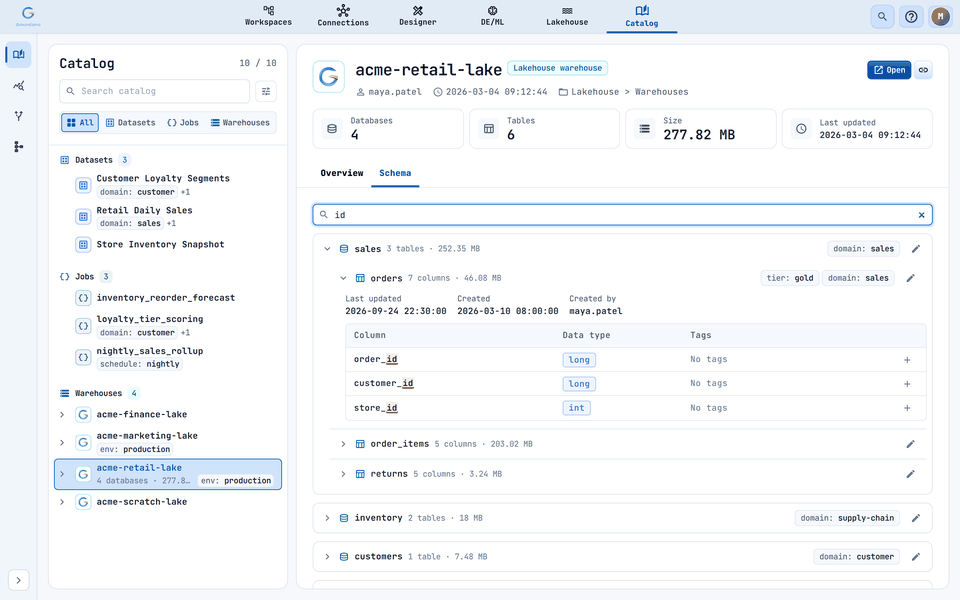
Filtering columns by "id" keeps only matching columns and highlights the match. -
Open a table to see when it was created and last updated.
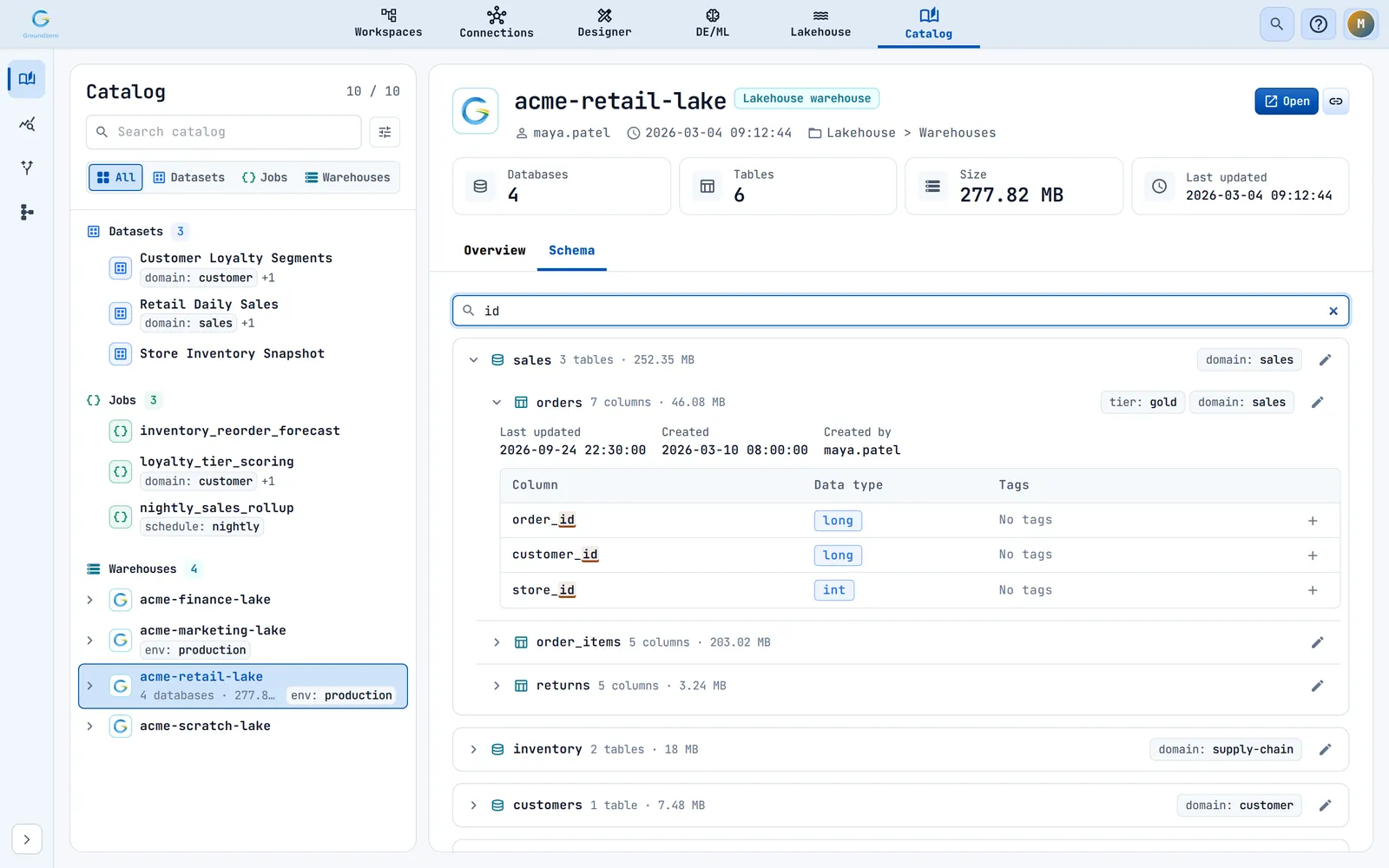
If a warehouse has no tables you see "No schema available for this warehouse yet." You see the same message if you may not list the warehouse.

Describe a resource#
A good description says what the resource provides and when to use it. The Description card on Overview shows it. When there is none, it reads "No description yet. Write one or draft it with AI."

Write a description#
- Click Write description or Edit description (pencil).
- Type the text. Enter adds a new line; Ctrl or Cmd plus Enter saves.
- Click Save. You see "Saved". Cancel throws the draft away.
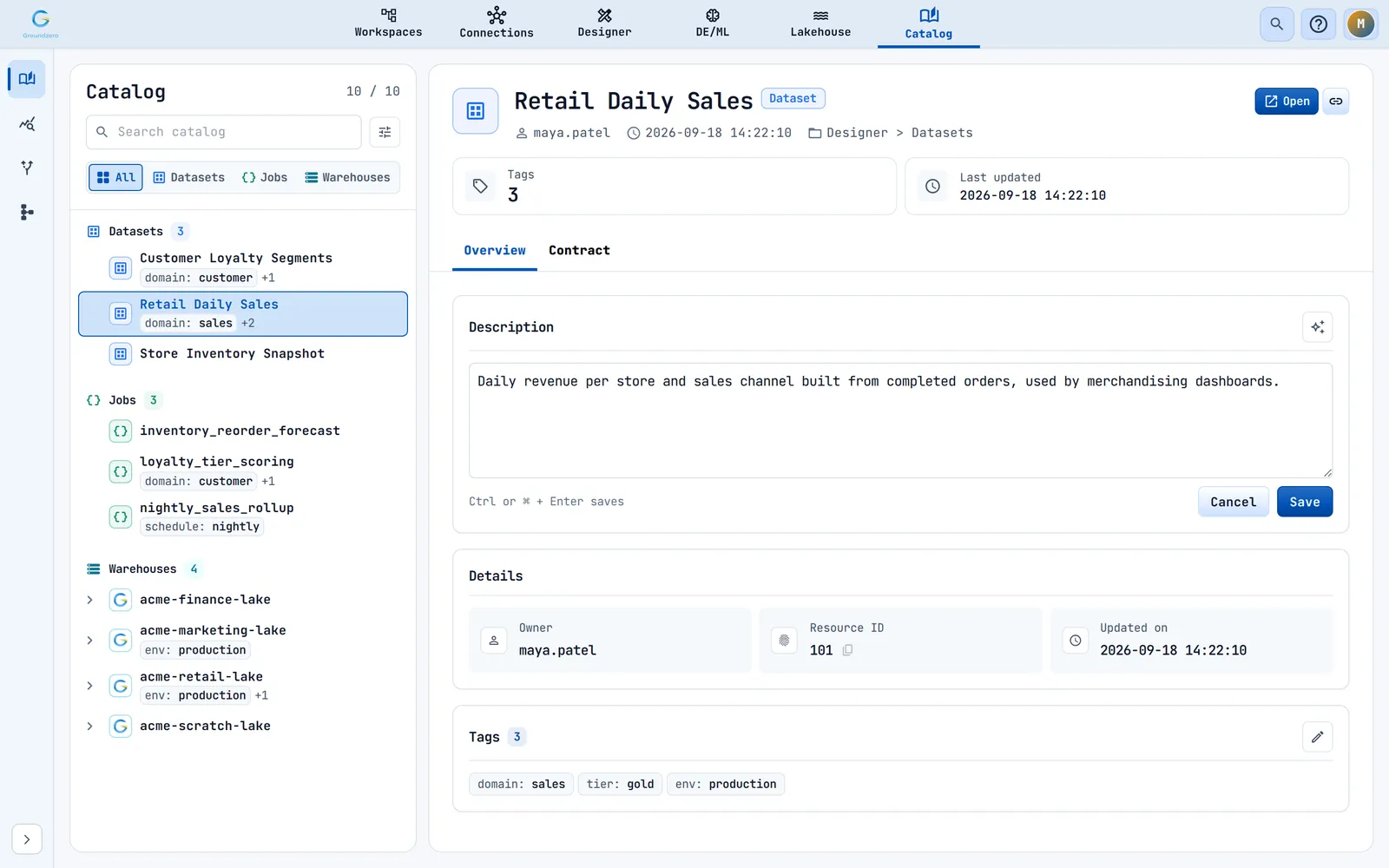
Saving an empty text clears the description. A warehouse description can be up to 1,000 characters; longer text is rejected with "description must not exceed 1000 characters".
Draft a description with AI#
- Click Draft with AI (it becomes Regenerate description with AI once there is text).
- Wait a moment. The editor opens with the draft and you see "Draft ready to review."
- Edit the draft, then click Save.

Nothing is saved until you click Save. The AI reads the resource's configuration (for a dataset, its queries; for a job, its code; for a warehouse, its database and table names and tags). Secret-looking values such as passwords and keys are hidden before anything is sent. The draft is two to four short sentences. It counts against your AI usage budget.
If you see "Unable to generate description" or "AI returned an empty description.", try again. If you select another resource while a draft is being written, the draft is discarded.
Tag data#
Tag a dataset, job or warehouse#
- On the Tags card of Overview, click the pencil (Edit tags). It is disabled until the resource has finished loading.
- Type a New tag key and New tag value, then click Add (or press Enter). Adding a key that already exists replaces its value.
- To remove a tag, click the x on its chip.
- Click Save tags. You see "Tags updated". Cancel throws your changes away.
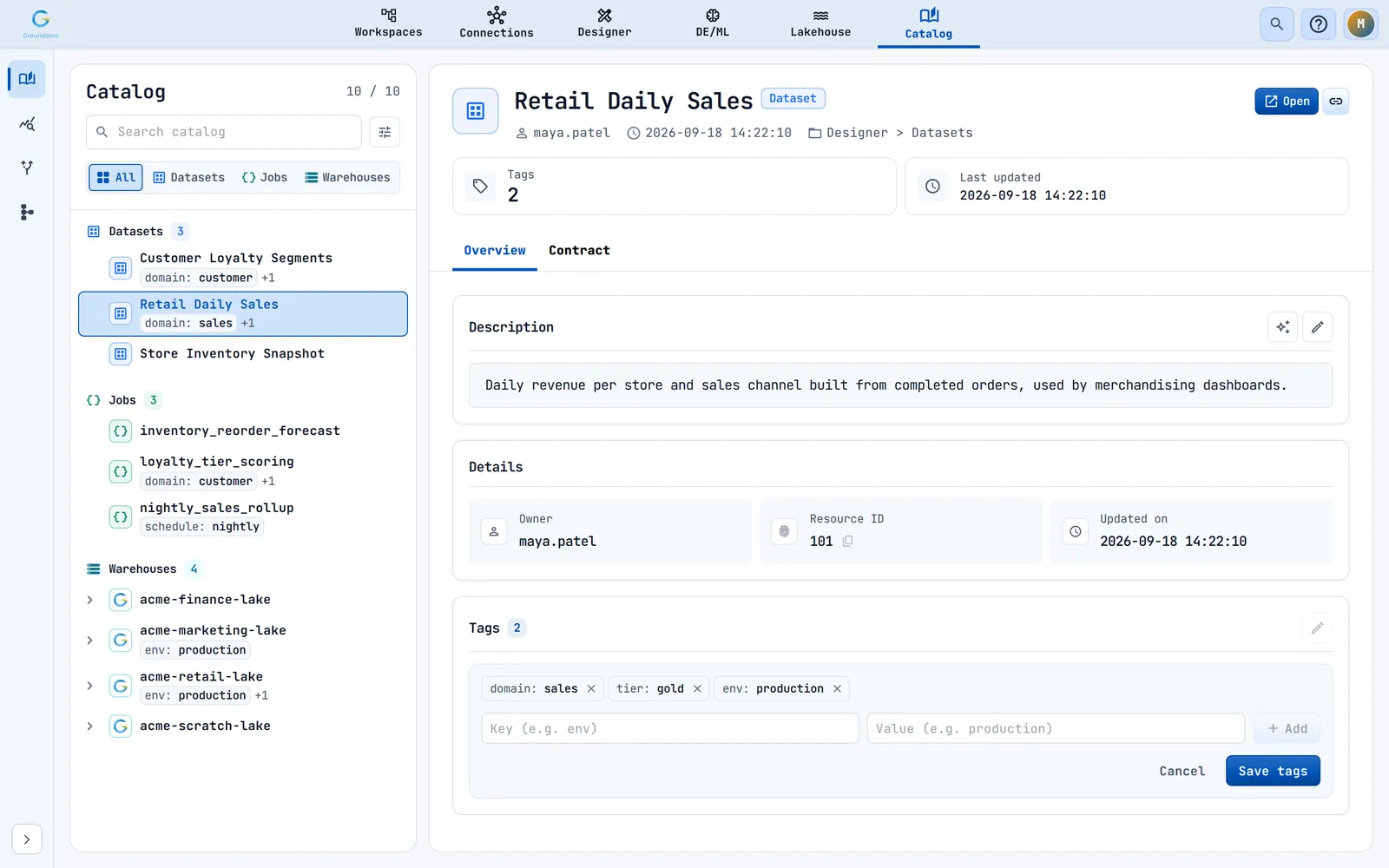

The Tags card shows the first 8 tags, then "+N more" and "Show less".
Only administrators can save warehouse tags
On a warehouse, other users can open the editor but see "Unable to update warehouse tags" when they save.

Tag a database or table#
- On the Schema tab, click the pencil beside the database or table.
- Change an existing tag or add one with New tag key, New tag value and Add.
- Click Save tags. The editor closes; there is no success message. Cancel closes it without saving.
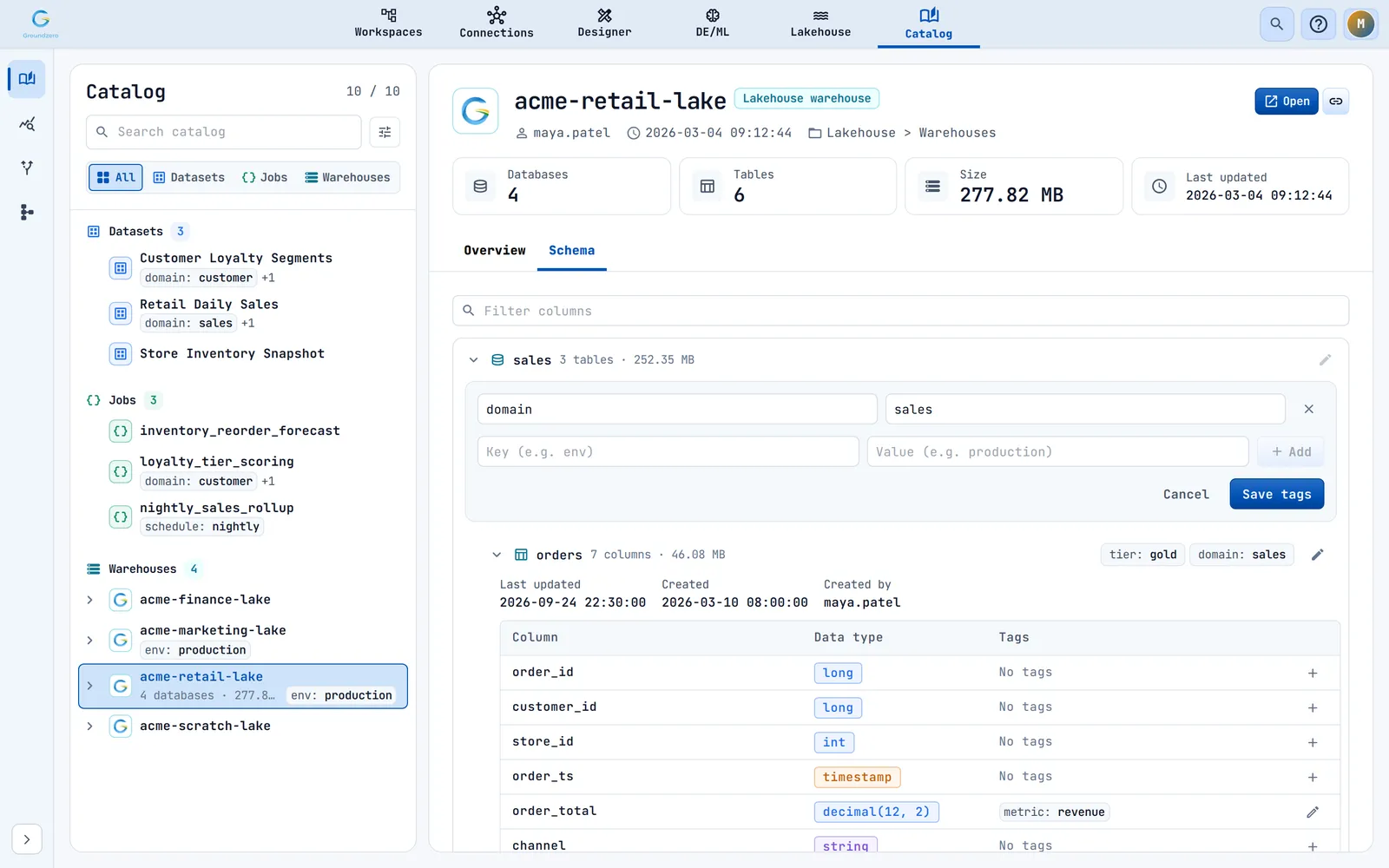
Removing a row deletes the tag immediately
The x on a row deletes that tag at once, before you click Save. If the delete fails, the row comes back with an error.
Tag a column#
Each column has a tag button: Add tags, Edit tags or View tags (administrators can edit; others can only view). The button is disabled if the column cannot be tagged. The tag cell shows "Loading tags...", "Tags unavailable", "No tags", or up to two tags plus "+N".
The Tags for <column> dialog edits all tags of the column as one JSON object, for example { "classification": "restricted" }.
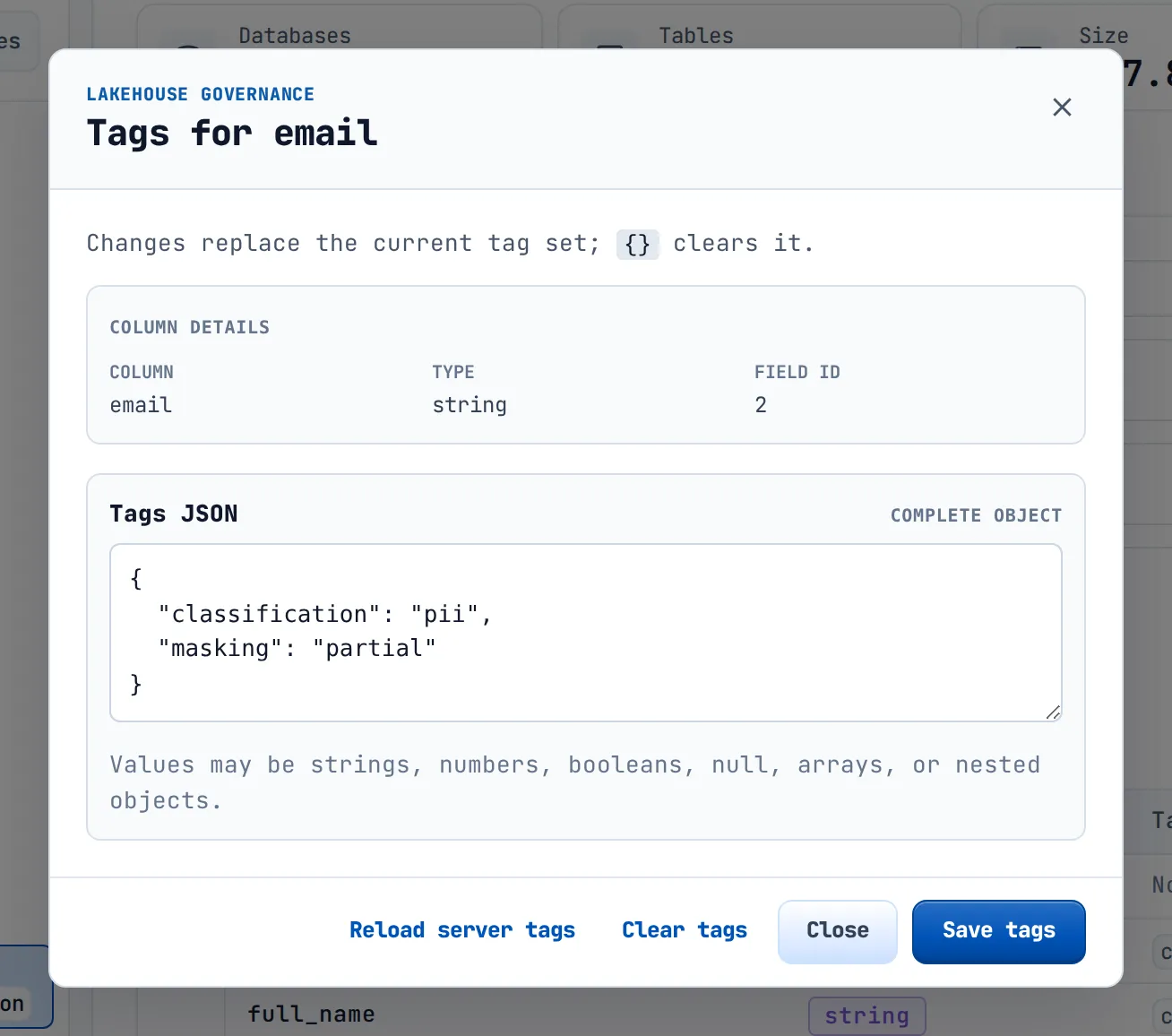
| Button | What it does |
|---|---|
| Reload server tags | Fetches the latest saved tags |
| Clear tags | Empties the box; the tags are removed when you save |
| Save tags | Replaces the whole tag set with what is in the box |
| Close | Closes the dialog |
If someone else changed the tags first you see "Tags changed on the server. Your draft is kept. Reload server tags, review the changes, then save again." Your text is kept; reload, review and save again.
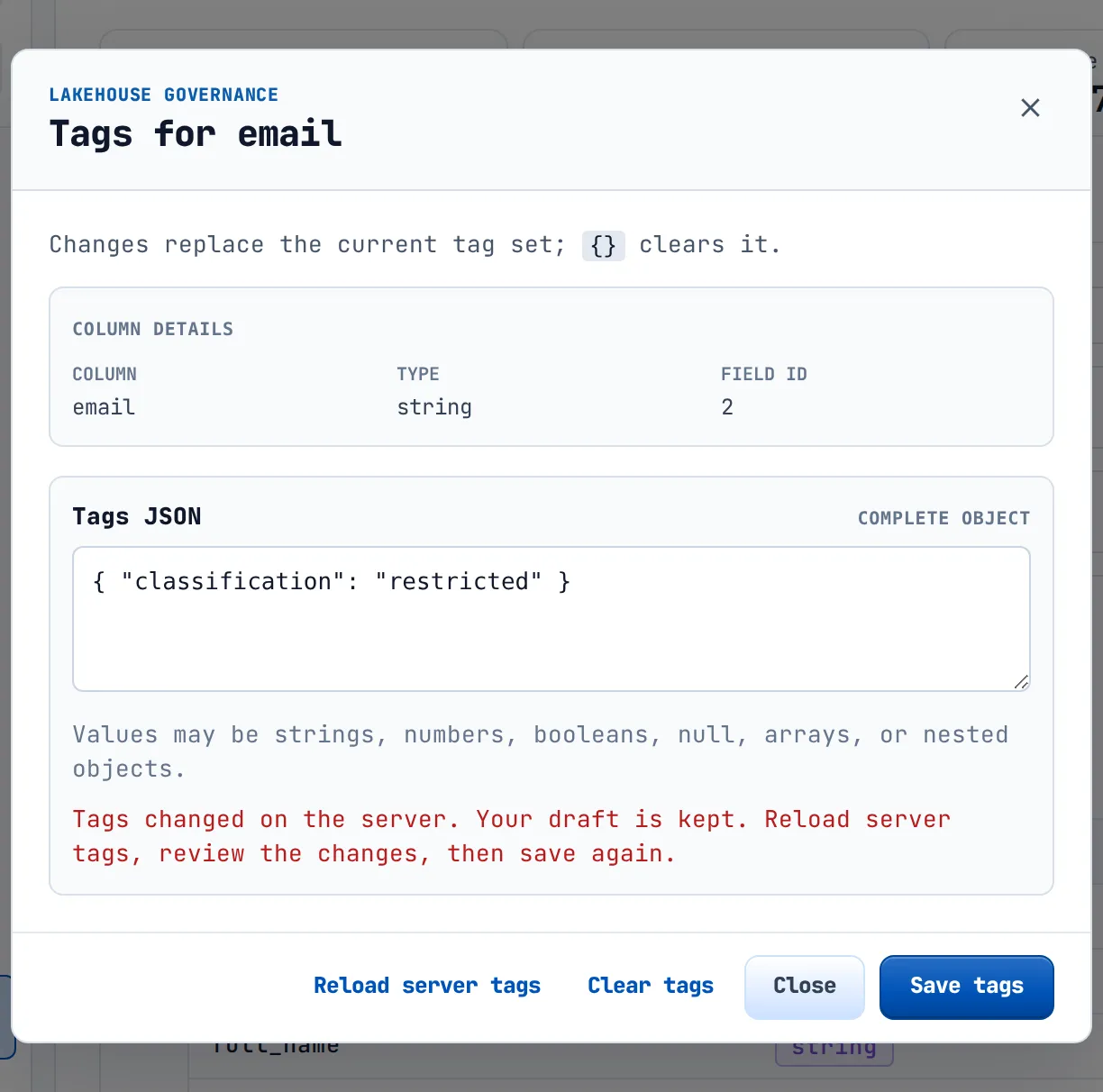
Other messages: "Fix the JSON before saving.", "Use a JSON object, such as { "classification": "restricted" }.", "Unable to load column tags. Check your connection and try again."
Tip
Use one vocabulary everywhere, for example domain: sales, tier: gold, classification: pii. Then the Tag filter finds everything with one tag across datasets, jobs and warehouses. Use Missing tags to find resources nobody has classified yet.
Copy the call for a dataset or job#
The Contract tab of a dataset or job shows how to run it from outside Groundzero, for example from a script. Each card has a copy icon.
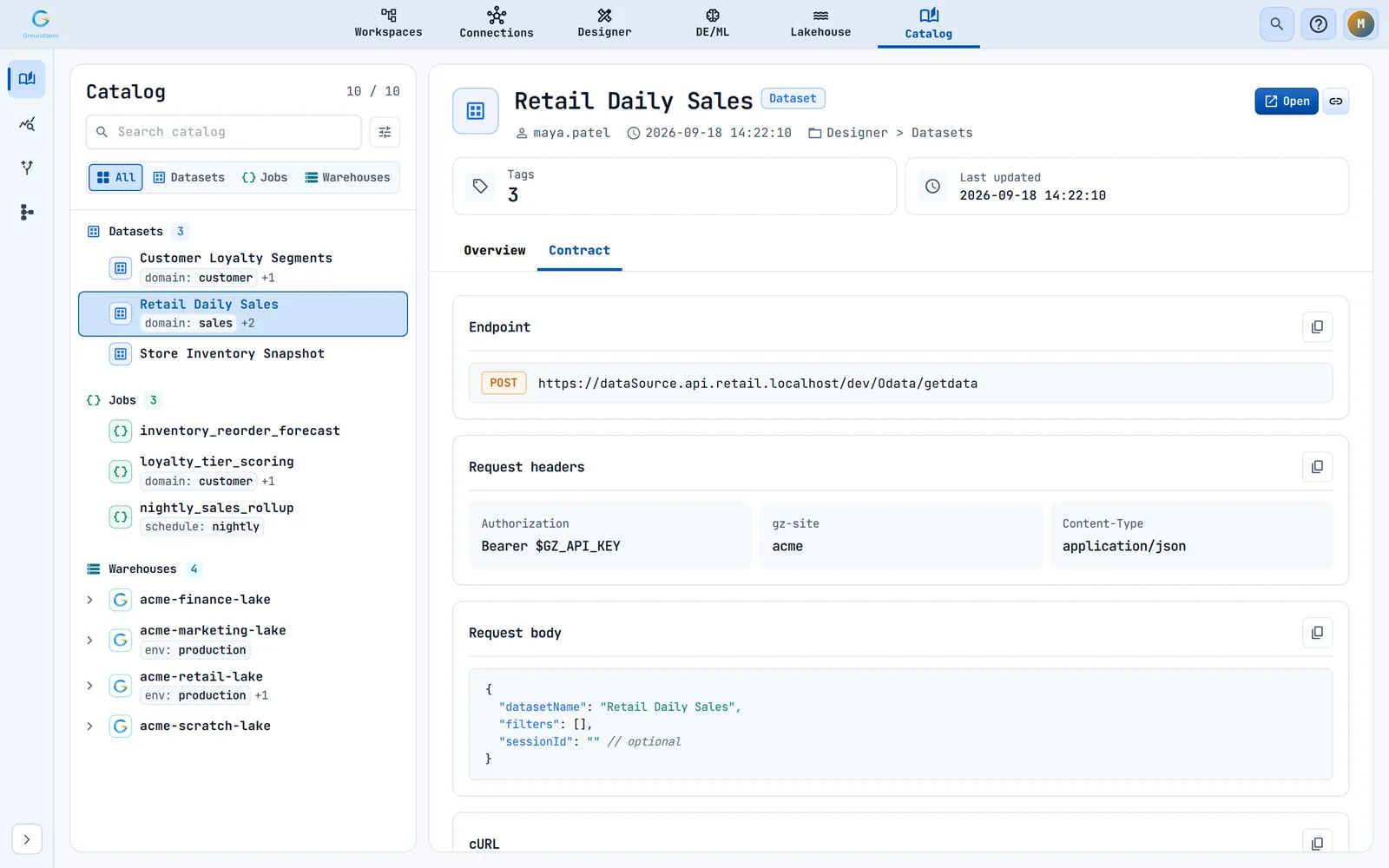
| Card | What it gives you |
|---|---|
| Endpoint | The URL to call. It reads "Resolving endpoint..." for a moment first. |
| Request headers | The headers to send. |
| Request body | The values to send; lines marked // optional can be left out. |
| cURL | A ready command that combines the three |

Values that start with $, such as $GZ_API_KEY, are placeholders you fill in yourself. The catalog does not create API keys. Who may run the dataset or job still depends on their permissions.
When the catalog shows a message#
| What you see | What it means |
|---|---|
| Shimmering bars, "Loading catalog…" | Resources are loading |
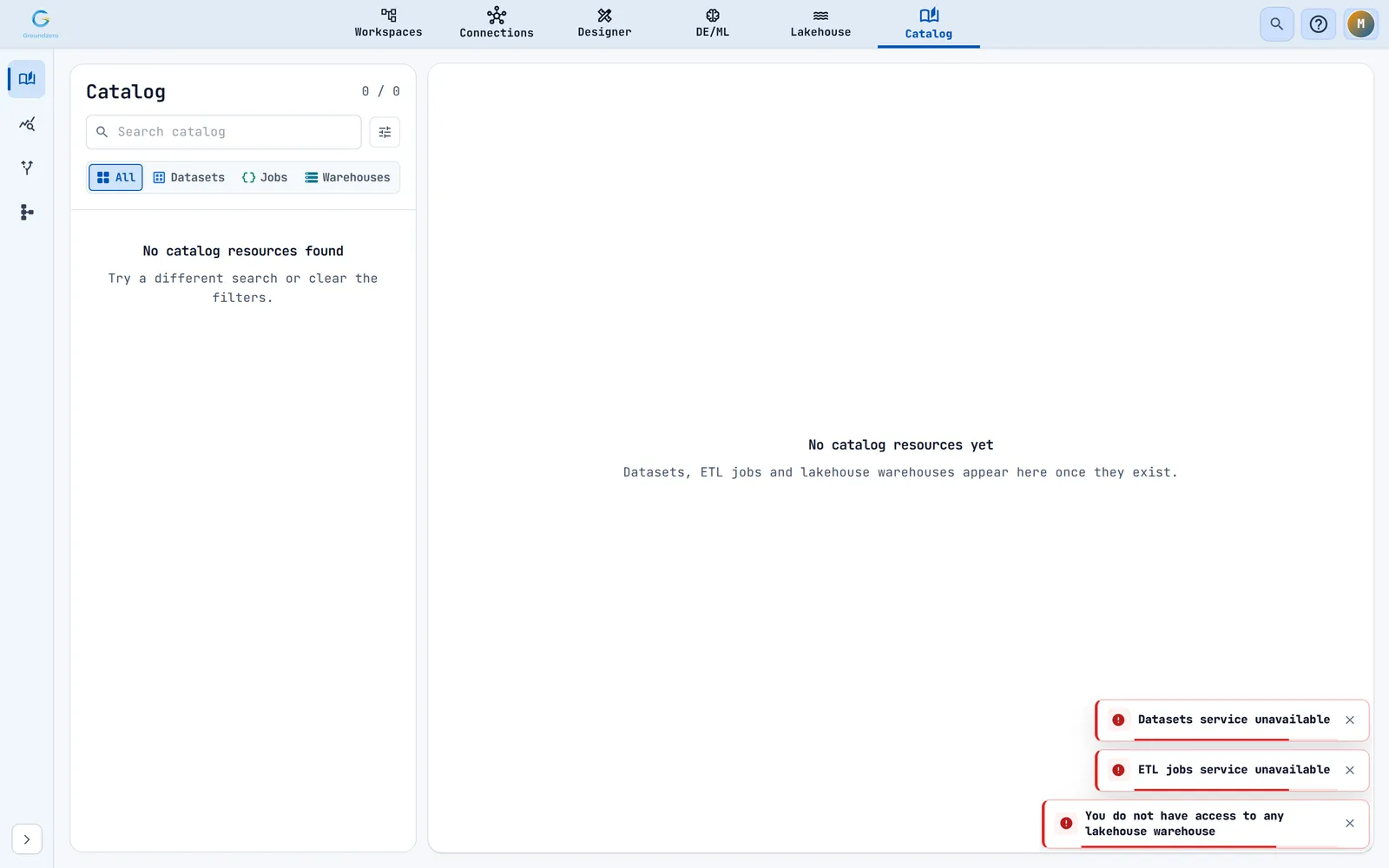
| "No catalog resources yet" | No dataset, job or warehouse exists yet |
| "Datasets failed to load", "ETL jobs failed to load" or "Lakehouse warehouses failed to load" | One source failed; the other two still load |
| "No catalog resources found. Try a different search or clear the filters." | Your search or filters match nothing |
| "Unable to load <name> config" | The details of that resource did not load; select it again |

Troubleshooting#
| Symptom | Cause | Fix |
|---|---|---|
| The catalog is empty but you expect items | One source failed, or you may not list the warehouse | Read the error notifications; ask an administrator for list access |
| "No schema available for this warehouse yet." | The warehouse has no tables, or you may not list it | Create a table, or ask for access |
| Search finds nothing inside a warehouse | Warehouses are still loading, or you typed one character | Type at least two characters and wait a moment |
| "Unable to update warehouse tags" | You are not an administrator | Ask an administrator to save the tags |
| The column dialog says the tags changed | Someone saved first | Click Reload server tags, review, save again |
| The column tag button is disabled | That column cannot be tagged | None needed |
| A change made elsewhere is not shown | The catalog keeps details for your session | Reload the page |
| Copy buttons do nothing | The browser blocked clipboard access | Allow clipboard access for the site |
Related#
- Data lineage and Ontology Studio: the other two entries in the Catalog menu.
- Lakehouse: the warehouses, tables and policies that the Schema tab shows.
- Designer and DE/ML (Build documentation): where datasets and jobs are created.