
2. Data source connections
A connection stores the details Groundzero needs to reach an external system: a database, a data warehouse, object storage, a SaaS application, a streaming service, an AI model provider, an MCP server or a Groundzero lakehouse. Datasets, ETL jobs, the lakehouse and AI features refer to connections by name, so you set a connection up once and reuse it everywhere.
Open Connections in the top navigation bar.
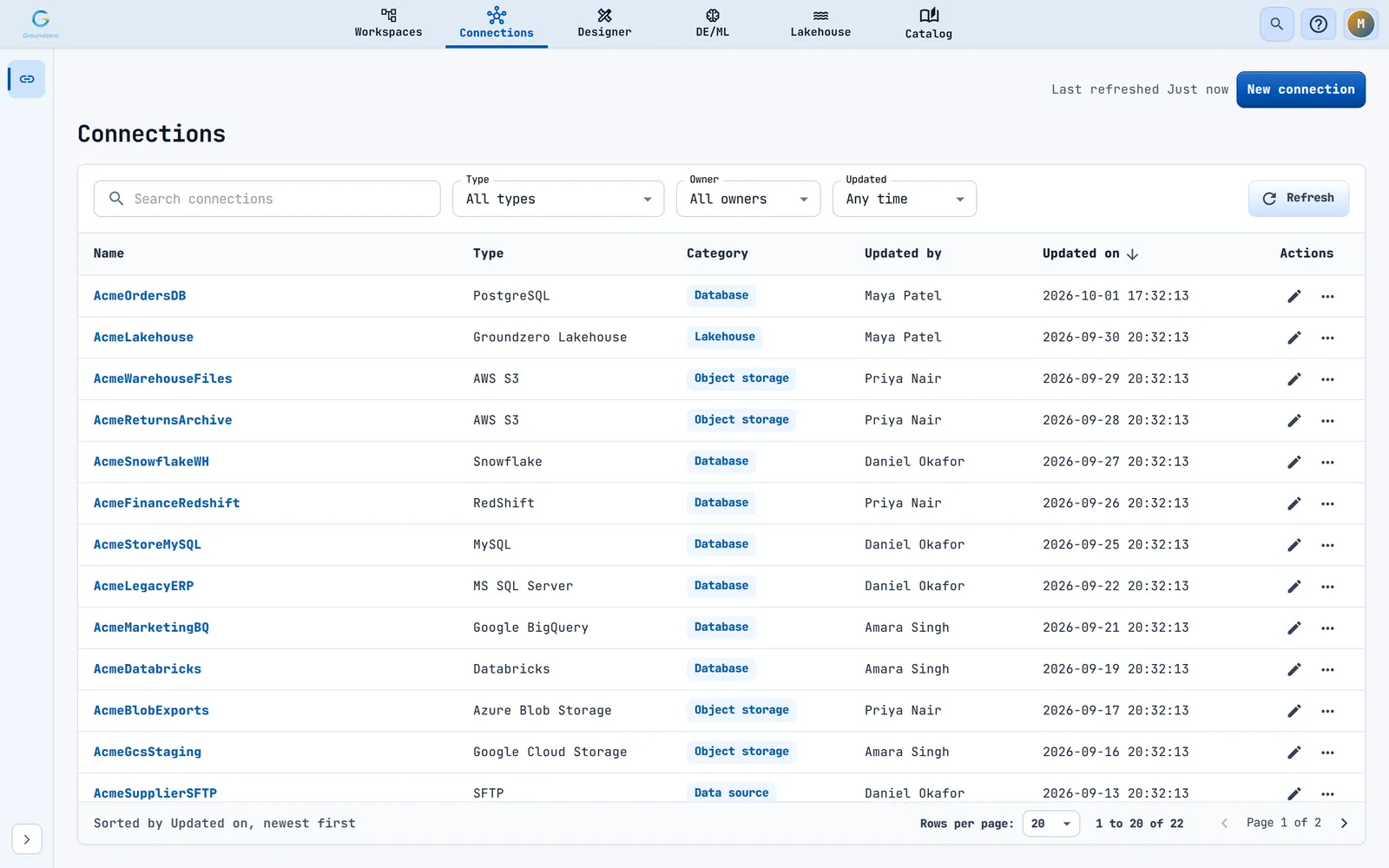
Overview#
What you can do#
| Task | Where |
|---|---|
| Create a connection (66 connector types) | New connection |
| Check that a connection works | Test Connection inside the dialog |
| See how a connection is set up (secrets stay hidden) | Click the connection name |
| Change a connection | Pencil icon, or Edit in the details dialog |
| Delete a connection | Row menu, Delete |
| Find a connection | Search box, three filters and sortable columns |
When to use connections#
- You want a dataset (Designer) or an ETL job (DE/ML) to read from or write to an external system.
- You want Groundzero AI Chat or Agent Builder to use a model provider, an MCP server or another Groundzero agent service.
- You want the Lineage page to explain where data came from; lineage identifies assets by the connection they live on.
- You want to browse an object-storage bucket under My Files (see the Files and workspaces chapter).
Who can do what#
Every signed-in user can open the page, but what you see and can do depends on your permissions on the resource type "Connection". An administrator grants them in the admin console (Access Manager).
| Action | Permission needed (either one) | Message when denied |
|---|---|---|
| List connections | All or List |
You do not have "All" or "List" permissions on Connection. |
| View details | All or Describe |
You do not have "All" or "Describe" permissions on Connection. |
| Create | All or Add |
You do not have "All" or "Add" permissions on Connection. |
| Edit | All or Edit |
You do not have "All" or "Edit" permissions on Connection. |
| Delete | All or Delete |
You do not have "All" or "Delete" permissions on Connection. |
An administrator can grant permissions to a user or a group, either for all connections or for one connection. An explicit deny wins. Whoever creates a connection automatically receives All on it. If you see a "You do not have ... permissions" message, ask an administrator for the permission it names.
Create a connection#
Before you start, have the host name or address, the account or user name and the password or key for the system you want to reach. Ask the owner of that system if you do not know them.
-
Click New connection. The Add Connection dialog opens with a single field, Connection Type. Save and Test Connection are disabled.
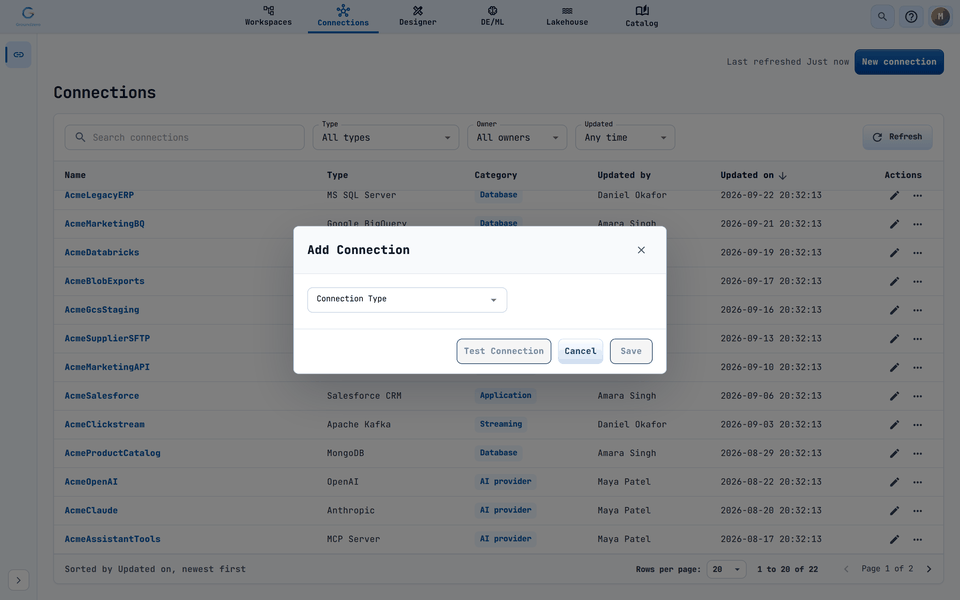
The Add Connection dialog before a type is chosen. -
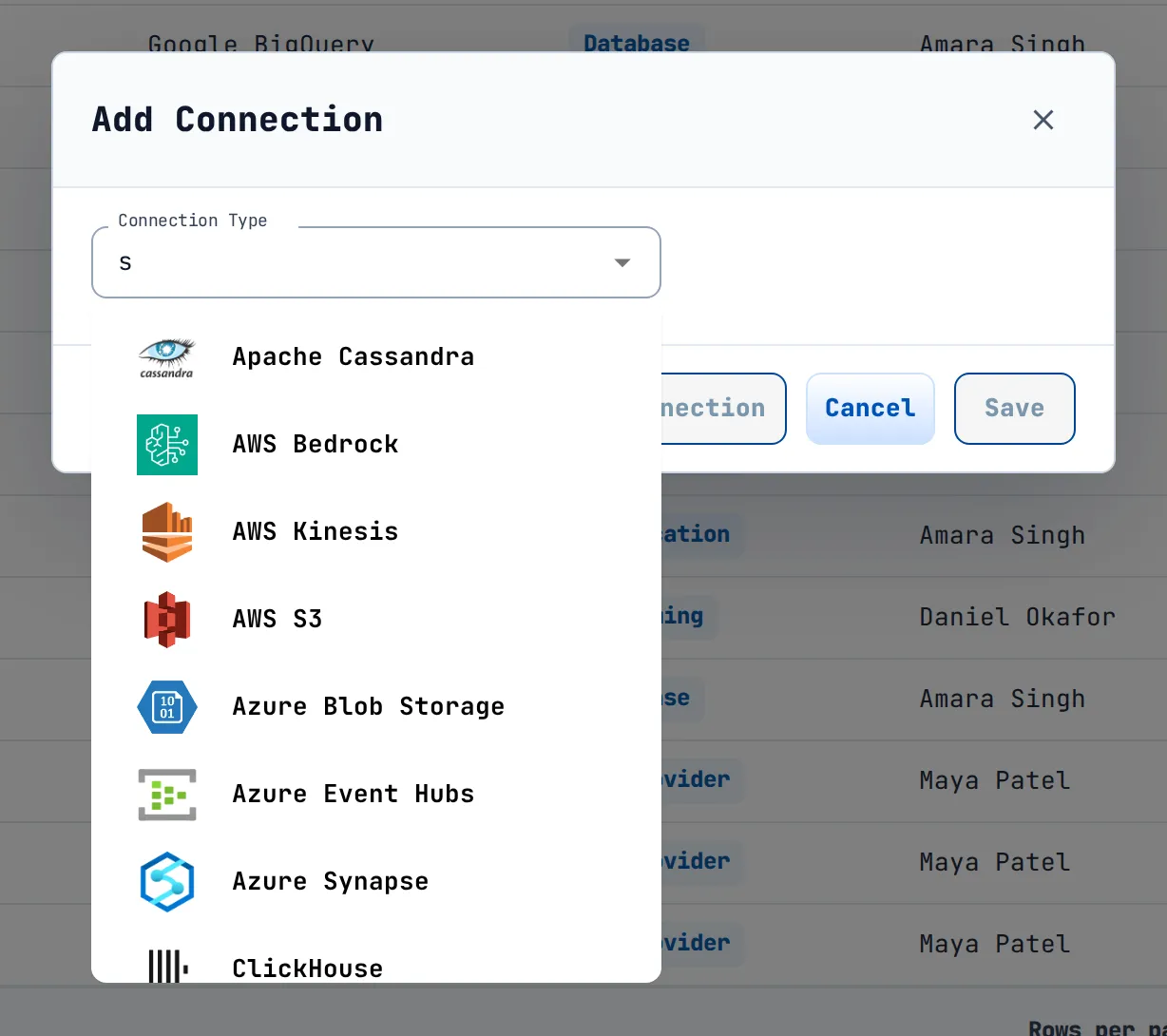
Click Connection Type and type to filter the alphabetical list, or scroll. Each option shows the connector logo.
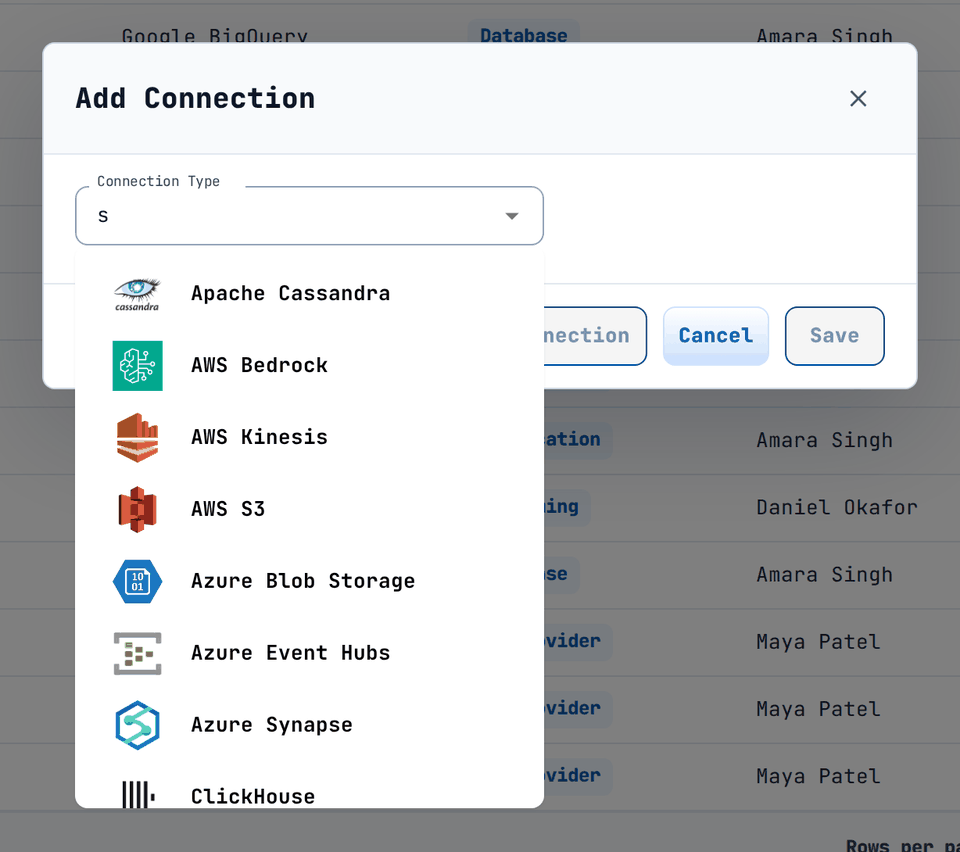
Typing in Connection Type narrows the list of connectors. -
Pick a type. The form for that connector appears. The first field is always Connection Name. Fill in the remaining fields (see the connector reference below).
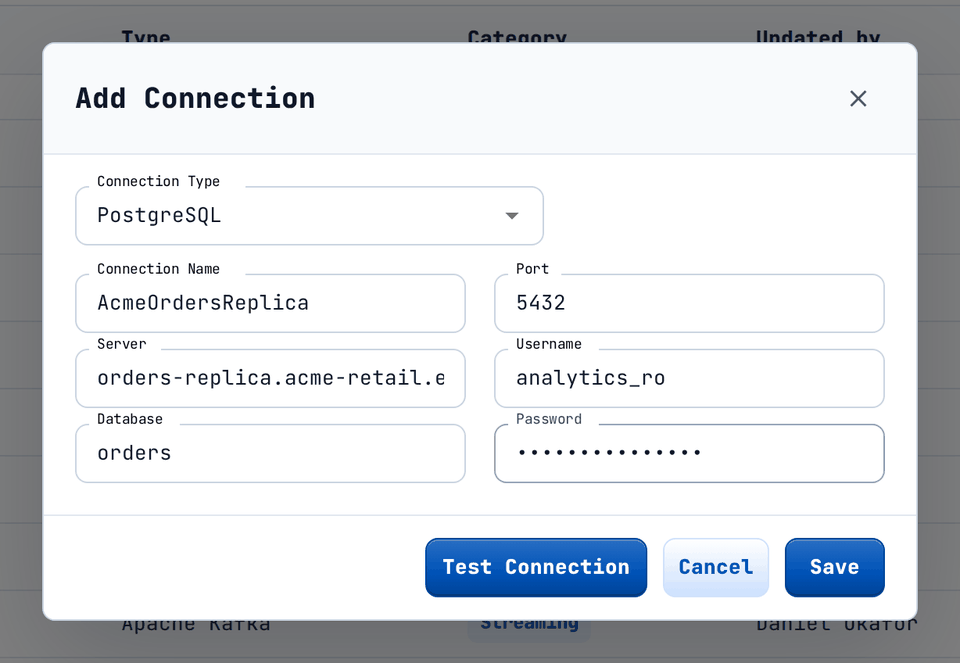
A PostgreSQL connection with its fields filled in; the default port 5432 is pre-filled. -
Click Test Connection (optional but recommended). A success or failure message appears as a notification.

A successful test shows the message returned by the connector. -
Click Save. The dialog closes, the list reloads and the notification "Connection created successfully" appears. Your new connection is now in the list, and datasets and jobs can use it by name.

After saving, the new connection appears in the list.

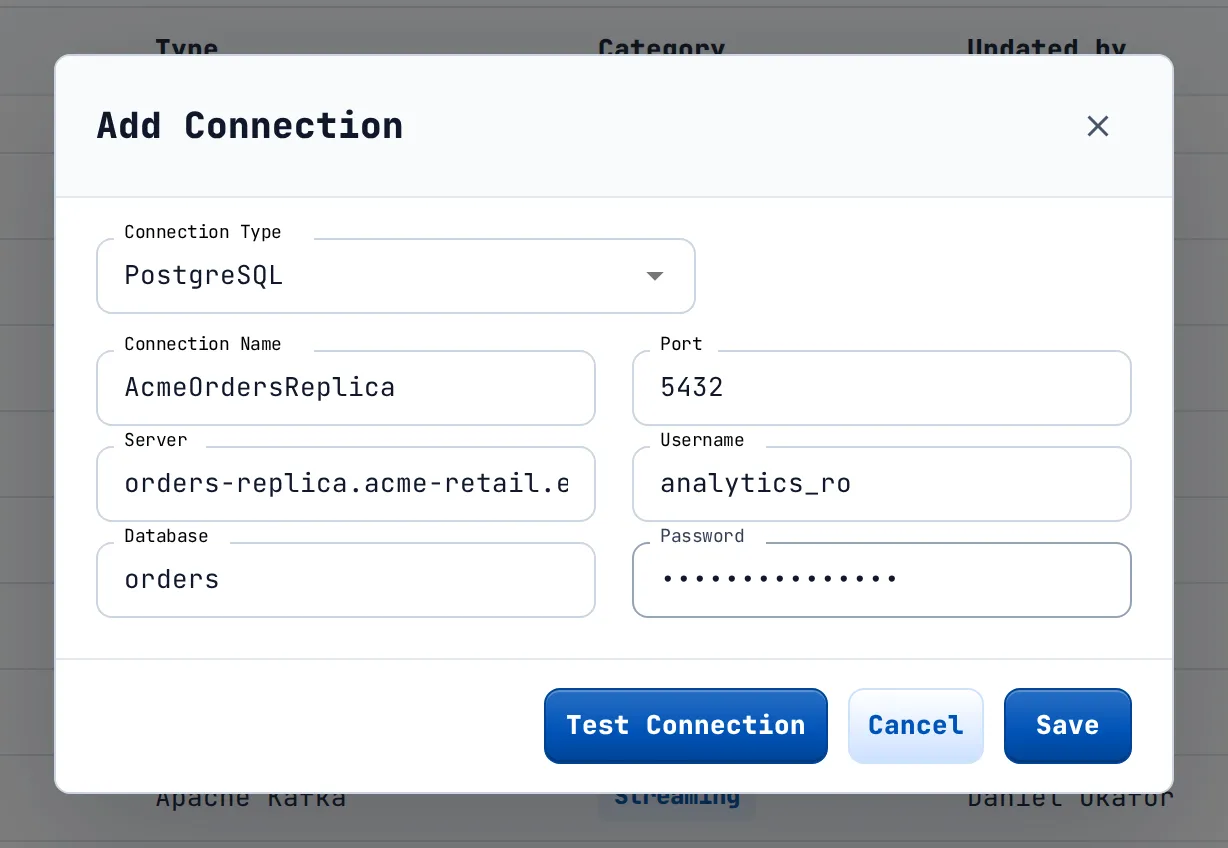


Example: connect PostgreSQL in five steps#
- Click New connection and choose PostgreSQL.
- Enter Connection Name
acme-orders-db. - Enter Server
orders., Databaseacme- retail. example. com orders, keep Port5432, and enter Usernameanalytics_readerand the Password. - Click Test Connection. You should see "Test connection succeeded".
- Click Save.
acme-orders-dbappears in the list.
Connection name rules#
A name must start with a letter and may contain letters, digits and single hyphens in the middle: no spaces, no underscores, no hyphen at the end and no two hyphens in a row. Names are unique per site.

When Save and Test Connection are enabled#
Both buttons stay disabled until all of these are true:
- you picked a connection type;
- Connection Name is not blank;
- every field is filled in, except fields labelled "(optional)". Numbers (including 0) and True or False choices count as filled.
If Save stays disabled, look for a field that is not labelled "(optional)" and is still empty. This includes fields that look unimportant, such as a pre-filled default you cleared.
Messages you may see while creating#
| Message | Cause | What to do |
|---|---|---|
| Fill all required connection details before saving | The form is incomplete. | Fill every field that is not marked "(optional)". |
| Name must start with a letter, contain only letters, numbers, and hyphens, and cannot end with or contain consecutive hyphens. | The name breaks the name rule. | Rename it, for example acme-orders-db. |
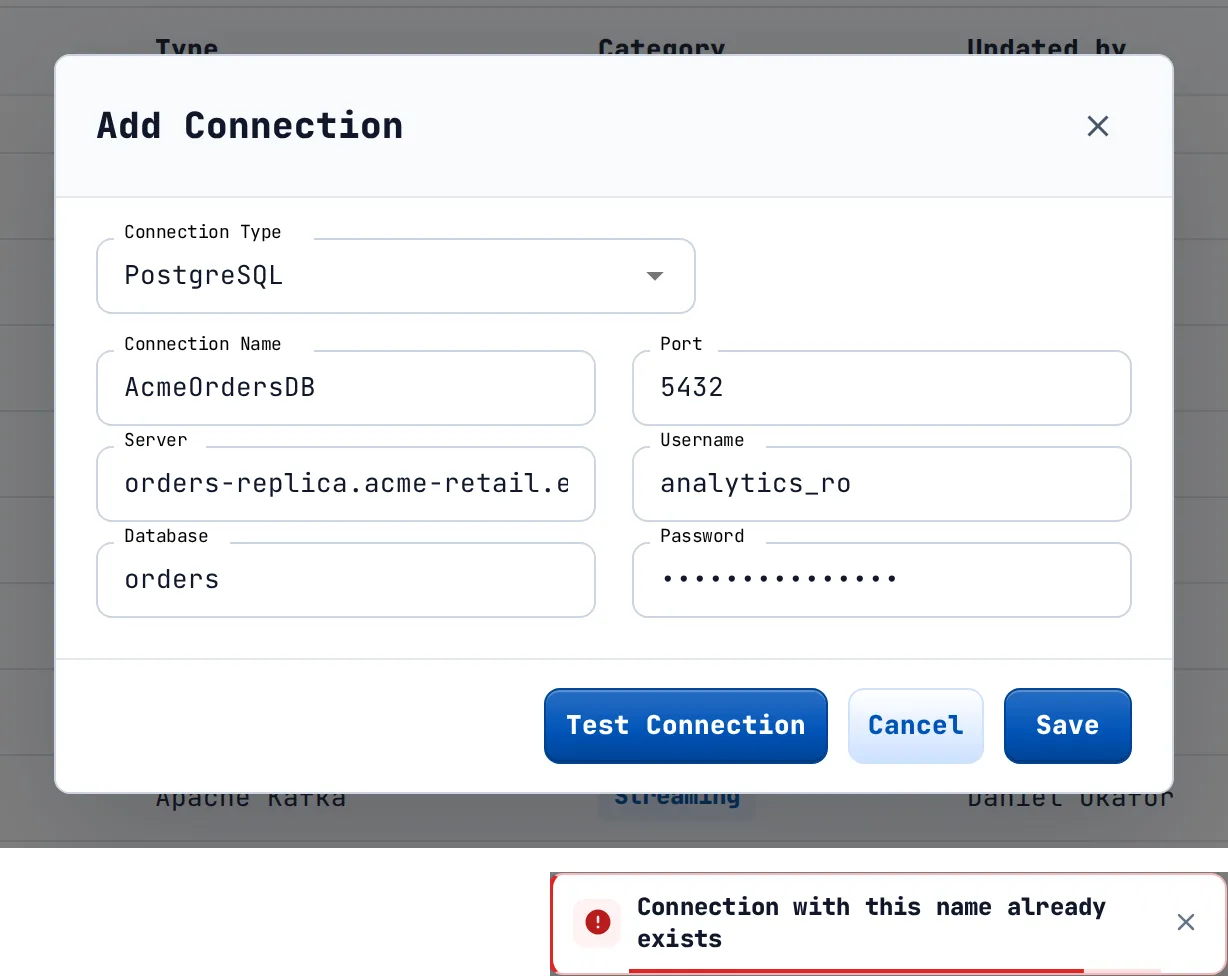
| Connection with this name already exists (also shown as "Connection name already exists") | Duplicate name. | Choose another name. |
| AI Chat Storage is already configured | Only one AI Chat Storage connection may exist. | Edit the existing one. |
| AICHATSTORAGE must use the reserved name GZ-CHAT-STORAGE, and that name cannot be used by other connection types. | Reserved name. | Use the name the form asks for. |
| You do not have "All" or "Add" permissions on Connection. | Missing permission. | Ask an administrator. |
| Internal server error occurred. | A failure on the server. | Try again; contact your administrator if it persists. |
| An error occurred while creating connection | No more detail was returned. | Try again. |
Test a connection#
Test Connection uses the values currently in the form and never saves anything. While it runs, the button reads "Testing...". Test before you save, and again after you edit.

What a successful test says, by family:
| Family | Success message |
|---|---|
| Databases and warehouses | "Test connection succeeded" (some connectors say "Connection successful" or, for Cassandra, "Connected to Cassandra version <v>") |
| Object storage | AWS S3 and AI Chat Storage check the bucket; Azure Blob checks the container; Google Cloud Storage says "Connection tested successfully" |
| Streaming | Kafka and Kinesis say "Successfully created a connection."; Event Hubs says "Connection tested successfully" |
| AI model providers | "Connection successful". Custom LLM only checks your saved fields and says "Configuration valid..." |
| MCP Server | "Test connection succeeded. Found N tool(s)." |
| Groundzero Agents | "Connection successful" |
| Groundzero Lakehouse | "Connection successfully tested". A failure shows the message in quotes, for example "Invalid parameters" |
When a test fails, read the message first. Typical ones are "Bucket does not exist", "Access denied to bucket" and "Container does not exist" for storage. For a database, the message is the database's own error (wrong password, host not reachable). If the message is only "Error occurred while testing connection", check the host, port and credentials.
When you edit an MCP Server connection and its token or header values are still masked, the test is blocked with "Re-enter or replace saved MCP credentials before testing this connection."
Find a connection#
The page loads every connection you may list. The header shows Last refreshed (Just now, N min ago, and so on) and the New connection button.

The toolbar#
| Control | What it does |
|---|---|
| Search connections | Case-insensitive text search across name, type, category, "Updated by", workspace and description. Press Esc or use Clear search to empty it. |
| Type | "All types" plus each type present in the loaded rows. |
| Owner | "All owners" plus each distinct "Updated by" person. It filters on the last person who modified the connection. |
| Updated | Any time, Today, Last 7 days, Last 30 days (rolling, based on the "Updated on" date). |
| Refresh | Reloads the list (disabled while loading). |
Active filters appear as removable chips (for example Type: PostgreSQL) with a Clear all button. Changing a filter returns you to page 1.

The table#
| Column | Content | Sortable |
|---|---|---|
| Name | Link-style button that opens the details dialog. | Yes |
| Type | Display name of the connector, for example PostgreSQL. | Yes |
| Category | Chip: AI provider, Lakehouse, Object storage, Database, Application, Streaming or Data source. | Yes |
| Updated by | The last person who changed the connection ("priya.nair" is shown as "Priya Nair"). | Yes |
| Updated on | YYYY-MM-DD HH:mm:ss in your local time. This is the default sort, newest first. |
Yes |
| Actions | Pencil (Edit) and "..." menu (View details, Delete). | No |
Click a column header to sort ascending, click again to reverse. The footer states the sort (for example "Sorted by Name, ascending"). Page size is 20, 50 or 100 rows. Rows are keyboard focusable: press Enter on a focused row to open its details.
How the Category chip is chosen. AI provider: OpenAI, Anthropic, Bedrock, Cohere, Custom LLM, Fireworks, Gemini, Hugging Face, MCP, Groundzero Agents, Together, xAI. Lakehouse: lakehouse and Iceberg connections. Object storage: S3, Google Cloud Storage, Azure Blob and AI Chat Storage. Database: PostgreSQL, SQL Server, MySQL, Oracle, Redshift, Snowflake, BigQuery, Databricks, MongoDB and similar. Application: HubSpot, Salesforce, ServiceNow, Zoho, Shopify. Streaming: Event Hubs, Kafka, Kinesis. Everything else, for example Athena or Rest-API, is shown as "Data source".
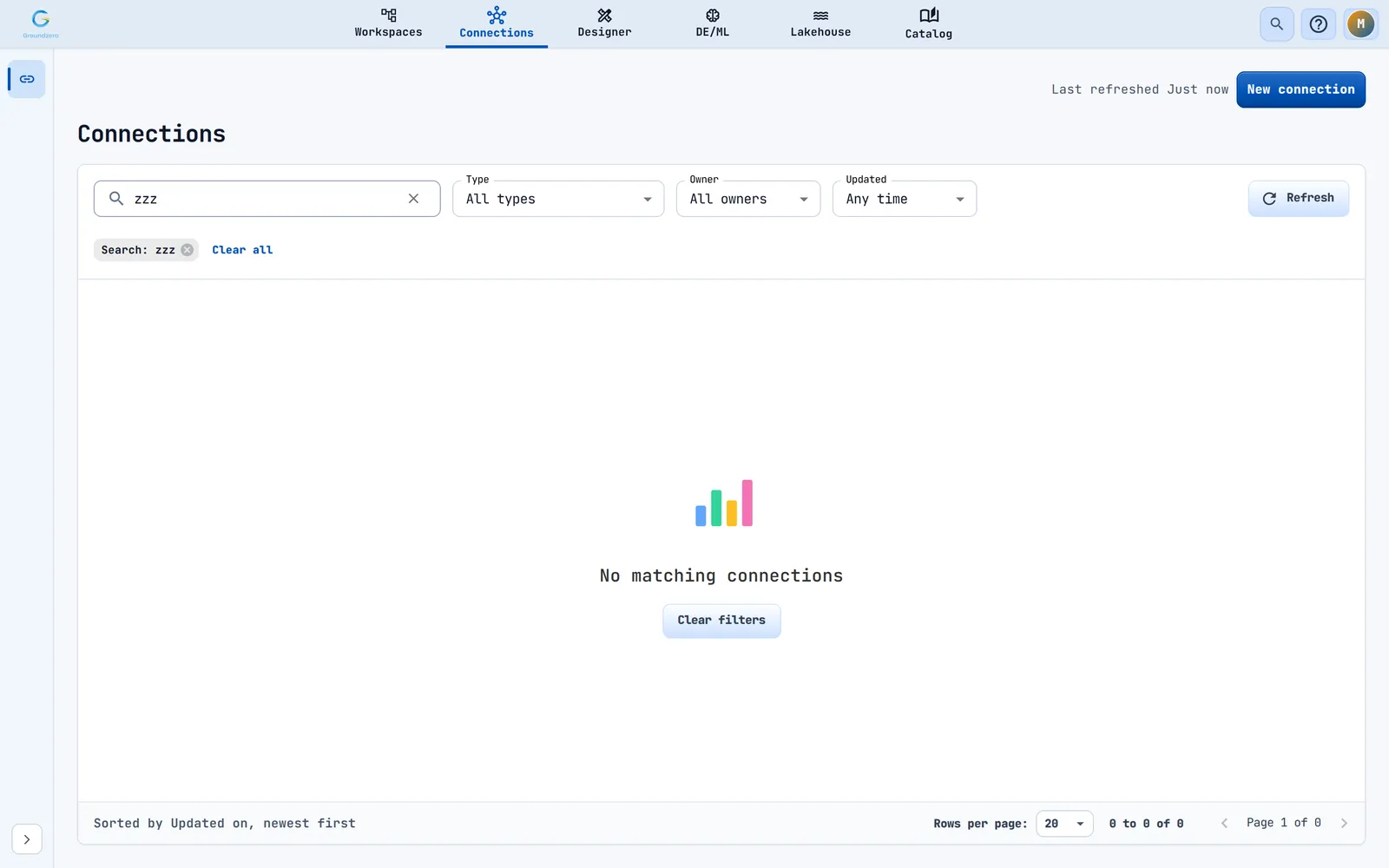
System connection
The page also lists the system connection GZ-CHAT-STORAGE (type AI Chat Storage) when it exists. Other pages hide it.
View connection details#
Click a connection name, choose View details from the "..." menu, or press Enter on a focused row.

The dialog shows the connector logo, name, type and category, a summary (Owner, Updated; Workspace only if present), and Configured details: one row per setting, with a readable label such as Bucket Name. Values that look secret (password, secret, token, credential, private key, access key, API key, account key, client secret, security token) show a lock and *****, and nobody, including an administrator, can display them again. Other values have a copy button. The footer buttons are Edit and Close.

Edit a connection#
Click the pencil icon (Edit <name>) or Edit in the details dialog.
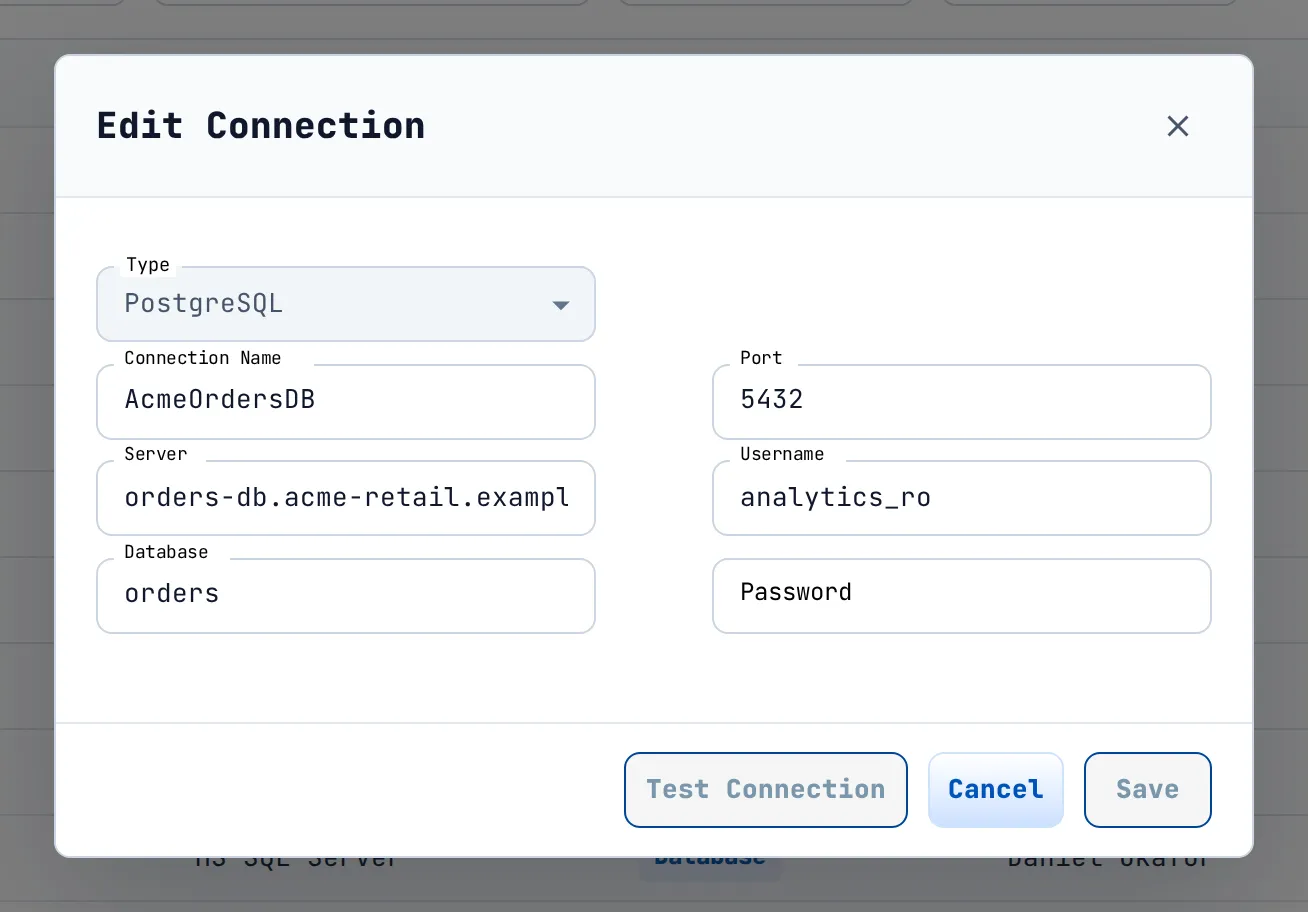
- Change the fields you need. The Type cannot be changed; Connection Name can.
- Type every secret again. Non-secret values are pre-filled, but secrets arrive empty, so Save and Test Connection stay disabled until the form is complete. AI model provider forms and MCP Server show existing secrets as
............and keep them if you leave them unchanged. - Click Test Connection, then Save. Save replaces the whole configuration. On success the notification reads "<Name> edited successfully".
Datasets and jobs refer to a connection by name, so renaming a connection can break them. Edit errors: the message returned, or "Unable to edit connections"; "Fill all required connection details before saving" when the form is incomplete. For MCP Server, if the stored secret is missing you see "Saved MCP credentials could not be preserved. Re-enter or replace them and try again."
Delete a connection#
- Open the row menu (Open actions for <name>) and choose Delete.
- Confirm in Delete Connection: "Are you sure you want to delete this connection <name>?".

On success the notification reads "Connection deleted successfully" and the list reloads. Failures show the message returned or "Unable to delete connections".
Deleting does not check references
Deleting removes the connection and its permissions without checking whether datasets, jobs or agents still use it. Check usage (for example with Data Lineage) before deleting.
Connector reference#
The Connection Type list offers 66 connector types in families. For each family this section explains the fields they share once, then lists the fields each connector shows. Field names are the labels in the form. "(masked)" means the input hides what you type. "(optional)" means you may leave it empty. Defaults are what the form pre-fills.
Tips that apply to every connector:
- Create a dedicated user or key for Groundzero with only the access it needs. A read-only database user is enough for analytics.
- Copy values exactly. A trailing space or a wrong region is the most common reason a test fails.
- Use Test Connection before you save.
Relational databases#
Use these for operational databases and classic SQL servers.
Shared fields: Server (host name or address), Database, Port (the form pre-fills the usual port), Username and Password (masked). Ask your database administrator for the host and for a login that can read the tables you need.
| Connector | Fields | Notes |
|---|---|---|
| PostgreSQL | Server, Database, Port (default 5432), Username, Password | |
| MySQL | Server, Database, Port (default 3306), Username, Password | |
| MS SQL Server | Server, Database, Port (default 1433), Username, Password | |
| Oracle | Server, Database, Port (default 1521), Username, Password | |
| RedShift | Server, Database, Port (default 5439), Username, Password | |
| Azure Synapse | Server, Database, Username, Password, Port (default 1433) | |
| CockroachDB | Server Hostname, Database Name, Username, Password, Port Number | |
| Timescale | Host, Port, Username, Password, Database | |
| SingleStore | Server, Port (default 3306), Username, Password, Database | Database is masked although it is not a secret. |
| SkySQL | Server, Port, Username, Password, Database, SSL Disabled | Database is masked. SSL Disabled is a True or False choice (default False). |
| DB2 | Host Name, Port, Username, Password | |
| SAP HANA | User, password, Database, Server, Port | |
| Teradata | Database, Password, Server, Username | |
| Exasol | DSN, User, Password, Schema | |
| ClickHouse | ClickHouse Host, Username, Password, Port (optional), Boolean for HTTPS (optional), Database Name (optional) |
Example: connect PostgreSQL. See "Example: connect PostgreSQL in five steps" above. The other relational connectors work the same way with their own port.
Common mistakes. Using the wrong port; pointing to a host that is only reachable inside your company network; leaving Password empty when editing, because secrets must be typed again.
Cloud data warehouses and lakehouse engines#
Use these for warehouses and analytics engines in the cloud.
| Connector | Fields | Notes |
|---|---|---|
| Snowflake | Account, Database, Username, Password, Schema | Account is your Snowflake account identifier, the first part of your Snowflake sign-in address. |
| Google BigQuery | Credentials File, Parent Project | Paste the service-account JSON into Credentials File (a single-line text box, not a file picker). |
| Databricks | Databricks Server Hostname, HTTP Path, Access Token, Catalog (optional), Schema (optional) | Copy the hostname and HTTP path from your Databricks compute settings. Access Token shows what you type. |
| Athena | Data Source, Database, Port (default 443), S3 Staging Directory, Access Key, Secret Access Key | S3 Staging Directory is the S3 location where Athena writes query results. |
| Firebolt | Account Name, Client ID, Client Secret, Database, Engine Name | |
| MotherDuck | Token, Database | |
| Apache Hudi | Storage Type, Base Path, S3 Access Key, S3 Secret Key, S3 Endpoint | Storage Type offers one choice, "S3". |
| Groundzero Lakehouse | Lakehouse URL, Warehouse Name, Database Name, Site Name, Service Account Username, Service Account Password | See "Groundzero Lakehouse" below. |
Example: connect Snowflake. Choose Snowflake, name it acme-snowflake, enter Account acme-retail01, Database ANALYTICS, Schema PUBLIC, Username GZ_READER and the Password, then click Test Connection and Save.
Common mistakes. Pasting the full web address into Account; using a user without access to the chosen database or schema.
Other databases and search or vector stores#
Use these for document, graph, key-value, search, time-series, log and vector stores.
| Connector | Fields | Notes |
|---|---|---|
| MongoDB | Username, Server, Password, Cluster | |
| Apache Cassandra | Contact Points, Port, Username, Password, Keyspace | |
| ScyllaDB | Contact Points/Hosts, Port, Username, Password, Keyspace Name, Local Datacenter (optional) | |
| DynamoDB | Access Key Id, Secret Access Key, Region | |
| CosmosDB | Account Endpoint, Account Key, Database, Container | |
| Couchbase | Connection String, Username, Password, Bucket Name, Profile (optional) | |
| ElasticSearch | Host, Port, API Key | API Key shows what you type. |
| InfluxDB | Host, Token, Organization, Database | |
| Neo4j | URL, Username, Password | |
| Pinecone | API Key, Index Name | |
| Weaviate Cloud | Cluster URL, API Key, Headers Dictionary (optional) | API Key shows what you type. |
| Splunk | Splunk Host, Port (default 8089), Username, Password, Scheme (default https) |
Common mistakes. Using a key for a different region or project; leaving the default port when your server uses another.
Object storage and file sources#
Use these for buckets, drives and file servers. Only AWS S3 buckets can be browsed under My Files.
| Connector | Fields | Notes |
|---|---|---|
| AWS S3 | Bucket Name, Region, Access Key, Secret Access Key | Region is the AWS region of the bucket, for example us-east-1. |
| AI Chat Storage | Bucket Name, Region, Access Key, Secret Access Key | Uses the AWS S3 form. See "AI Chat Storage" below. |
| Azure Blob Storage | Account Name, Account Key, Container Name | Account Key shows what you type. |
| Google Cloud Storage | Bucket Name, Credentials File | Paste the service-account JSON. |
| Google Drive | Credentials File, Folder ID (optional) | Paste the service-account JSON. |
| OneDrive | Client ID, Client Secret, Tenant ID, Drive ID, Folder Path (optional) | |
| Sharepoint | Tenant ID, Client ID, Client Secret, SharePoint Site URL, Refresh Token (optional) | |
| SFTP | Username, Server, Password, Port |
Example: connect AWS S3. Choose AWS S3, name it acme-landing-bucket, enter Bucket Name acme-retail-landing, Region us-east-1, then the Access Key and Secret Access Key of a user that can read the bucket. Test Connection should report success. After you save, the bucket appears under My Files.
Common mistakes. A wrong bucket name or region; a key without access to the bucket ("Access denied to bucket"); JSON containing an empty value in Credentials File, which keeps Save disabled because every value must be filled.
Streaming#
Use these for event streams.
| Connector | Fields | Notes |
|---|---|---|
| Apache Kafka | Bootstrap Servers, Security Protocol, API Key, API Secret, SASL Mechanism, Starting Offsets | |
| AWS Kinesis | Stream Name, Region, Access Key, Secret Key | |
| Azure Event Hubs | Event Hub Namespace, Shared Access Key Name, Access Key, Event Hub Name |
Example: connect Kafka. Choose Apache Kafka, name it acme-orders-stream, enter your Bootstrap Servers (host:port, comma separated if several), the Security Protocol and SASL Mechanism your cluster requires, then the API Key and API Secret, and Starting Offsets. Click Test Connection.
Common mistakes. Mismatched Security Protocol and SASL Mechanism; a key that has no access to the topic.
Applications and APIs#
Use these for SaaS applications and generic web APIs.
| Connector | Fields | Notes |
|---|---|---|
| Rest-API | Base URL, Endpoint, Endpoint Params (optional), AuthType | AuthType is free text. |
| Salesforce CRM | Username, Password, Security Token, Domain | |
| ServiceNow | URL, Username, Password | |
| Hubspot | Access Token | Access Token shows what you type. |
| Shopify | Merchant/Store Name, API Version, Access Token | Access Token shows what you type. |
| Zoho CRM | Client Id, Client Secret Id, Refresh Token, URL (default https://www.zohoapis.in/) | Refresh Token shows what you type. |
| Microsoft Dataverse | Tenant ID, Client ID, Client Secret, Dataverse Environment URL |
OAuth-style connectors (OneDrive, Sharepoint, Microsoft Dataverse, Zoho CRM) take the client ID, secret, tenant and refresh-token values pasted into text boxes. Copy them from the app registration in the source system.
Example: connect a REST API. Choose Rest-API, name it acme-pricing-api, enter Base URL https:, Endpoint /v1/prices and AuthType. Click Test Connection.
Common mistakes. Putting the endpoint path in Base URL; an expired token.
AI model providers#
Use these for the models behind AI Chat and Agent Builder. Model-provider connections feed the model picker in AI Chat.
Shared fields: API Key (masked), a base URL that is pre-filled with the provider's standard address, and an optional Model.
| Connector | Fields | Notes |
|---|---|---|
| OpenAI | API Key, Base URL (default https://api.openai.com/v1), Organization ID (optional), Project ID (optional), Model (optional) | |
| Anthropic | API Key, Base URL (default https://api.anthropic.com), API Version (default 2023-06-01), Workspace ID (optional), Model (optional) | |
| Azure OpenAI | API Key, Resource Endpoint, Deployment Name (optional), API Version (default v1), Management Token (masked, optional), Subscription ID (optional), Resource Group (optional), Account Name (optional), Management Base URL (default https://management.azure.com, optional), Management API Version (default 2025-06-01, optional) | |
| AWS Bedrock | Access Key, Secret Access Key, Region (default us-east-1), Assume Role ARN (optional), Model Job Role ARN (optional), Session Token (masked, optional), Model (optional) | |
| Cohere | API Key, Base URL (default https://api.cohere.com), Model (optional) | |
| Fireworks AI | API Key, Base URL (default https://api.fireworks.ai/inference/v1), Control Plane URL (default https://api.fireworks.ai, optional), Account ID (optional), Model (optional) | |
| Google Gemini | API Key, Base URL (default https://generativelanguage.googleapis.com/v1), Model (optional) | |
| Hugging Face | API Key, Hub Base URL (default https://huggingface.co), Inference Base URL (default https://router.huggingface.co/v1), Model (optional) | |
| Together AI | API Key, Base URL (default https://api.together.ai/v1), Model (optional) | |
| xAI | API Key, Base URL (default https://api.x.ai/v1), Model (optional) | |
| Custom LLM | Invocation endpoint, Model ID, Bearer API key, Context window (optional) | See "Custom LLM" below. |
Example: connect OpenAI. Choose OpenAI, name it acme-openai, paste the API Key, keep the default Base URL and click Test Connection. Success reads "Connection successful". The model then shows up in the AI Chat model picker.
Common mistakes. A key from a different provider or project; changing Base URL by accident. An edit form shows saved keys as ............ and keeps them if you do not change them.
MCP Server and Groundzero Agents#
| Connector | Fields | Notes |
|---|---|---|
| MCP Server | Server URL, Transport, Auth Type, Bearer Token, Custom Headers JSON, Allowed Tools, Timeout Seconds | See "MCP Server" below. |
| Groundzero Agents | Agent API URL (pre-filled with your site's agent API URL), Service account username, Service account password (masked) | MCP and Groundzero Agents connections feed AI Chat tools and Agent Builder (see the Analyze/AI documentation). |
Special connection types#
MCP Server#
The MCP form checks what you type. Server URL must be a public HTTPS URL without credentials or a fragment; otherwise the helper text "Use a public HTTPS URL without credentials or a fragment." appears. Transport is "Streamable HTTP" (default) or "Server-Sent Events". Auth Type is "No auth" (default), "Bearer token" (shows Bearer Token, masked) or "Custom headers" (Custom Headers JSON becomes required). Allowed Tools is a comma- or newline-separated list of tool names you permit. Timeout Seconds defaults to 30 and must be 1 to 300.

Test it: success reads "Test connection succeeded. Found N tool(s)." If it fails, check that the URL is public HTTPS and reachable.
Custom LLM#
Use this for a model behind your own HTTPS endpoint.
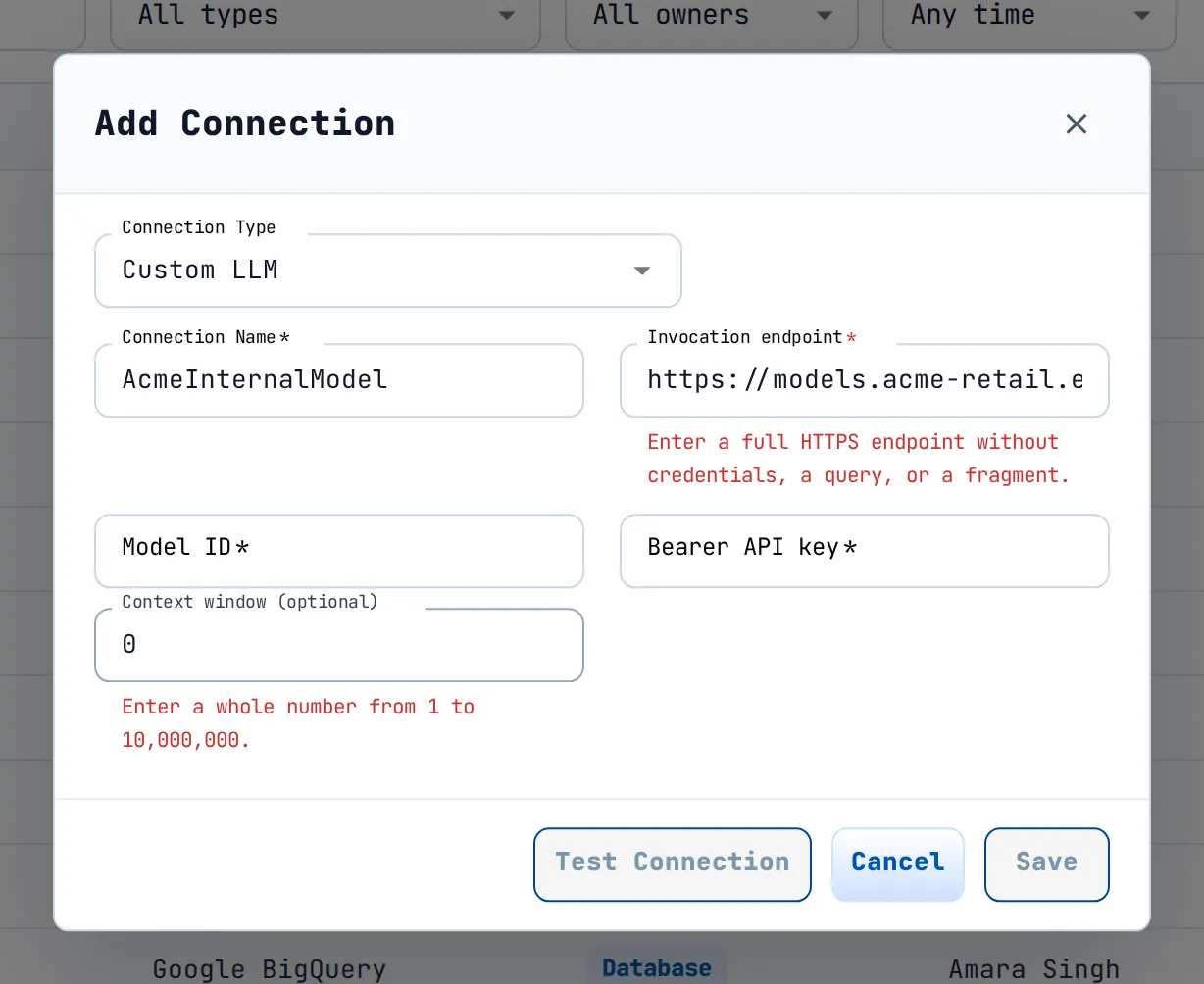
| Field | Rule | Message |
|---|---|---|
| Invocation endpoint | HTTPS URL, up to 2,048 characters, no spaces or backslash, no credentials, query or fragment | "Enter a valid HTTPS endpoint without spaces." / "Enter a full HTTPS endpoint without credentials, a query, or a fragment." / "Enter a valid HTTPS endpoint." |
| Model ID | Up to 512 characters, no leading, trailing or control characters | "Enter the exact model ID without leading, trailing, or control characters." |
| Bearer API key | Visible ASCII, up to 8,192 characters | "Use visible ASCII characters without spaces, up to 8,192 characters." |
| Context window (optional) | Whole number 1 to 10,000,000 | "Enter a whole number from 1 to 10,000,000." |
Groundzero Lakehouse#
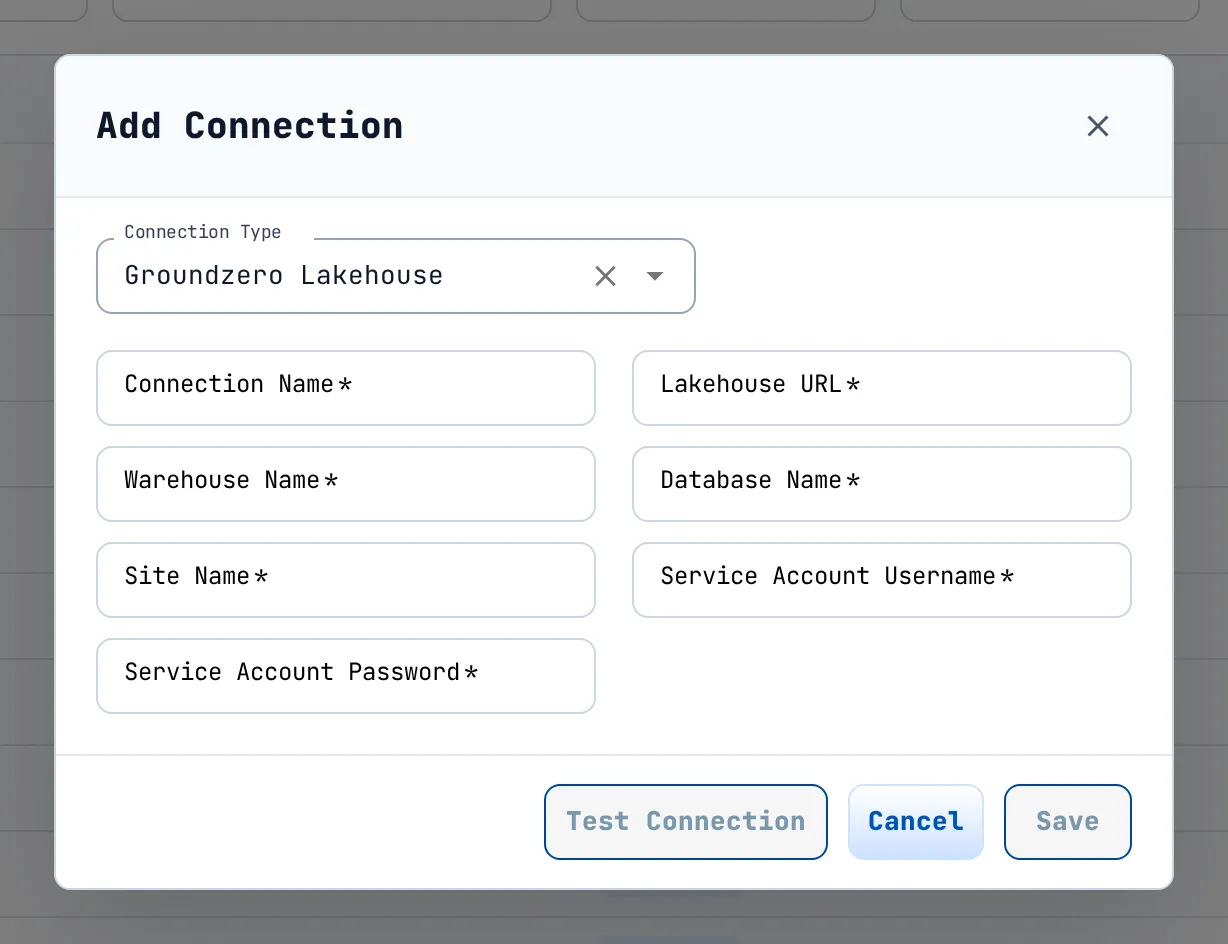
Lakehouse URL is a host name only (without https://). Warehouse and database names are free text. Use a service account with access to that warehouse. See the Lakehouse chapter for how warehouses are created and how to copy the Lakehouse URL.
AI Chat Storage#
Uses the AWS S3 form. Its name is fixed to GZ-CHAT-STORAGE, only one may exist, and once it exists the type disappears from the type list.
Secrets#
- After you save, secret values show only as
*****. - Some fields show what you type: Azure Blob Account Key, Databricks Access Token, ElasticSearch API Key, HubSpot Access Token, Shopify Access Token, Weaviate API Key, Zoho Refresh Token, and the Credentials File fields of Google Cloud Storage, Google BigQuery and Google Drive. Avoid screen sharing while you fill them.
- When you edit a connection you retype its secrets, except for MCP Server and the AI model provider forms.
Limits#
| Item | Limit |
|---|---|
| Connection name | Letters, digits, single interior hyphens; starts with a letter; unique per site; GZ-CHAT-STORAGE is reserved |
| Page size | 20, 50 or 100 rows; no cap on the number of connections |
| Custom LLM | Endpoint 2,048 characters; model ID 512; key 8,192; context window 1 to 10,000,000 |
| MCP | Timeout 1 to 300 seconds; HTTPS URL required |
Tips#
Tip
Run Test Connection before Save. A test never stores anything and uses exactly what is in the form, so you can correct a typo and retest freely.
Tip
Use descriptive, hyphen-free names such as AcmeOrdersDB. Datasets and jobs refer to connections by name, so renaming a connection later can break references.
Tip
Give the connection a read-only database user if the use is analytics: the connection decides what every dataset and job built on it may do.
Troubleshooting#
| Symptom | Cause | Fix |
|---|---|---|
| Test Connection and Save are greyed out | Some field is empty | Fill every field without "(optional)"; when editing, retype the secrets |
| Name rejected | Underscore, space, or a hyphen at the end | Start with a letter and use letters, digits and single hyphens |
| "Connection with this name already exists" | Names are unique per site | Choose another name or edit the existing connection |
| "AI Chat Storage is already configured" | Only one GZ-CHAT-STORAGE is allowed |
Edit the existing one |
| "You do not have ... permissions on Connection." | Missing permission | Ask an administrator for the permission named in the message |
| Saved but the bucket is missing under My Files | Only AWS S3 connections are listed there | See the Files and workspaces chapter |
| "Bucket does not exist" or "Access denied to bucket" | Wrong bucket name or region, or a key without access | Check the bucket name and region and the key's permissions |
| MCP test fails | The URL is not public HTTPS or not reachable | Use a public HTTPS URL; re-enter masked tokens or headers ("Re-enter or replace saved MCP credentials...") |
| Lakehouse test shows a quoted message | The message comes from the lakehouse, for example "Invalid parameters" |
Fill username, password, warehouse and database |
Related features#
- Files and workspaces: browse S3 buckets that connections point to.
- Lakehouse: warehouses referenced by Groundzero Lakehouse connections.
- Data catalog and Data lineage: lineage identifies assets by the connection they belong to.
- Designer datasets and DE/ML jobs (Build documentation): read connections by name.