
3. Files and workspaces
Groundzero has two places for files and folders, both under Workspaces in the top navigation bar:
- Workspaces hold dashboards you have imported, organised into named folders.
- My Files lets you browse, upload, download and delete files in your AWS S3 buckets without leaving Groundzero.
| I want to... | Go to |
|---|---|
| Keep related dashboards together in a folder | Workspaces, then New Workspace |
| Put a published dashboard into a workspace | Open the workspace, then Import Dashboard |
| Upload a CSV file for a dataset or job | My Files, open a bucket, then New > Upload File |
| Download or clean up files in a bucket | My Files, open the bucket |
You need two things in place before you start. For Workspaces, an administrator must have given you permission on workspaces (see "Workspace permissions" below). For My Files, you need an AWS S3 connection that you are allowed to see (see the Data source connections chapter).
Organise dashboards in a workspace#
A workspace is a named folder of imported dashboards. It is not general file storage; use My Files for that. Open Workspaces in the left rail.

The list shows the workspaces you may see, newest change first, with the Owner, the Last updated time and an Actions menu ("..."). Type in Search Workspace to filter by name. You can show 20, 50 or 100 rows per page.
Create a workspace#
- Click New Workspace.
-
Type a name. It must start with a letter and may contain letters, digits and single hyphens, for example
Finance-Reports. No spaces, underscores, trailing hyphen or double hyphen.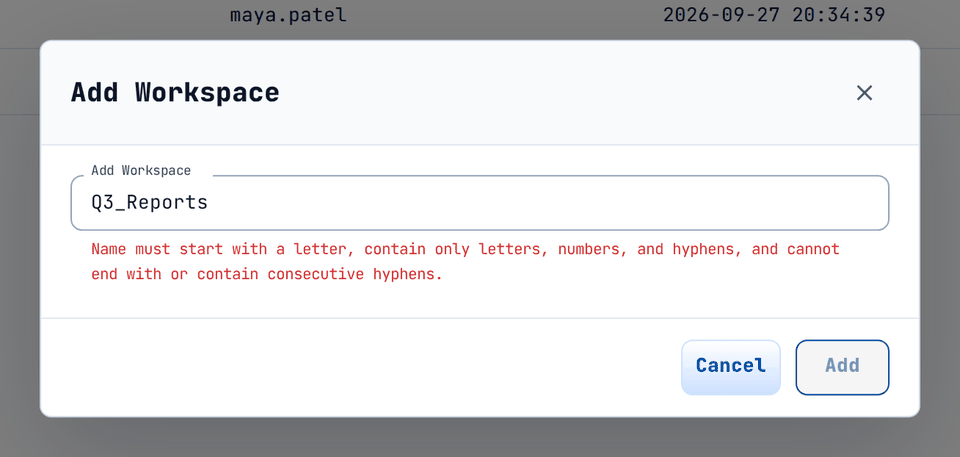
An underscore is rejected before you can save; the Add button stays disabled. -
When the red helper text disappears, Add turns on. Click it.

A valid name enables Add.

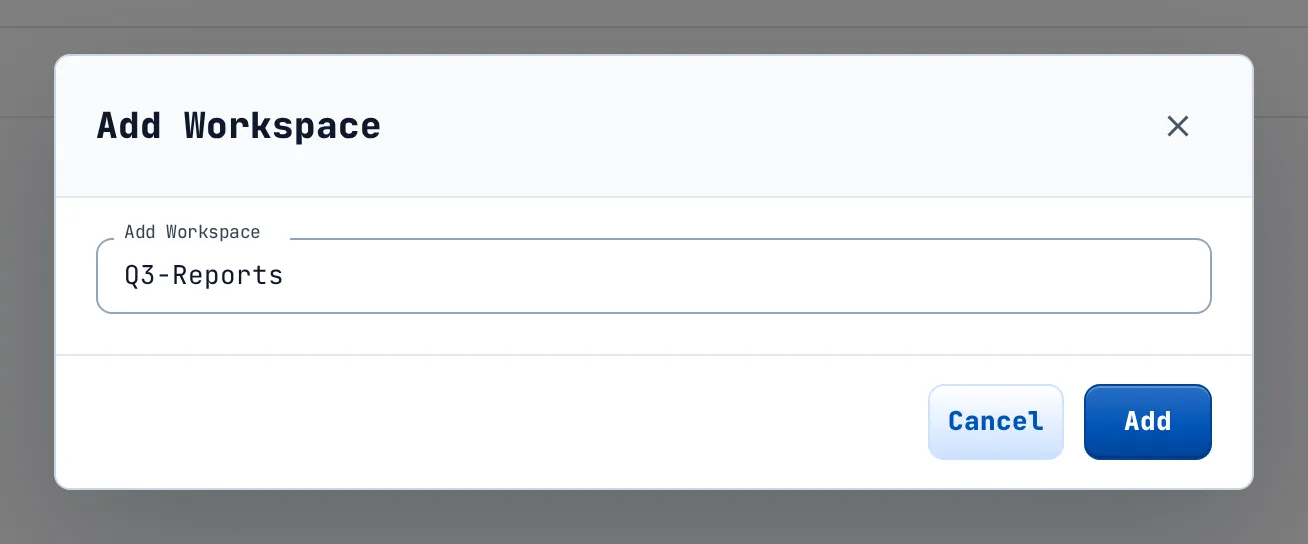
You see "<name> added successfully" and the workspace appears in the list. You are its owner.
If you see "Workspace with this name already exists", choose another name.
Import a dashboard into a workspace#
Only published dashboards can be imported. The imported copy opens read-only.
-
Click the workspace name. A breadcrumb (Workspaces > name) appears, the owner column is now called Created by, and the main button is Import Dashboard.
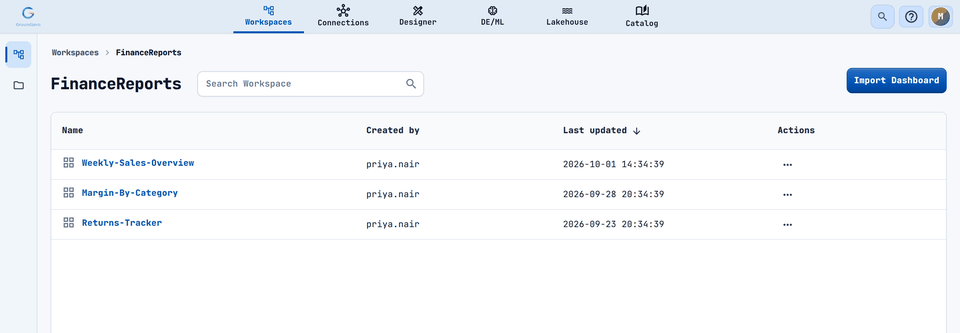
Inside a workspace the primary button is Import Dashboard and the owner column becomes Created by. -
Click Import Dashboard and choose a dashboard from Select a dashboard. The list is searchable.

The dropdown lists published dashboards. -
Click Import. You see "Import dashboard successful".
- Click the dashboard name to open it.

If a dashboard of the same name is already in the workspace, the Dashboard Name Conflict dialog asks what to do.

| Button | Result |
|---|---|
| Replace | Overwrites the existing dashboard. |
| Keep Both | Imports the new one as <name>-<date and time> and keeps the old one. |
| Cancel | Does nothing. |
Tip
If you are not sure, choose Keep Both. You can delete the older copy later.
Rename, delete or hand over a workspace#
Open the "..." menu on a row (Open actions for <name>).

-
Rename opens a dialog with the current name. The same naming rule applies.
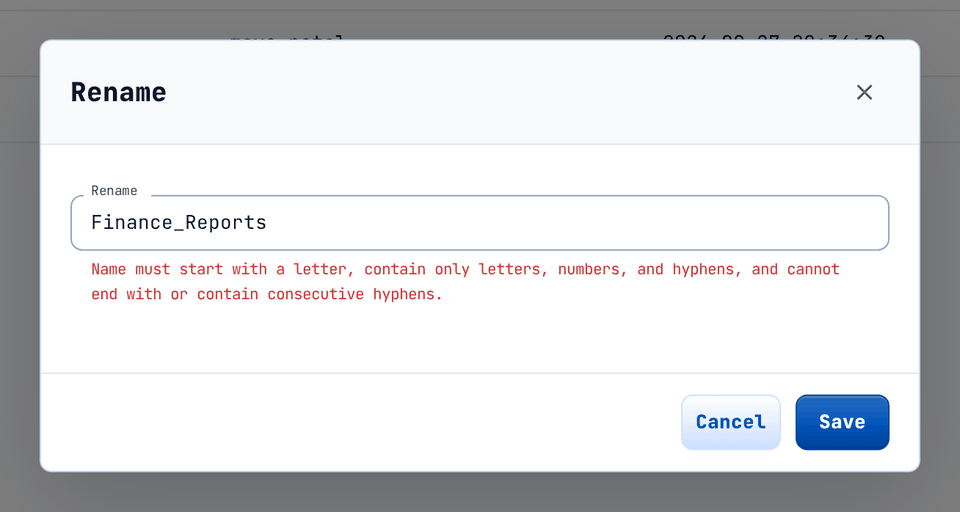
The Rename dialog shows the same name rule. -
Delete asks you to confirm, then shows "<name> deleted successfully".
-
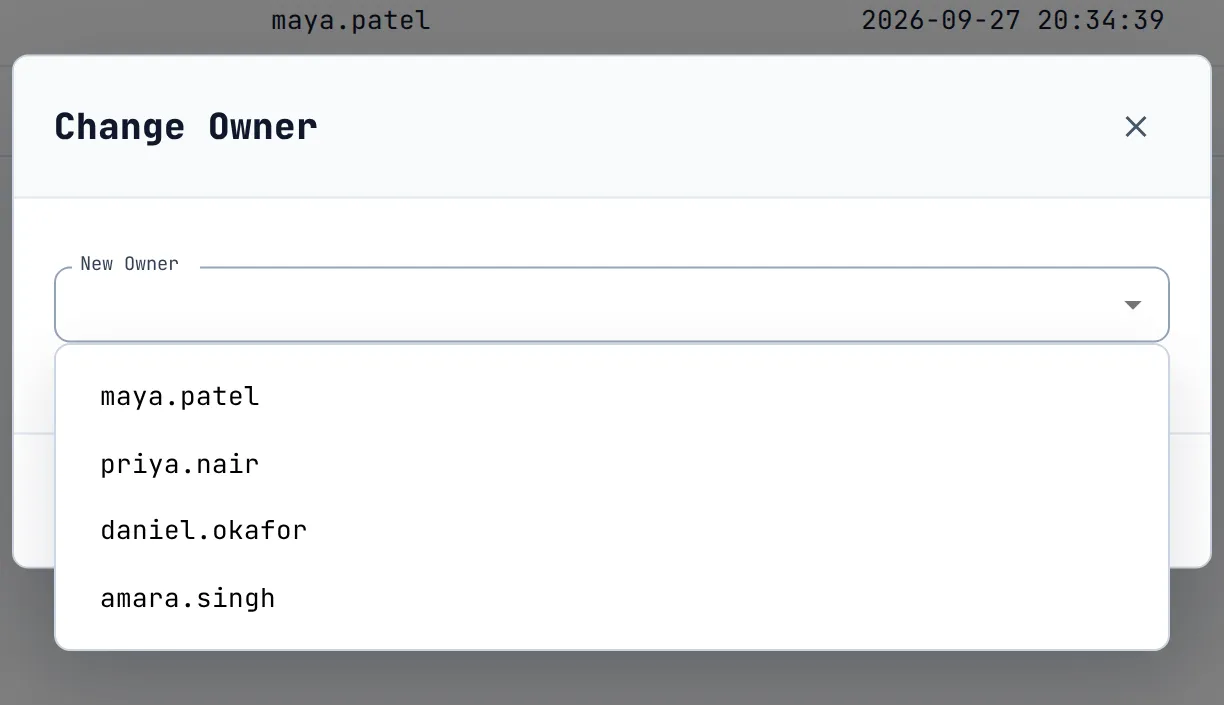
Change Owner is shown to site administrators only. Choose the new owner in New Owner and click Submit.

Change Owner lists the site's users.

Warning
Deleting a workspace removes the dashboards imported into it. The originals stay where they were published.
Workspace permissions#
An administrator grants these in Access Manager. If one is missing you see You do not have "All" or "<Permission>" permission(s) on Workspace.; ask an administrator for the permission it names.
| Permission | Lets you |
|---|---|
All |
Do everything below |
Add |
Create a workspace |
List |
See a workspace and its contents |
Edit |
Rename a workspace |
Delete |
Delete a workspace |
AddDashboard |
Import a dashboard into it |
ViewDashboard |
Open a dashboard |
DeleteDashboard |
Delete a dashboard from it |
Manage files in your buckets#
My Files shows the AWS S3 buckets behind your connections. Use it to upload CSV, YAML or image files, download files, or tidy up folders. Open My Files in the left rail.

All Buckets lists the AWS S3 connections you may see. Use Search Bucket to filter. If a bucket is missing, see "Troubleshooting" below.
Only AWS S3 appears
Azure Blob Storage, Google Cloud Storage and AI Chat Storage connections are not listed here.
Browse a bucket#
- Click a bucket. A breadcrumb (All Buckets > connection > folders) shows where you are.
-
Use the Folders tab for the sub-folders of the current folder and the Files tab for its files. The search box switches between Search Folder and Search File.
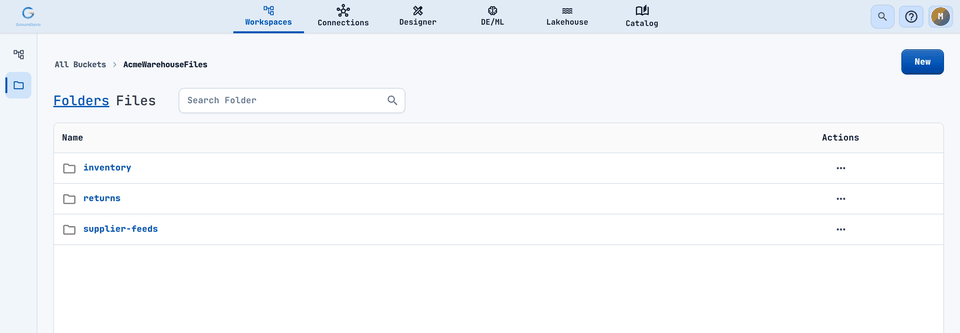
The Folders tab lists the immediate sub-folders of the current path. 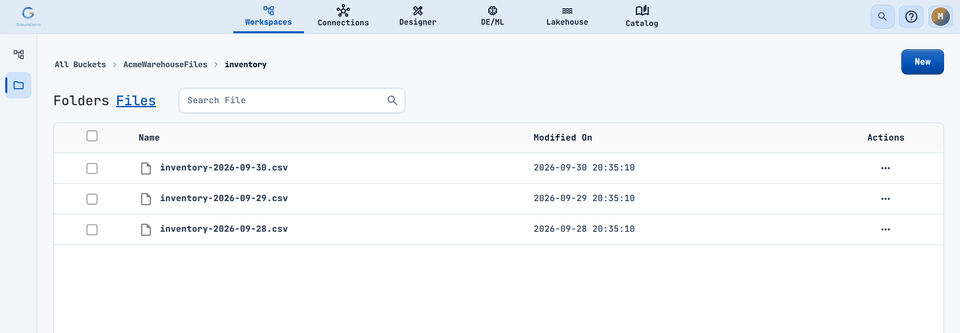
The Files tab lists the files in the current folder. -
Click a folder to open it; use the breadcrumb to go back.
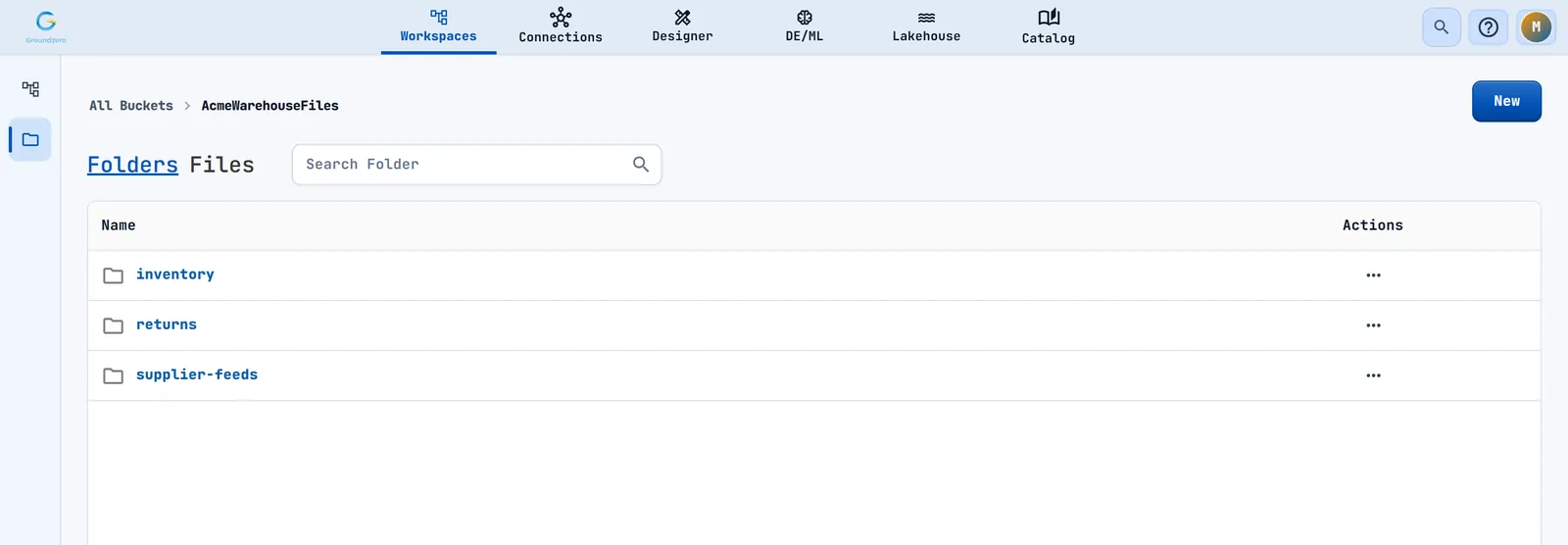

Each folder lists its first 1,000 files. Tables show 20, 50 or 100 rows per page.
Create a folder#
-
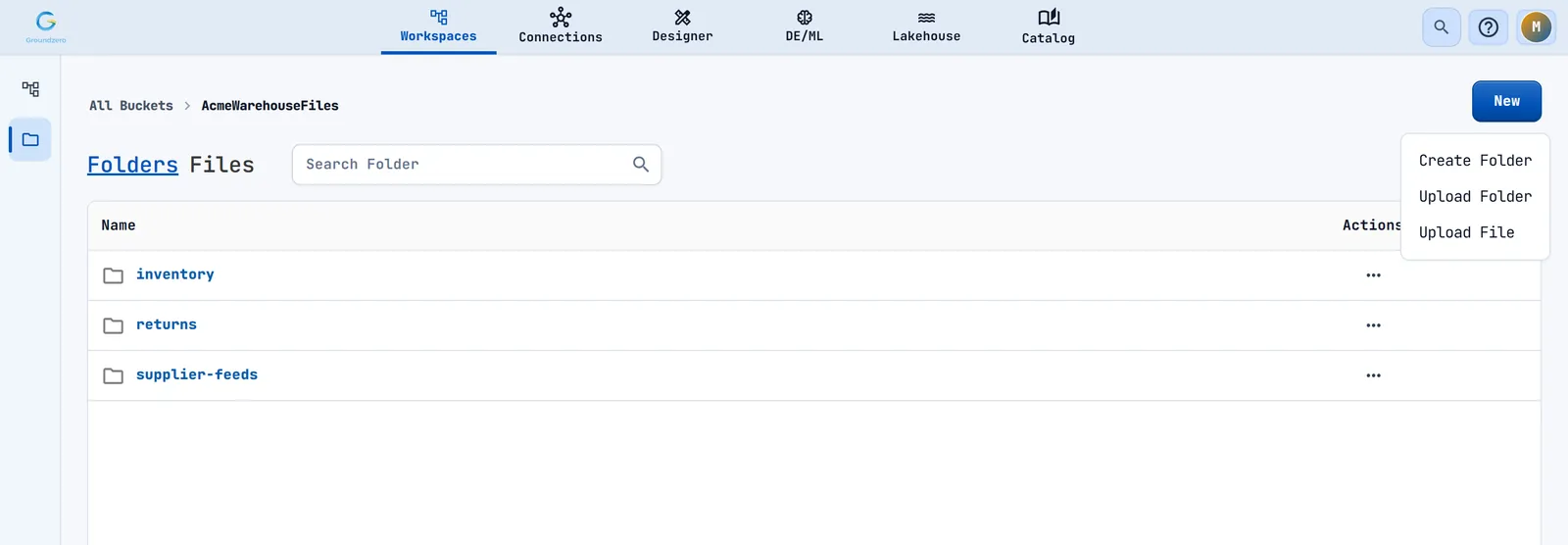
Click New, then Create Folder.

The New menu offers Create Folder, Upload Folder and Upload File. -
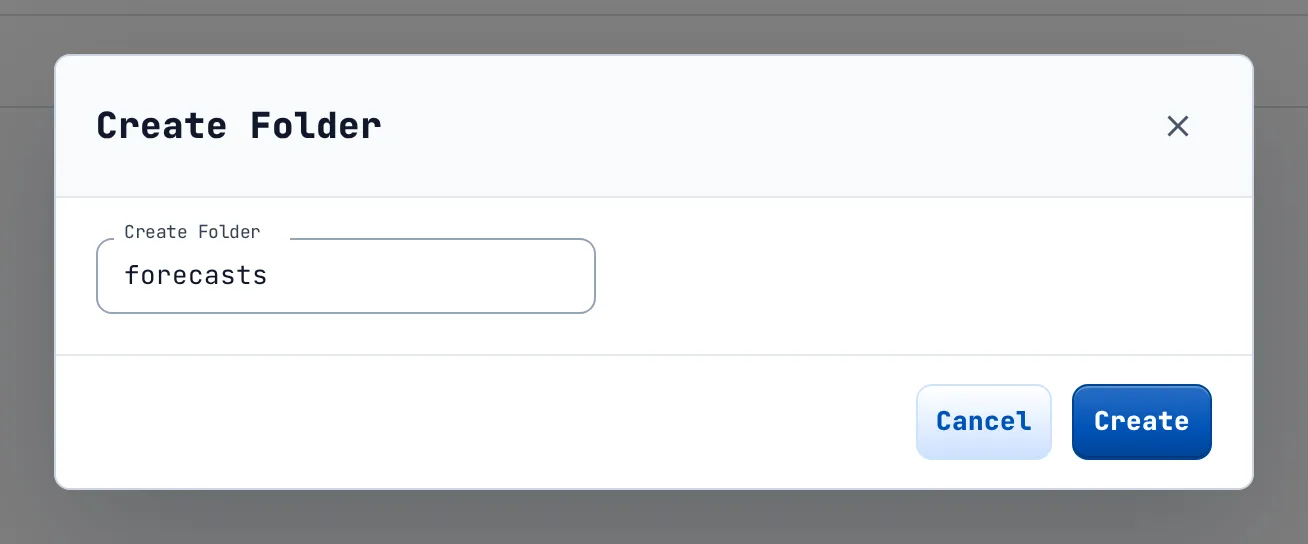
Type a name in Create Folder and click Create. Typing a slash creates a folder inside a folder.
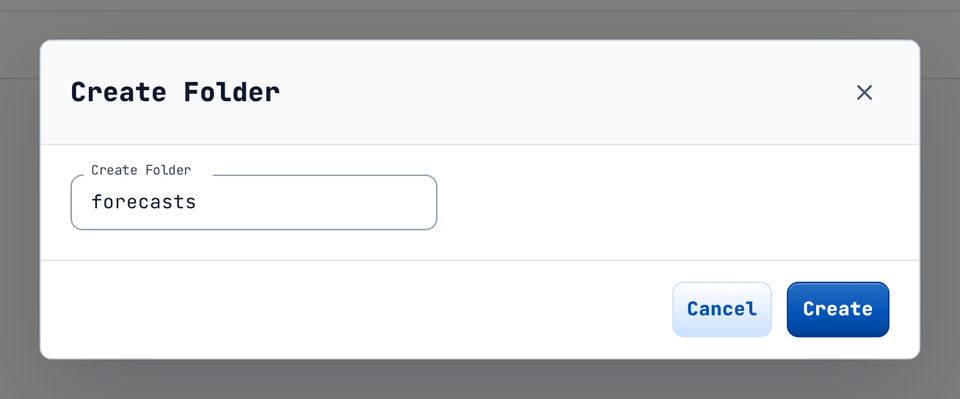
The Create Folder dialog. -
You see "Folder created successfully" and the folder appears in the list.
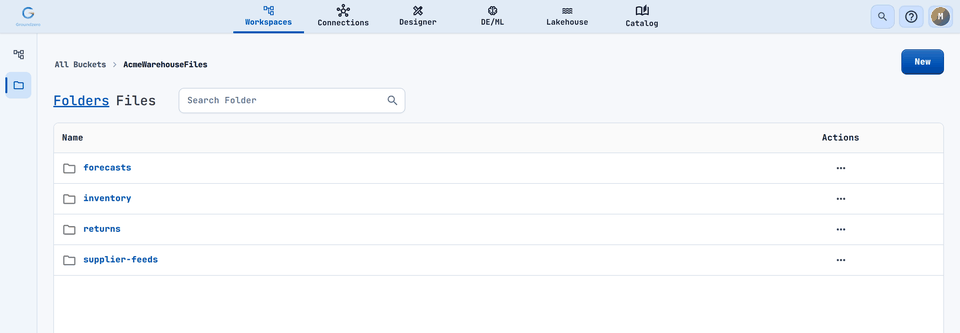
The new folder appears in the list.

An empty folder holds no data. Upload a file into it to keep it.
Upload files or a folder#
- Click New, then Upload File (or Upload Folder).
-
Click Choose File (or Choose Folder). CSV, YAML and image files are suggested, but you can pick other types. You can choose several files; their names are listed in the dialog.
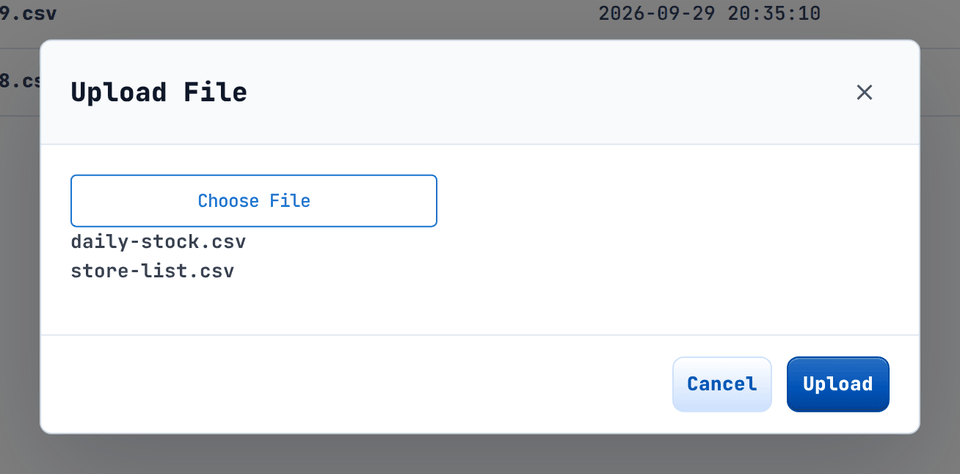
The chosen file names are listed before you upload. -
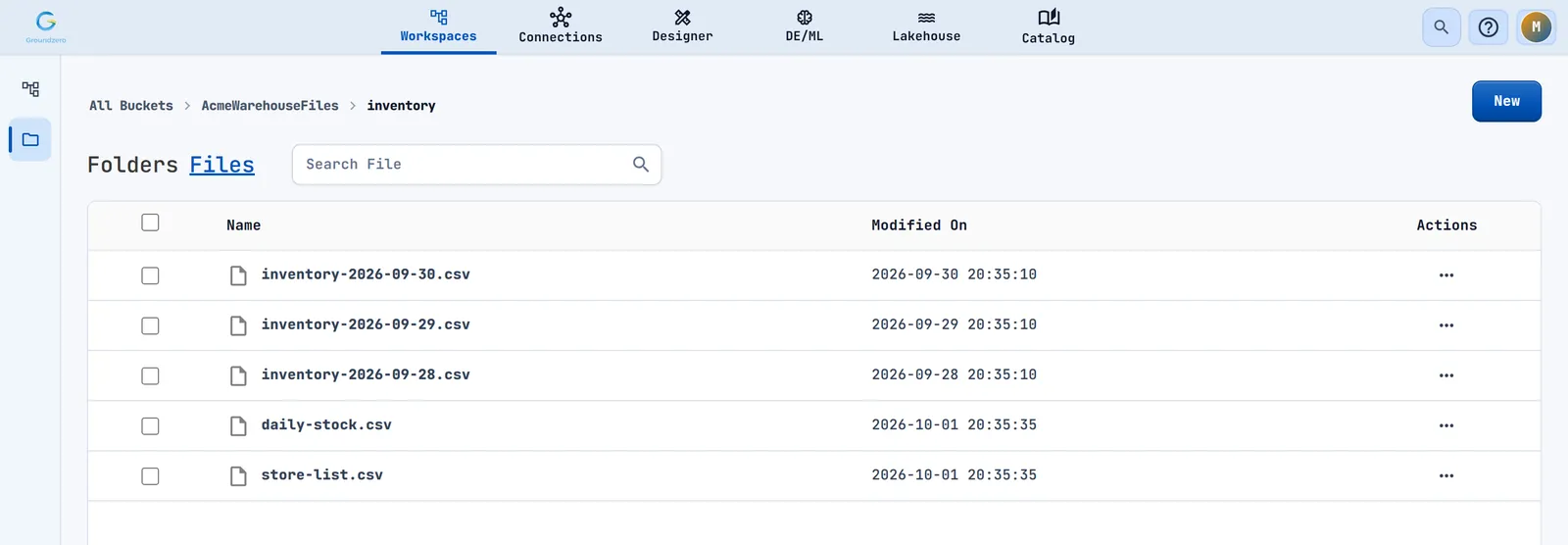
Click Upload. You see "<n> files uploaded successfully," and the files appear in the Files tab.

After uploading, the files are listed in the folder.

Uploading overwrites
A file with the same name in the same folder is replaced without a prompt.
Always check the Files tab afterwards. If the upload fails you see "Error in uploading files" or "Error in uploading folder".
Download files#
- One file: open the "..." menu on its row and choose Download. You see "File downloaded successfully".
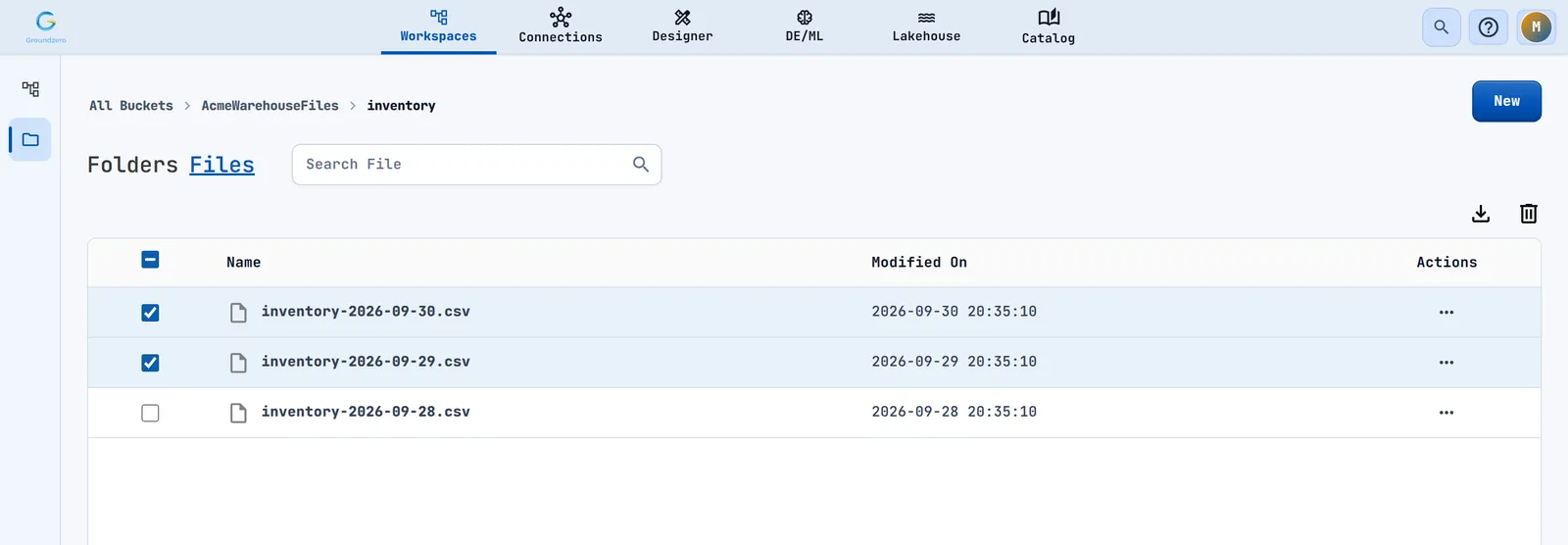
- Several files: tick the rows (or Select all rows). Download and delete icons appear at the top right of the table. Download gives you one
files.zip.
Delete files or folders#

- A file: "..." menu > Delete, or tick rows and use the delete icon. Confirm the question, then you see "<name> deleted successfully".
- A folder: on the Folders tab, "..." menu > Delete.
Deleting a folder deletes everything inside it
All files and nested folders go with it, and Groundzero does not ask a second time.
Who can see and change a bucket#
Access follows the connection. Anyone who can see a bucket in All Buckets can also upload, download and delete in it. Share the connection (the Describe permission) only with people who should have that access.
Tip
Use a dedicated bucket, with a dedicated S3 connection that has narrow credentials, for files you want your team to manage in Groundzero.
Troubleshooting#
| Symptom | Likely cause | Fix |
|---|---|---|
| A bucket is missing from All Buckets | The connection is not an AWS S3 connection, or you do not have Describe on it |
Check the connection type; ask an administrator for access |
| "Access denied. Check your permissions." or "The access key ID is invalid." | The keys in the connection are wrong or expired | Edit the connection and type the secrets again |
| "The bucket does not exist." | The bucket name in the connection is wrong | Correct the bucket name in the connection |
| "File not found." | Someone removed the file after you opened the list | Reload the folder |
| An upload shows success but the file is not listed | The list was not refreshed, or the upload failed silently | Open the Files tab again and retry |
| A workspace will not rename or create | The name breaks the naming rule | Start with a letter; use only letters, digits and single hyphens |
| Change Owner is not in the menu | Only site administrators can change owners | Ask an administrator |
| Change Owner is rejected with "Owner name must start with a letter..." | The owner name format is not accepted | Ask an administrator to change the owner |
Related#
- Data source connections: create the AWS S3 connection that My Files browses.
- Designer documentation: publishing dashboards and the dashboard viewer.
- Lakehouse: governed tables, an alternative to raw files.