
7. Ontology Studio
An ontology is a reviewed list of what your business words mean: what an "Order" is, how "Net revenue" is calculated, how customers relate to orders. Ontology Studio helps you build one from the tables and columns Groundzero already knows about through lineage. Groundzero proposes the entries, your team reviews and approves them, and you publish a numbered release. AI Chat and Agent Builder use published releases to understand your business; drafts never reach them.
Open Catalog in the top navigation bar, then Ontology Studio in the module menu.

| I want to... | Go to |
|---|---|
| Start an ontology for a business area | "Create a model" |
| See how things connect | "See how things connect: the map" |
| Approve or reject entries | "Review definitions" |
| Let AI draft wording for me | "Draft with AI" |
| Make it available to AI Chat and agents | "Publish a release" |
| Change something already published | "Change a published model" |
The words used here#
| Term | Meaning |
|---|---|
| Model | One ontology for a business area, built from the sources you choose |
| Definition | One entry in the model, with a business meaning, an owner, synonyms and optional guidance for AI |
| Entity | A table, such as Order or Customer |
| Term | A column of an entity, such as order_total |
| Metric and Rule | A calculated measure (Net revenue) or a business rule, with one SQL expression that defines it |
| Relationship | A link between two definitions with a business verb, such as "Customer places Order", and optionally its cardinality (for example 1:N) and join columns |
| Concept | A group of columns from different tables that share a name, such as customer_id on three tables |
| Release | A frozen, numbered copy of the approved definitions |
Review status#
| Status | Meaning |
|---|---|
| Needs review | Proposed or newly written; nobody has decided yet |
| Approved | Accepted. Only approved definitions are published. |
| Rejected | Declined. Never published; stays in the draft. |
| Deprecated | Once approved, now retired. It needs a reason, leaves the next release and no longer guides AI answers. |
A definition also records whether its source still exists. Missing means its table, column or relationship is no longer in lineage. An approved definition with a missing source blocks publishing (see "Fix a missing source").
Draft and published#
Every change to a model creates a new revision. A model is Published only while nothing has changed since its last release. Any later change makes it Draft again ("Draft · revision N"). A published model is read-only; use Create draft to start editing again.
Permissions#
You need permission on the Ontology resource (All, Create, List, Read, Modify or Publish) and permission on the model's source connections (Describe to see, Edit to change).
| To do this | You need |
|---|---|
| See models | List or Read, and Describe on a source connection |
| Create a model | Create, and Edit on the source connections |
| Review, recalculate, curate with AI, delete a model | Modify (and Edit on the sources) while it is a draft |
| Publish or delete a release | Publish (and Edit on the sources) |
| Draft with AI | The above, permission to use AI Chat, and AI usage budget left |
A missing permission shows a message such as You do not have "All" or "Modify" permissions on GZ Ontology. With only read access you can look around; the page says "You can inspect this draft, but ontology modify permission is required to review definitions or recalculate candidates."

Find your way around#
At the top is the status bar. Use the Ontology model picker to switch models (type in Search models; the footer has Create model).

The status bar also shows the sources and creator, whether the model is Published · v9 or Draft · revision 7, when it was last published, View release history, a button such as 14 to review, and any lineage drift notice. On the right are a readiness icon, the toolbar and Publish release.
The four tabs are Map, Definitions, Review and Releases. The left navigator lists definitions as a tree.
| Toolbar button | Use it to |
|---|---|
| Create ontology model | Start a new model |
| New definition | Add a term, metric, rule or relationship |
| Curate draft with AI | Have AI draft wording for items waiting for review |
| Recalculate candidates | Pick up new tables and columns (reads Create draft on a published model) |
| Export audit pack | Download the model |
| Refresh ontology | Reload |
| Delete ontology model | Delete the model |
A button that is off still shows why in its tooltip. If a refresh fails, the page keeps what it loaded and says "Showing the last loaded ontology because the latest refresh failed."
Create a model#
Outcome: a model with a first set of proposed definitions, ready to review. Lineage must already exist for your tables, so run the jobs that use them first.
- Click Create ontology model (or Create model in the picker, or Create first model if there are none).
-
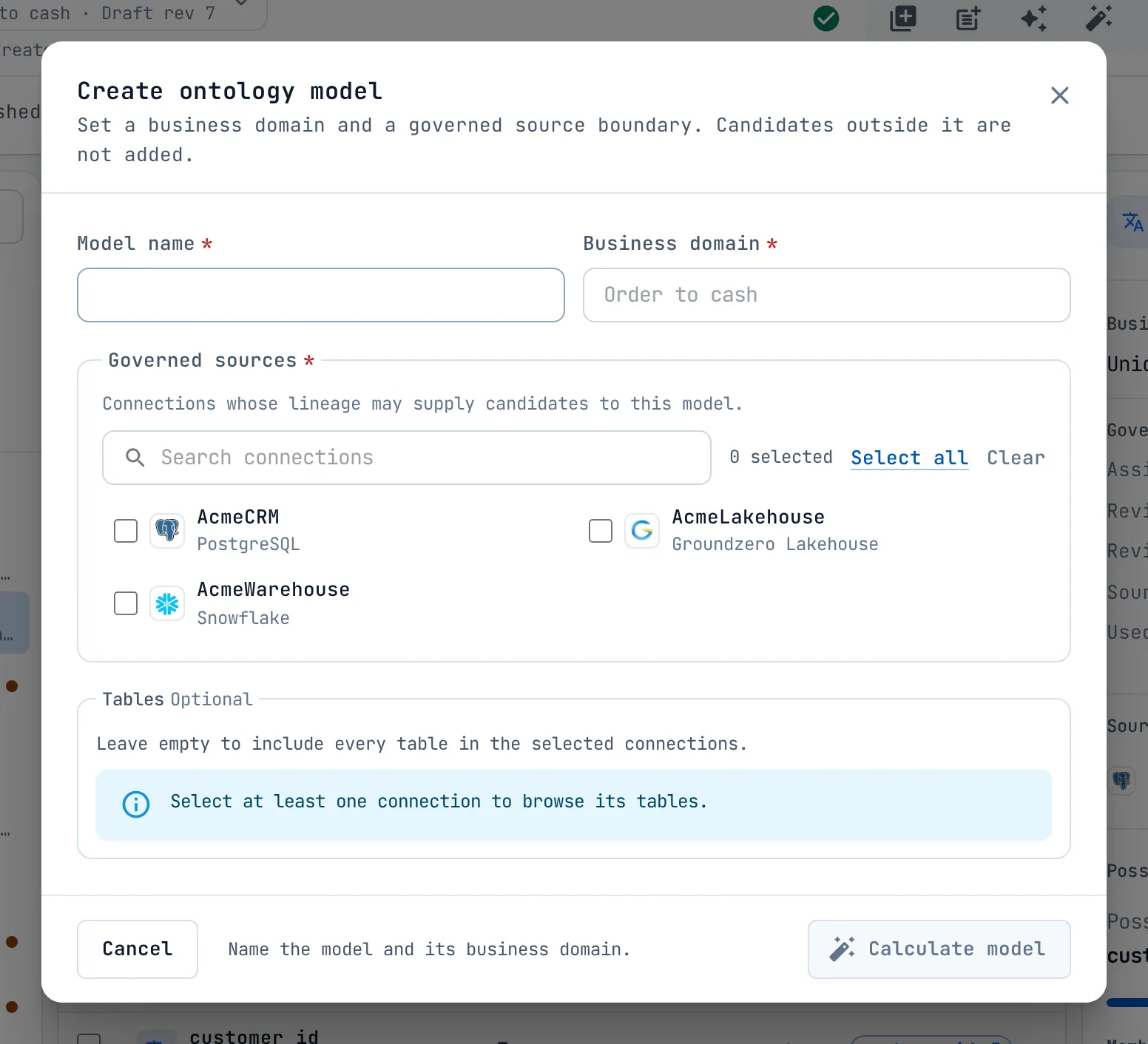
Fill Model name and Business domain, both required, for example "Order to cash".
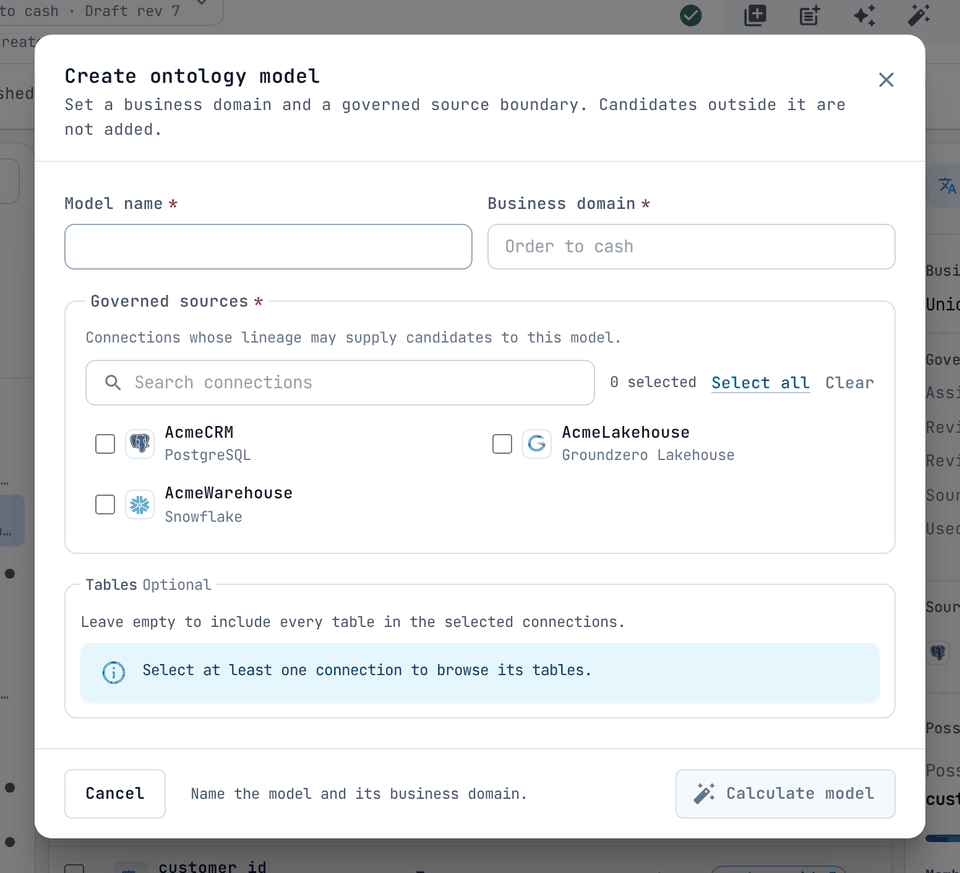
The Create ontology model dialog. -
Under Governed sources, tick at least one connection. Search connections, Select all and Clear help. Only connections with tables in lineage are listed.
-
Optionally narrow the Tables. Leave it empty to include every table of the chosen connections. Search to find a table.

A connection and an optional table scope chosen. -
Click Calculate model. It stays off until name, domain and a source are set.

You see "Scoped ontology model calculated and ready for review." and the model opens on Definitions with every item marked Needs review.
If you see "No governed lineage sources match the requested scope", nothing is recorded in lineage for your choice. Run the jobs that produce lineage first.
Delete a model#
Click Delete ontology model and type the model name to confirm. This removes the draft, its review history, its releases and the saved AI answers that cited them.
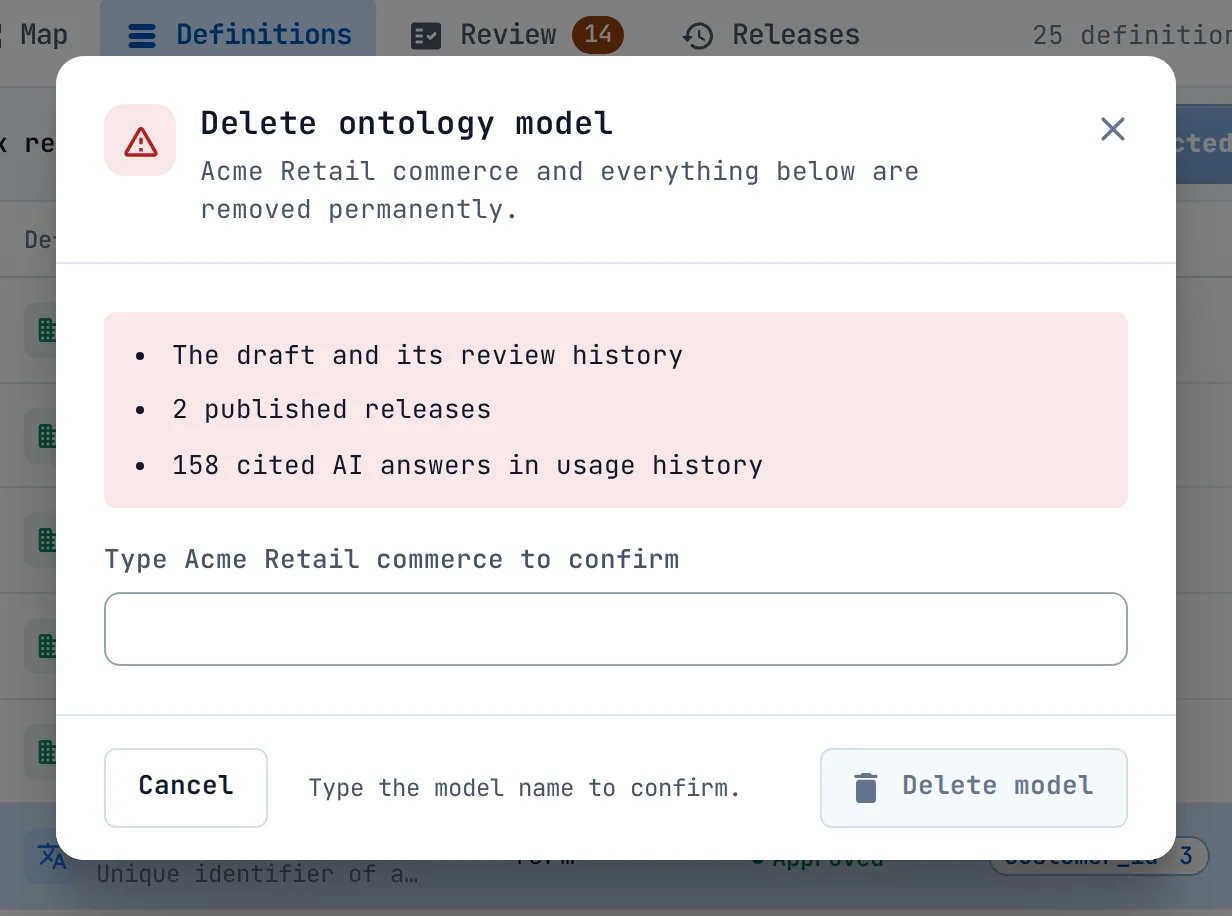
You see "Ontology model deleted."
See how things connect: the map#
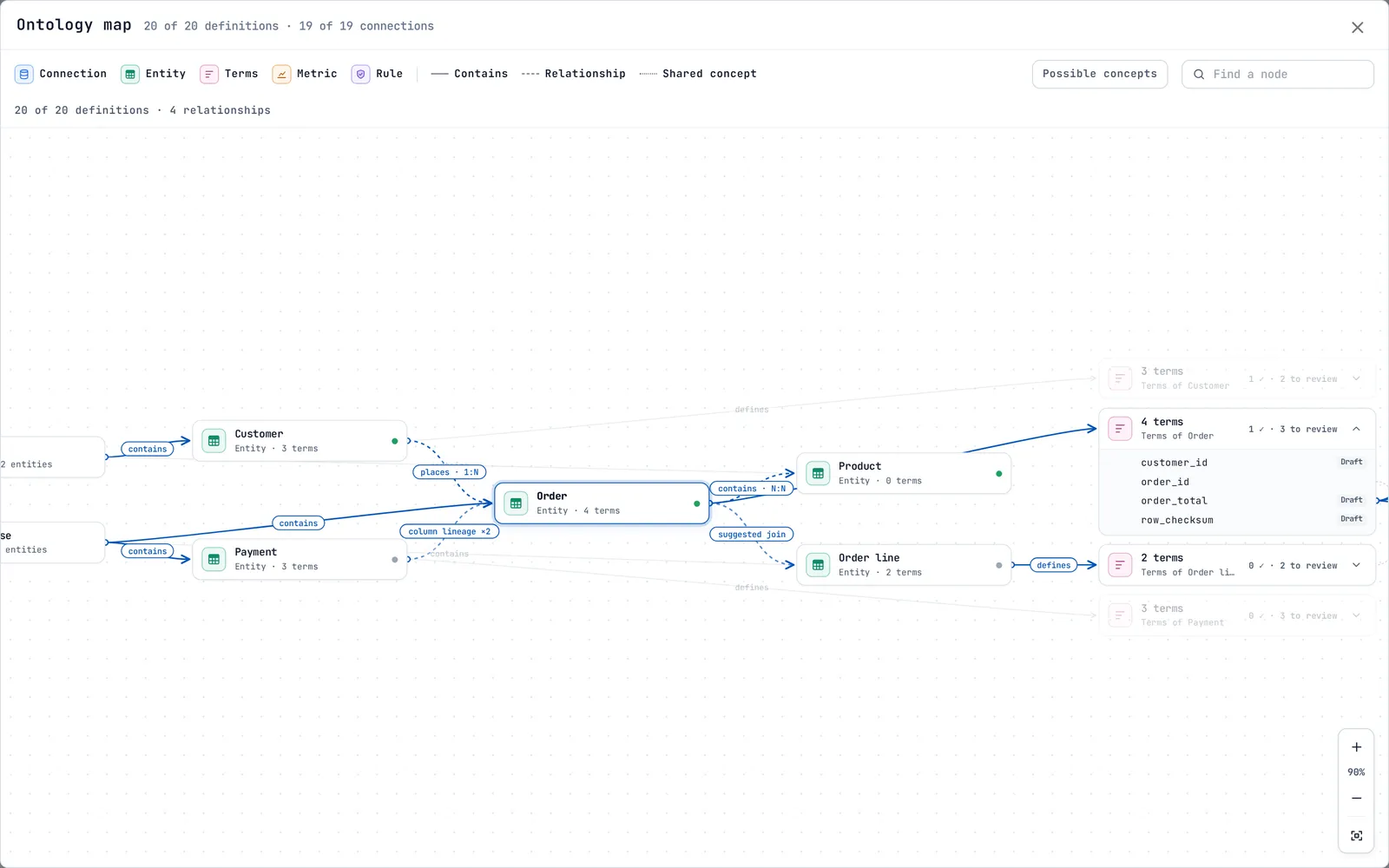
The Map tab shows connections, entities, their terms, and metrics and rules, from left to right.
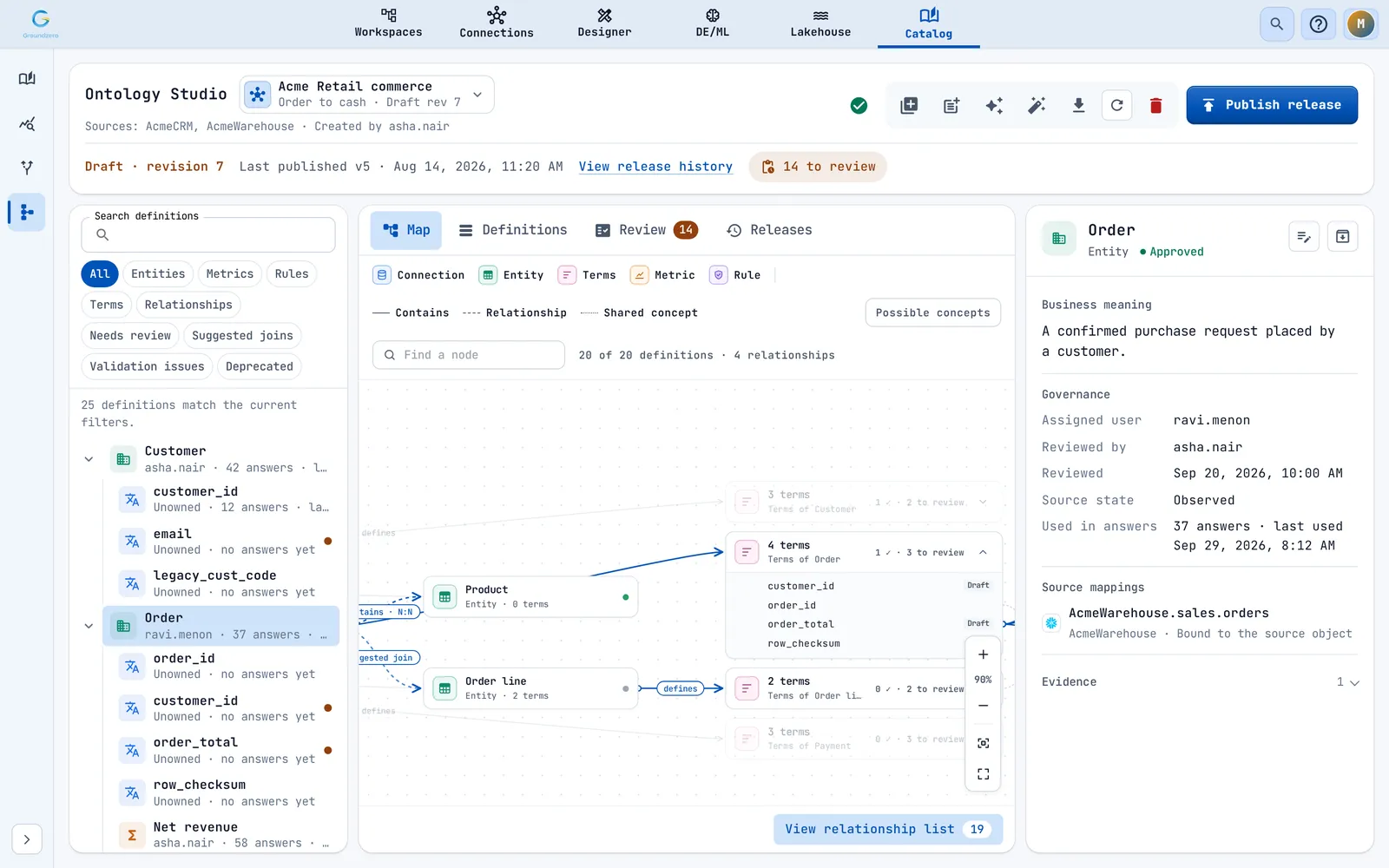
- A solid line means Contains, a dashed line Relationship, a dotted line Shared concept. Verbs such as "places · 1:N" show when you zoom in.
-
Possible concepts draws dotted arcs between columns that could form a shared concept.

Possible concepts shows candidate shared-concept arcs. -
Find a node searches by name. The count reads, for example, "20 of 20 definitions · 4 relationships".
- Click a card to select it; click empty space or press Esc to clear. Drag to move cards or pan. Zoom in, Zoom out and Fit to view change the zoom.
-
Expand map opens a full-screen map.

The full-screen map always shows the whole model. -
In a very large model, selecting a card shows it and its neighbours only ("Showing the selection and its direct neighbours."). Show overview returns to everything.
-
View relationship list opens a searchable list of every relationship: source, verb, target and cardinality.

The relationship list: each row reads source, verb, target and cardinality.

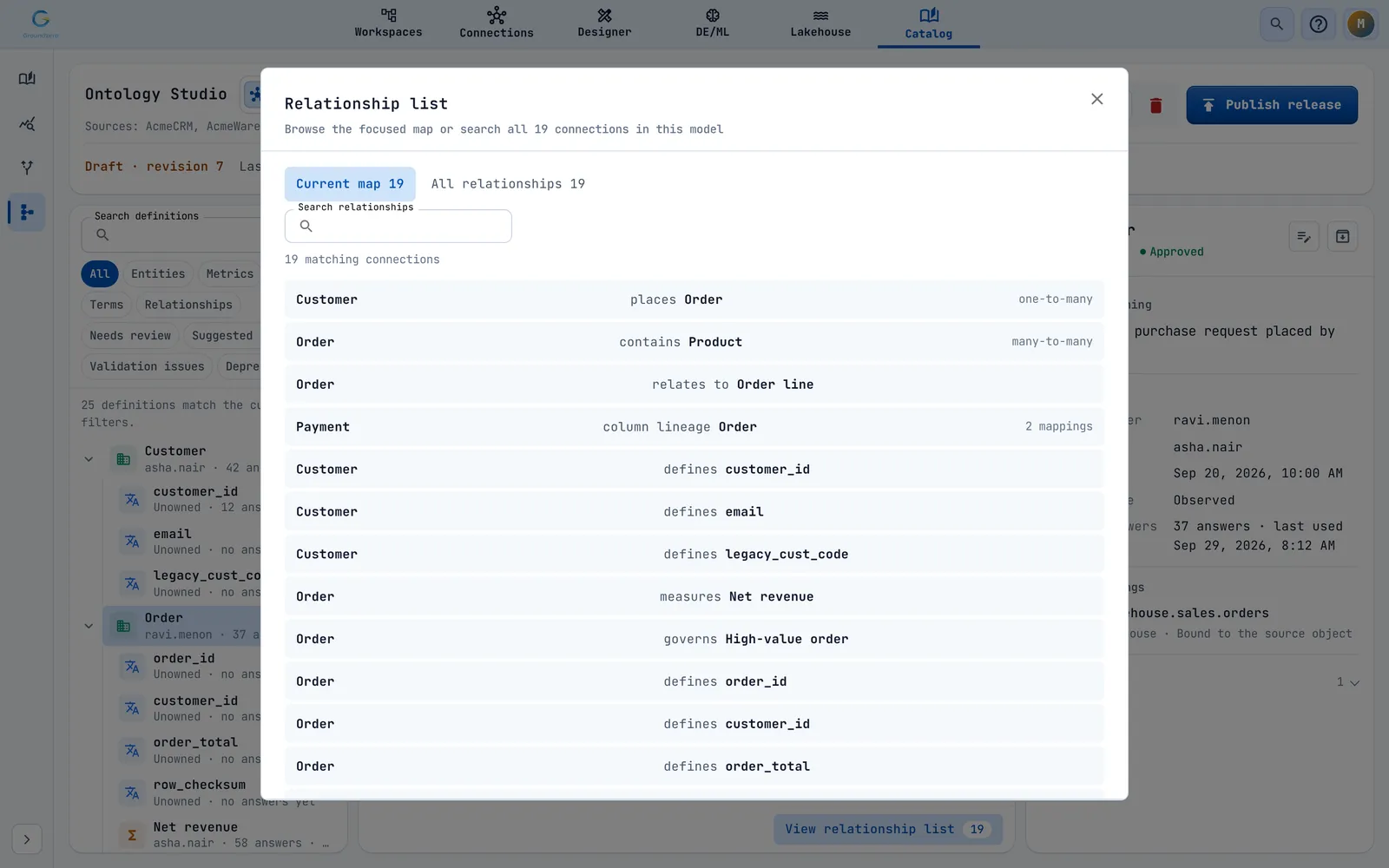
Relationship verbs include defines, measures, governs, references, joins on, known as, describes and derives from. You can also write your own (up to 160 characters).
Browse and find definitions#
The Definitions tab lists everything in the model.

Use Search definitions (name, description, owner and synonyms) and the chips All, Entities, Metrics, Rules, Terms, Relationships, Needs review, Suggested joins, Validation issues and Deprecated. The text "<n> definitions match the current filters." shows the count. An amber dot marks items that need review. Only the first 250 matches are listed; refine your search to see others.
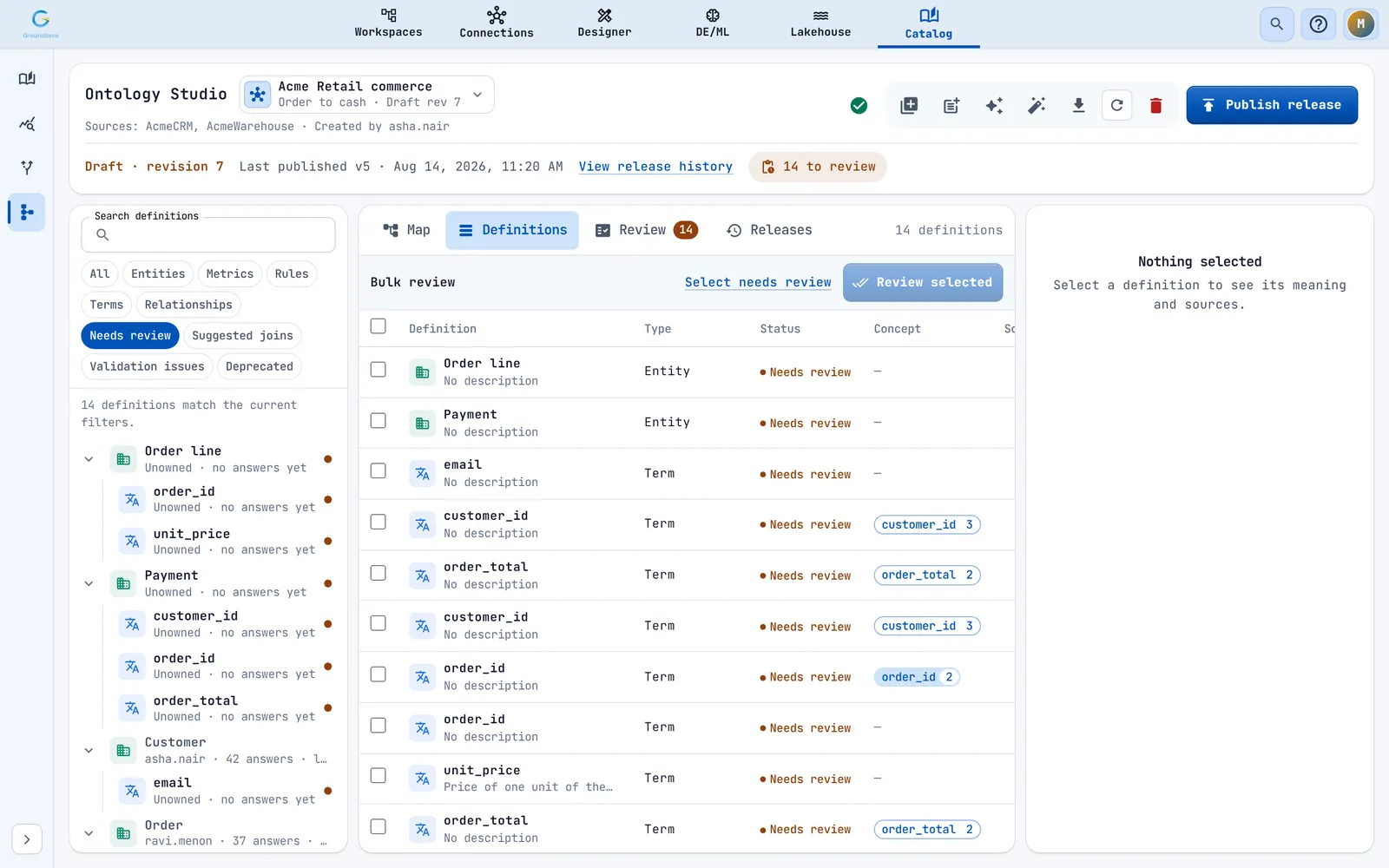
Click a definition to see it in the inspector on the right.

The inspector shows its Business meaning, Governance (assigned user, reviewer, confidence, source state, use in answers), Source mappings, the Relationship (from, verb, to, cardinality, join columns), Deterministic expression for metrics and rules, Shared concept, Business language (synonyms), Evidence and AI guidance.
Review definitions#
Outcome: each definition is approved, rejected or still waiting, with a clear meaning and an owner.
Review one definition#
- Select it and click Review definition.
-
Change only what you need.
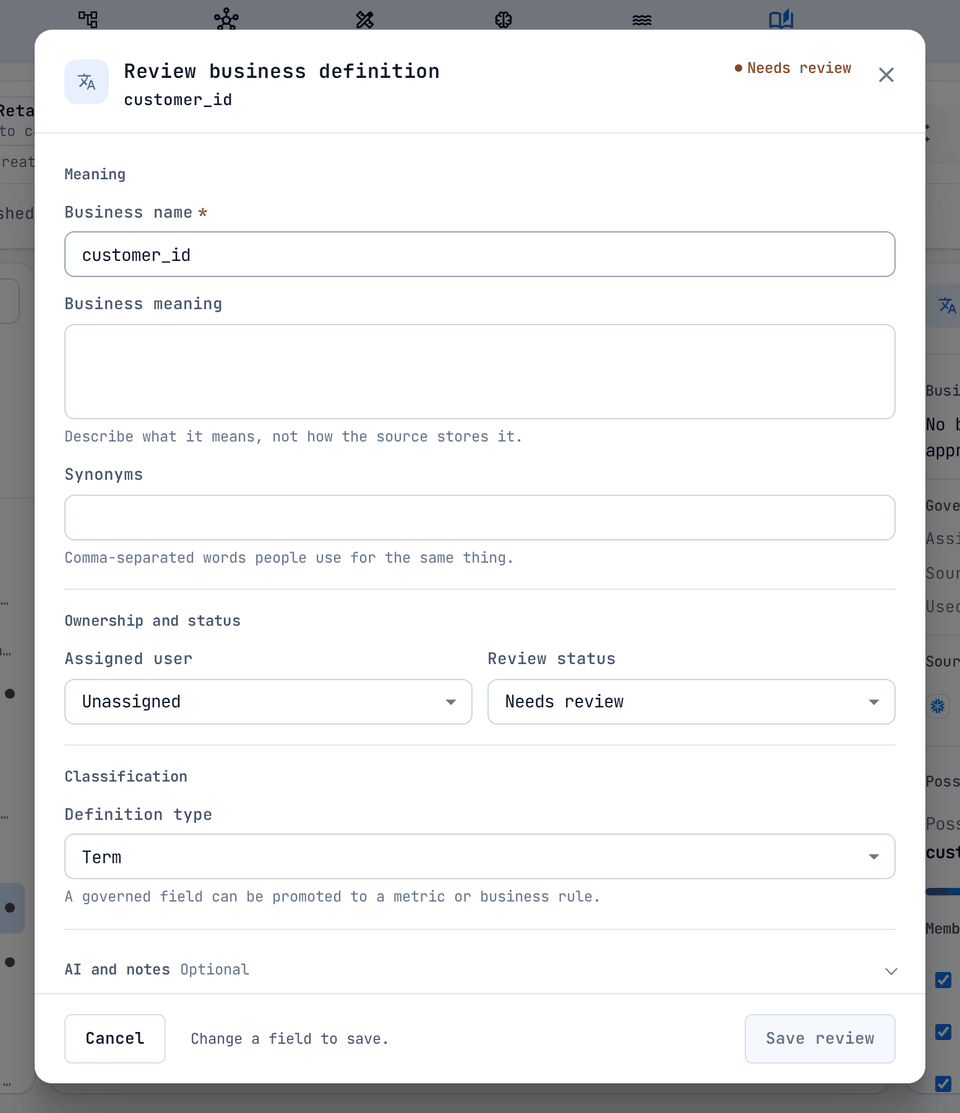
The Review business definition dialog. Field What to enter Business name Required, up to 200 characters Business meaning Up to 4,000 characters. Required to approve ("Required before approval.") Synonyms Comma separated; up to 20 Business verb, Cardinality, Source column, Target column Relationships only Assigned user The person responsible for it Review status Needs review, Approved or Rejected Definition type A term can become a metric or a rule; a metric and a rule can swap Deterministic expression Metrics and rules only. Required to approve. One valid SQL expression (sub-queries are refused). Up to 8,000 characters AI usage guidance Up to 2,000 characters. It guides AI; data access is still enforced by permissions. Review notes Up to 4,000 characters -
Click Save review (it turns on once you change something). You see "Business definition review saved."

Review many at once#
- On Definitions, click Select needs review (up to 1,000 items) or tick rows.
-
Click Review selected. Choose a Review decision (Keep current status, Needs review, Approved or Rejected), an Assigned user and Review notes.

Bulk review applies one decision to many definitions.

All items change together or none do. Approving items that have no meaning yet is refused with a count.

Work through the review queue#
The Review tab takes you through waiting items one by one. A progress bar reads, for example, "11 of 25 reviewed".
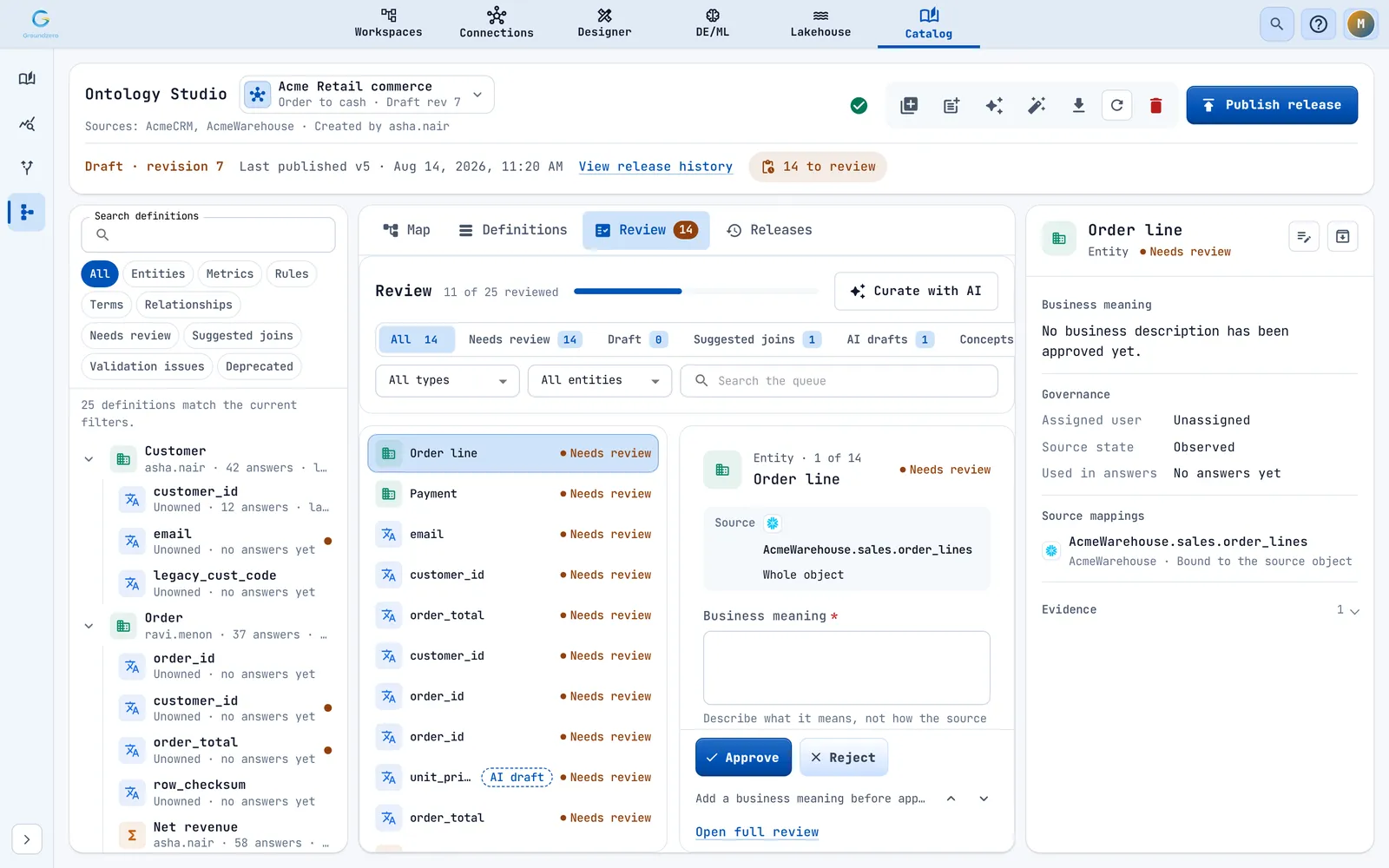
- Choose a filter: All, Needs review, Draft, Suggested joins, AI drafts or Concepts. You can also filter by Definition type and Entity, or Search the queue.
- On the review card, fill in Business meaning, Deterministic expression (metrics and rules), Synonyms (press Enter after each) and AI usage guidance.
- Click Approve or Reject. Previous and Next move along. Open full review opens the full dialog.
Without a meaning, approving shows "Add a business meaning before approving."

Keyboard shortcuts work while you are not typing in a field: A approves, R rejects, E opens the full review, J or Down goes to the next item, K or Up to the previous. Your unsaved edits are kept while you move through the queue, but not after a reload.
Items drafted by AI carry an AI draft marker. Use the AI drafts filter to check AI-written wording first.

Add a definition yourself#
Click New definition to write a term, metric, rule or relationship on an approved entity.
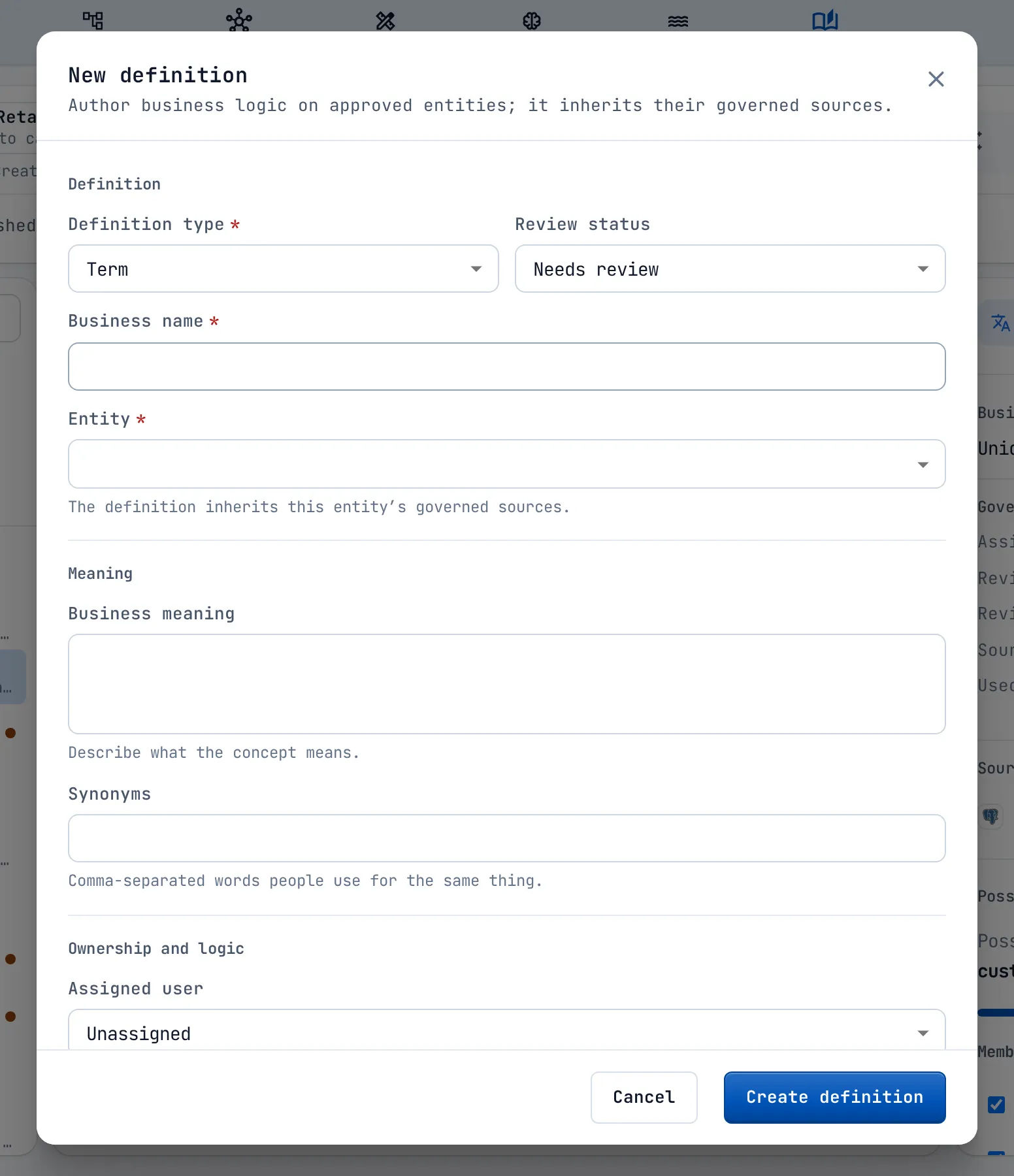
Give it a type and a business name, and choose its Entity. To approve it straight away you also need a business meaning (and an expression for a metric or rule). A relationship needs From definition and To definition; if you leave the verb empty, Groundzero suggests one, for example "references" for entity to entity.
Retire a definition#
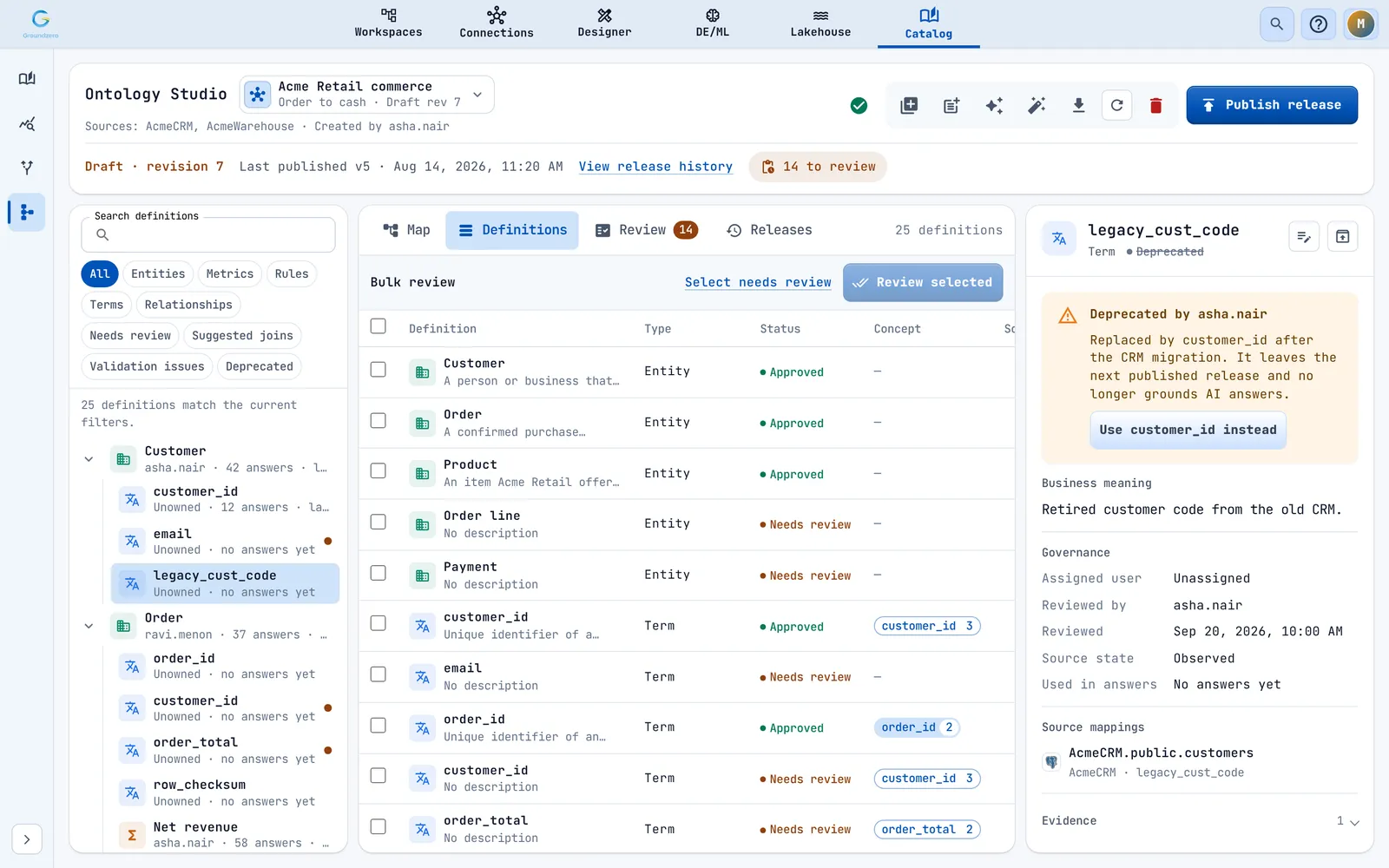
Click Deprecate definition, enter a Reason (required) and, if there is one, a Successor. You see "Business definition deprecated." Restore definition brings it back as Approved.

Confirm shared concepts#
Columns from different tables whose names match once capital letters and punctuation are ignored (customer_id, customerId, CUSTOMER_ID) form a candidate concept. Very generic names such as id or status count only after a reviewer approves the term. Each concept has a confidence from 0 to 100 percent, based on matching names, compatible data types, lineage and joins. Only confirmed concepts reach a release.
- In the Review tab choose Concepts.
- Select a concept. Tick the columns that really mean the same thing. The detail shows Members, Evidence and a confidence meter. "Members have incompatible data types." warns of a mismatch.
- Click Confirm (needs at least two kept members) or Reject. Move unchecked to a new concept splits off the rest.

A decided concept can be reopened with Reopen. Your decisions survive a recalculation.
Accept suggested joins#
When a job reads two tables and they share a column, Groundzero suggests a join between their entities and marks it Suggested.
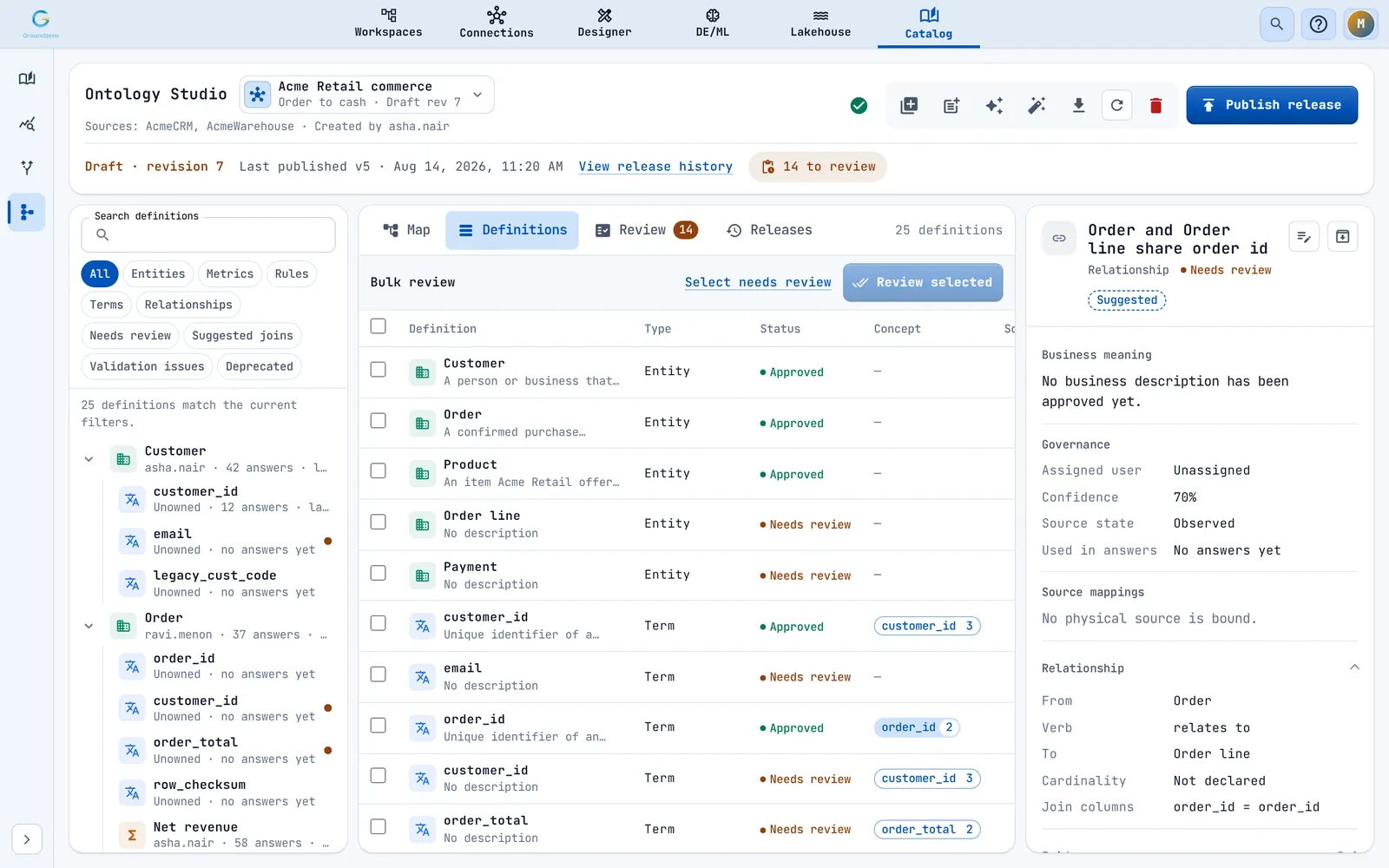
Approve it (with a description) to make it a normal relationship. Use the Suggested joins filter to find them.
Draft with AI#
Curate draft with AI writes first drafts of names, descriptions, synonyms and guidance for items that need review. It never approves anything, publishes, assigns owners or invents sources or formulas. A person always makes the decision.
You need Modify, a draft model, permission to use AI Chat and AI usage left. Without AI curation on your site you see "AI curation is not enabled in this environment. Ask an administrator to deploy the latest AI Chat service." At your limit you see "You have reached your current AI usage limit. Contact your administrator to request additional access."
-
Click Curate draft with AI (toolbar) or Curate with AI (Review tab). Optionally describe your Business use case in a sentence, for example "Help sales operations understand orders, customers and products."

Setting the review lens for an AI curation pass. -
Click Curate next batch. A pass handles up to 100 waiting items, entities first.
Dialog wording
The dialog may say "Up to 20 candidates". A pass actually handles up to 100.
-
Check the results. The counters show Recommended, Needs review and Leave out. Each card has the proposed name, description, synonyms, AI guidance, a reason, a confidence level and the Evidence used. Only "Recommended" items are ticked for you; "Leave out" items cannot be chosen.

AI suggestions with confidence and evidence; nothing is applied yet. -
Click Apply <n> to draft. This writes only the wording and a note ("AI-assisted draft ..."). Statuses stay Needs review. The review dialog opens so you can record the decision. Regenerate batch goes back to the start.


Amber warnings, such as "Some drafts were inferred only from technical names and are marked for review.", tell you where to look more carefully. If the draft changes while you work, the results are discarded; start again. In the Review tab, an AI suggestion can be taken field by field with Accept, all at once with Accept all, or ignored with Dismiss. Nothing is saved until you approve or reject. Suggestions are lost on reload.

Fix a missing source#
A definition whose table or column disappeared from lineage shows Governed source missing.
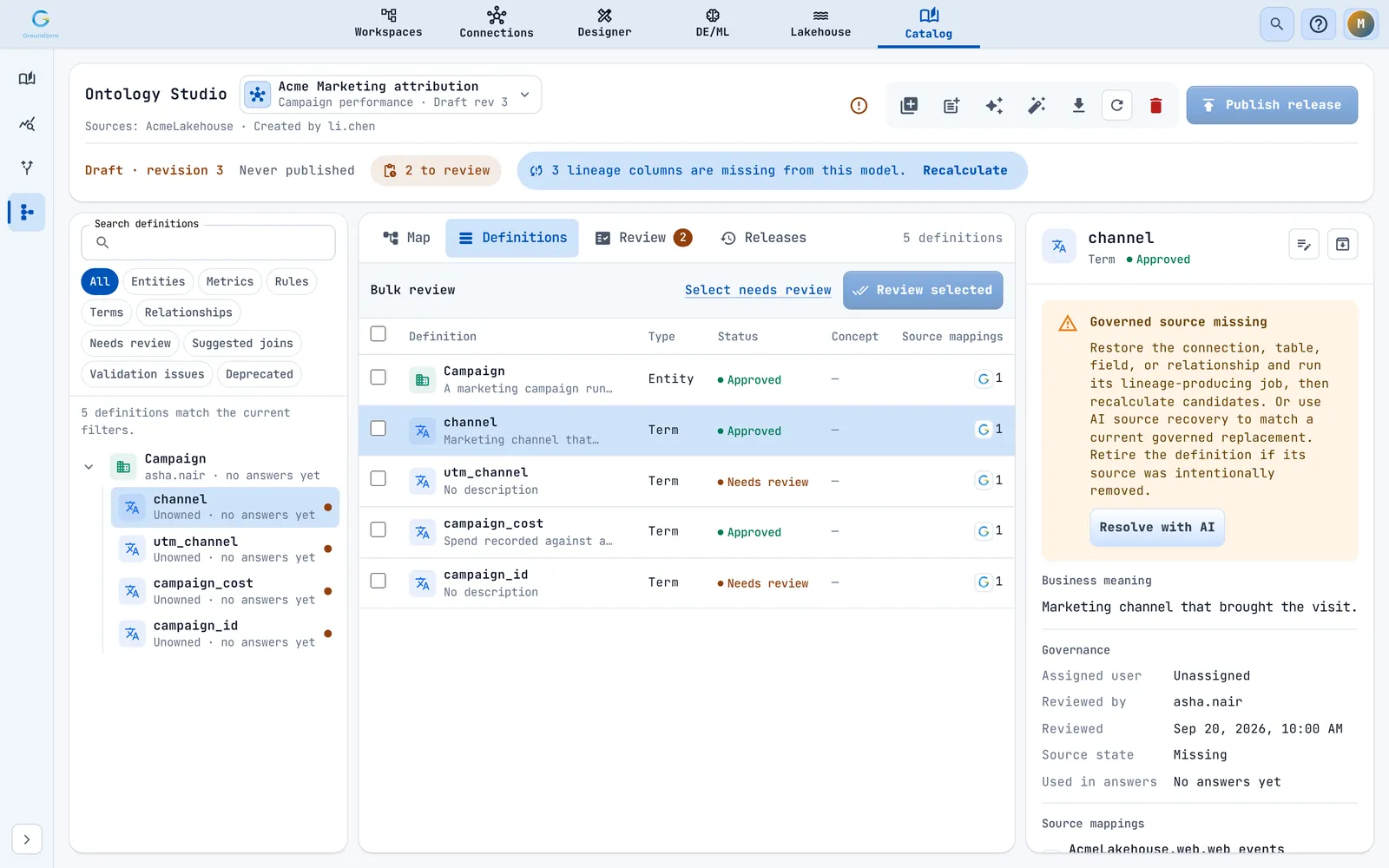
Your options:
- Restore the source, run its job, then Recalculate.
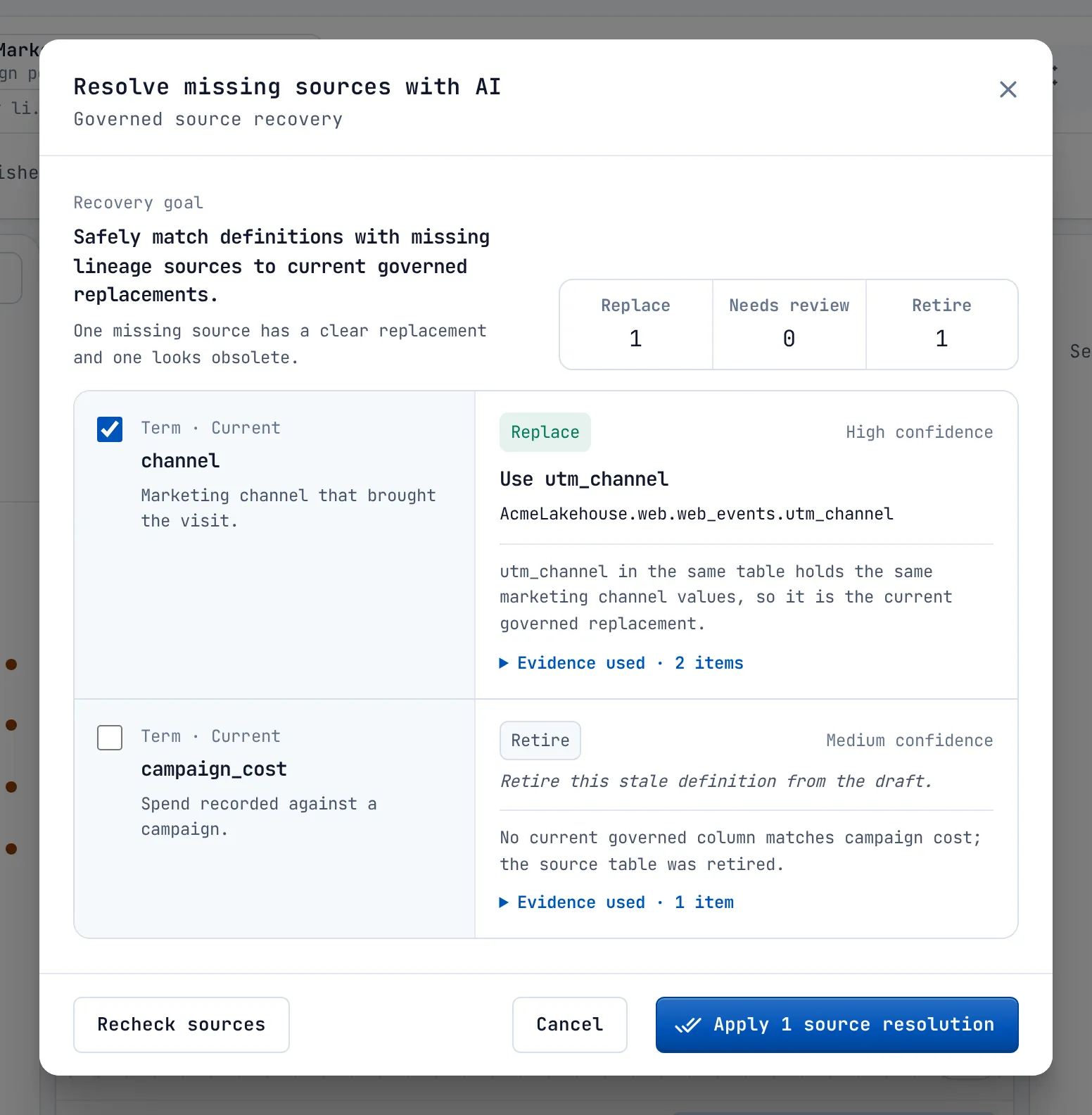
- Click Resolve with AI (in the inspector or the readiness popover). AI matches up to 20 such approved definitions with current sources. Each card proposes Replace (use the new source and keep your reviewed text), Needs review or Retire. Click Apply <n> source resolution(s), then check validation before publishing.
- Deprecate or reject the definition.
Publish a release#
Outcome: your approved definitions become the version AI Chat and Agent Builder use.
Check readiness#
While the model is a draft, an icon in the status bar shows Ready to publish (green) or Release needs attention (red). Click it for details.
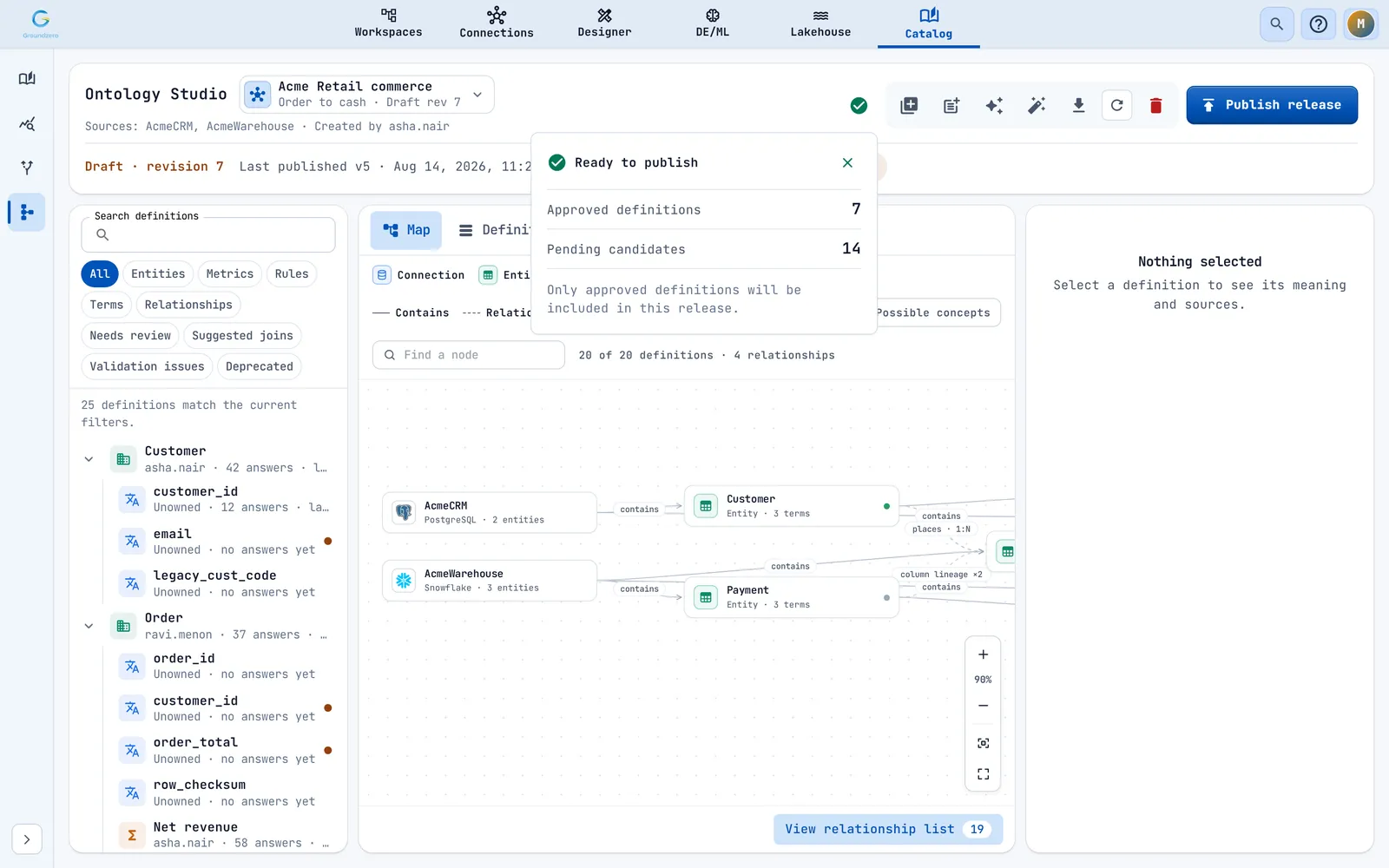

Publishing is blocked when:
- you may not publish ("You do not have permission to publish this model.");
- nothing is approved ("Approve at least one business definition.");
- an approved definition has a problem: no business meaning, a missing source, no governed connection, no expression (for a metric or rule), an entity that is not approved, or a relationship whose ends are not approved.
Items still waiting for review do not block publishing. They are left out and carry over to the next draft.
Publish#
-
Click Publish release. The dialog shows the Version, the Approved scope (for example "7 definitions and 2 relationships"), AI access ("AI Chat and Agent Builder") and how many pending items will not be published.
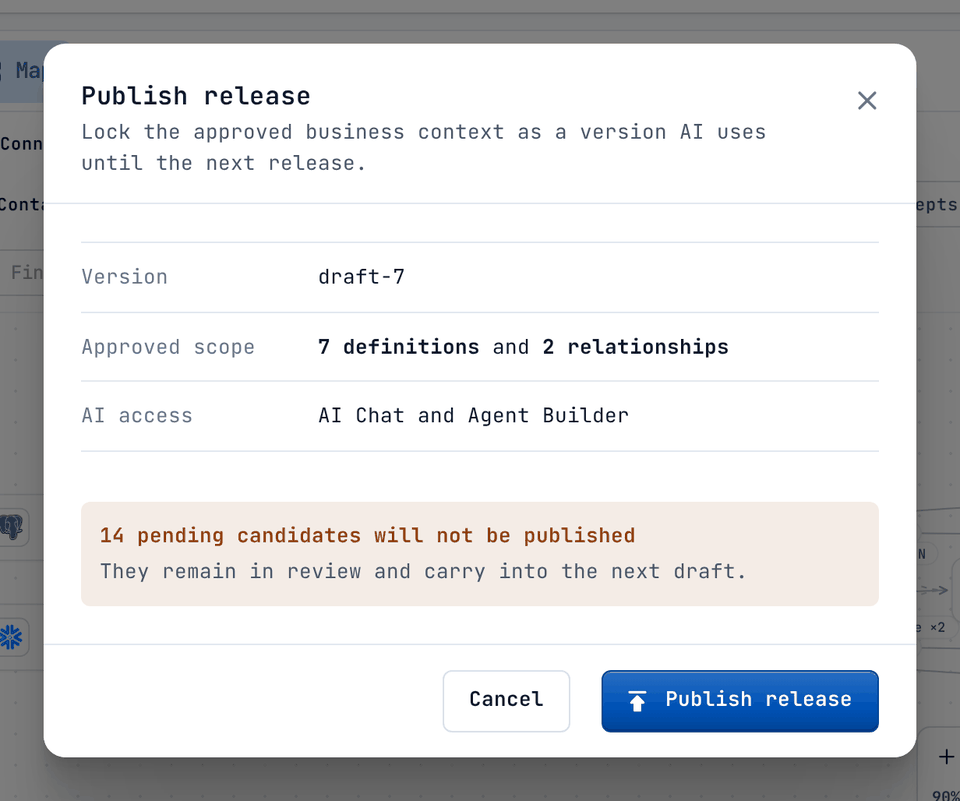
The publish dialog summarises exactly what goes into the release. -
Click Publish release again. You see "Ontology release published to its configured AI targets."

A published model is locked; the toolbar offers Create draft.

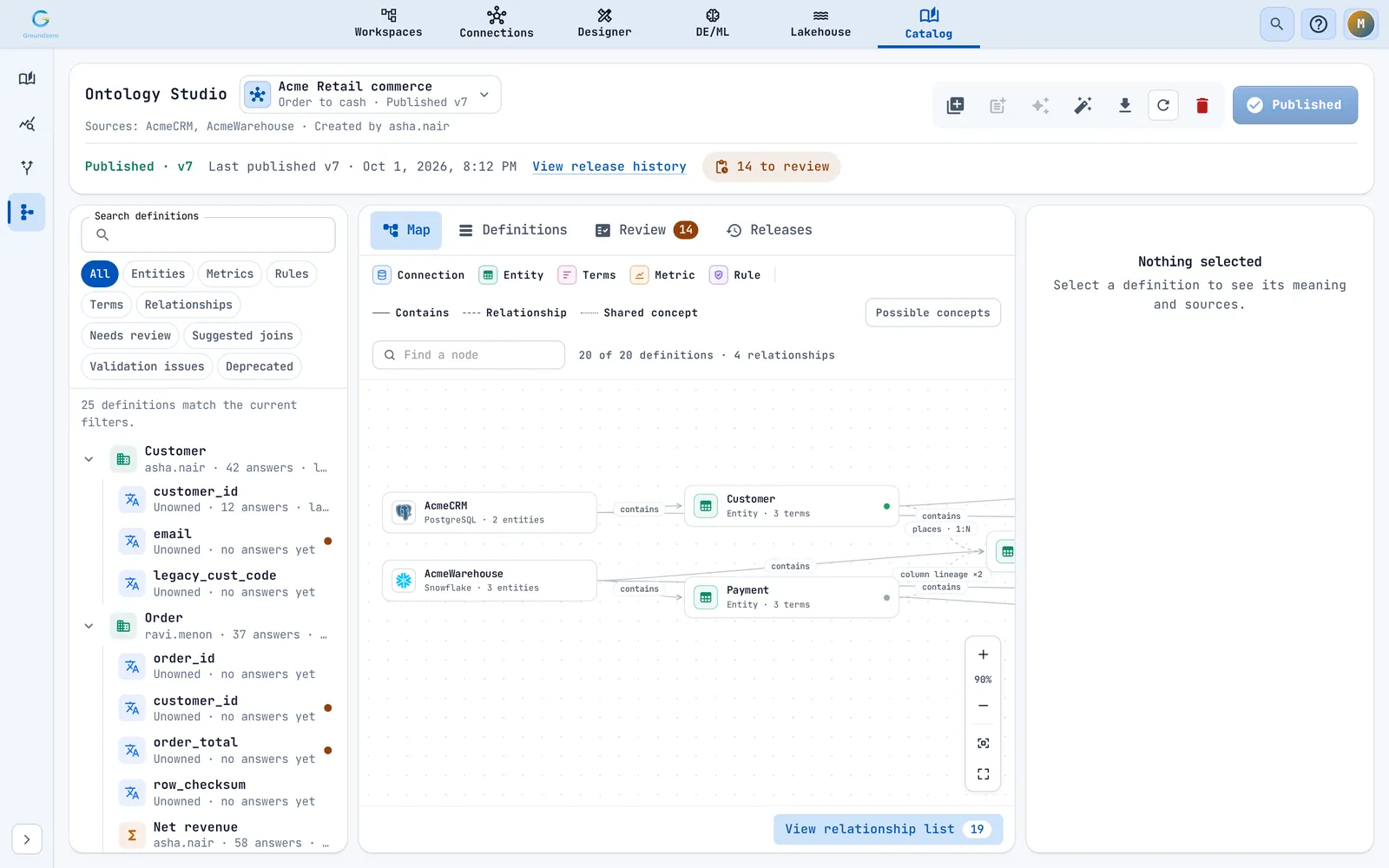
The model now reads "Published · v<version>". Version numbers rise with each change to the draft, so they skip (for example v3, v6, v9).
Change a published model#
A published model is read-only: definitions show a lock instead of Review and Deprecate.

Click Create draft to start editing. The published release keeps serving AI until you publish a new one.
Look at past releases#
The Releases tab lists published versions, newest first, with a Current chip, the publisher, counts and a short fingerprint (hash) of the release.

Open one to see its counts, its Sources, AI usage ("<n> cited answers · last cited ..."), Changes since previous version (Added, Changed, Removed) and a searchable list of its definitions. Click the hash to copy it.
To remove a release, click Delete release (needs Publish) and type its version, for example v9. Agents pinned to it will report an error, AI answers go back to the previous release, and answers already given stay in usage history.

An empty history reads "No release has been published yet." with Publish release, or "Approve definitions to publish the first release."
Keep up with new columns: lineage drift#
When your tables gain columns the model does not know, the status bar says "<n> lineage columns are missing from this model." Click Recalculate.

Recalculate adds new tables, columns and relationships as items to review. It keeps everything you have already reviewed, marks reviewed items whose source vanished as missing, drops unreviewed candidates that vanished, and refreshes join and concept suggestions. You see "Ontology candidates recalculated from the latest governed lineage." If the check cannot run you see "Lineage drift is unavailable right now."
Export a model#
Click Export audit pack and choose Audit pack (JSON) (the whole model, counts and usage) or Spreadsheet (CSV) (one row per definition with its status, owner, reviewer and use in answers).
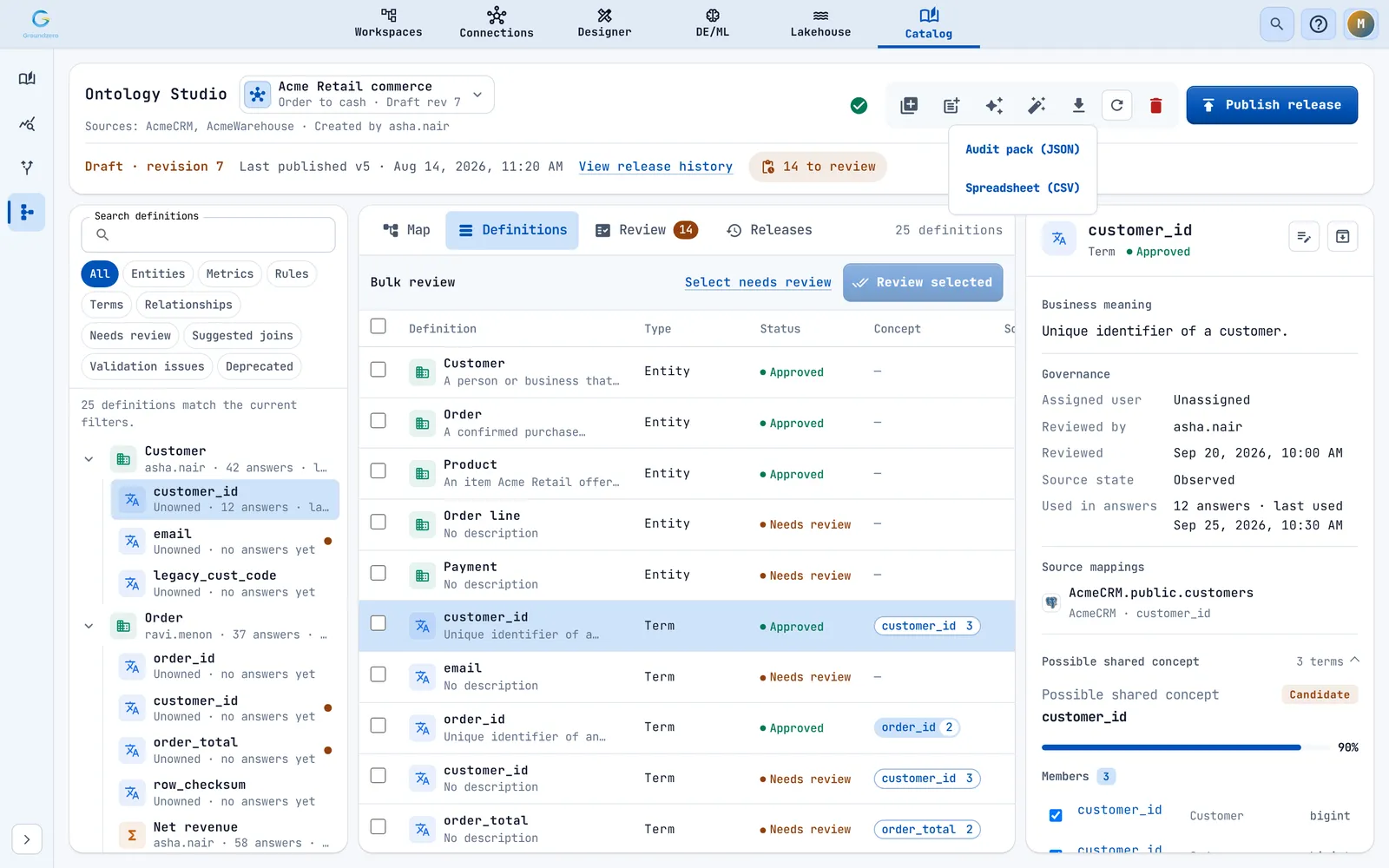
If someone else edits at the same time#
If a colleague saves first, the page loads their version and shows "This draft changed in another session. The latest version is loaded; review the current state and retry." If you had unsaved work you also see that it is preserved; save again to apply it.
When the page shows a message#
| You see | What it means |
|---|---|
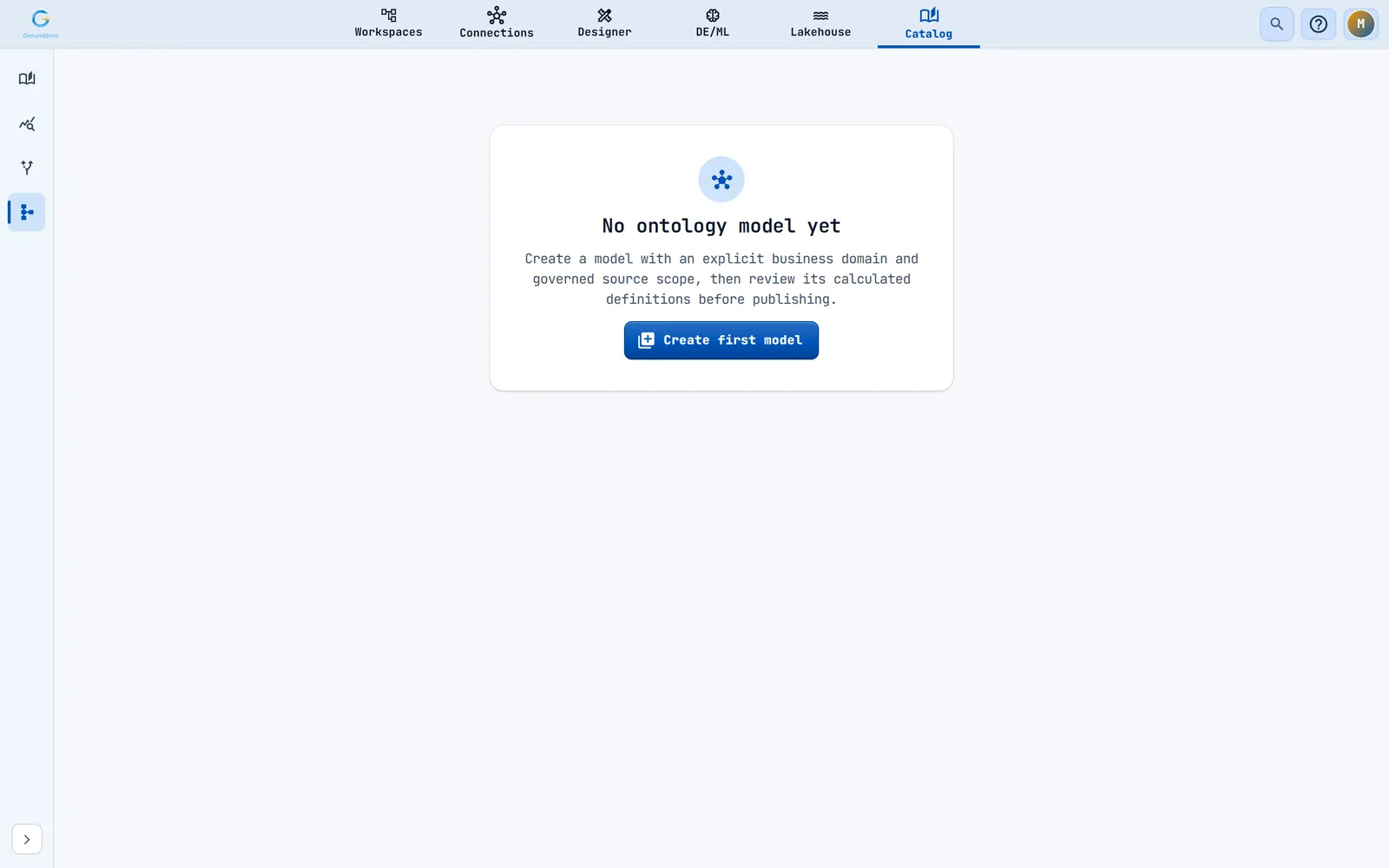
| "No ontology model yet" | None exists. Click Create first model. If you lack permission: "You can view ontology models, but you cannot create one for this site." |
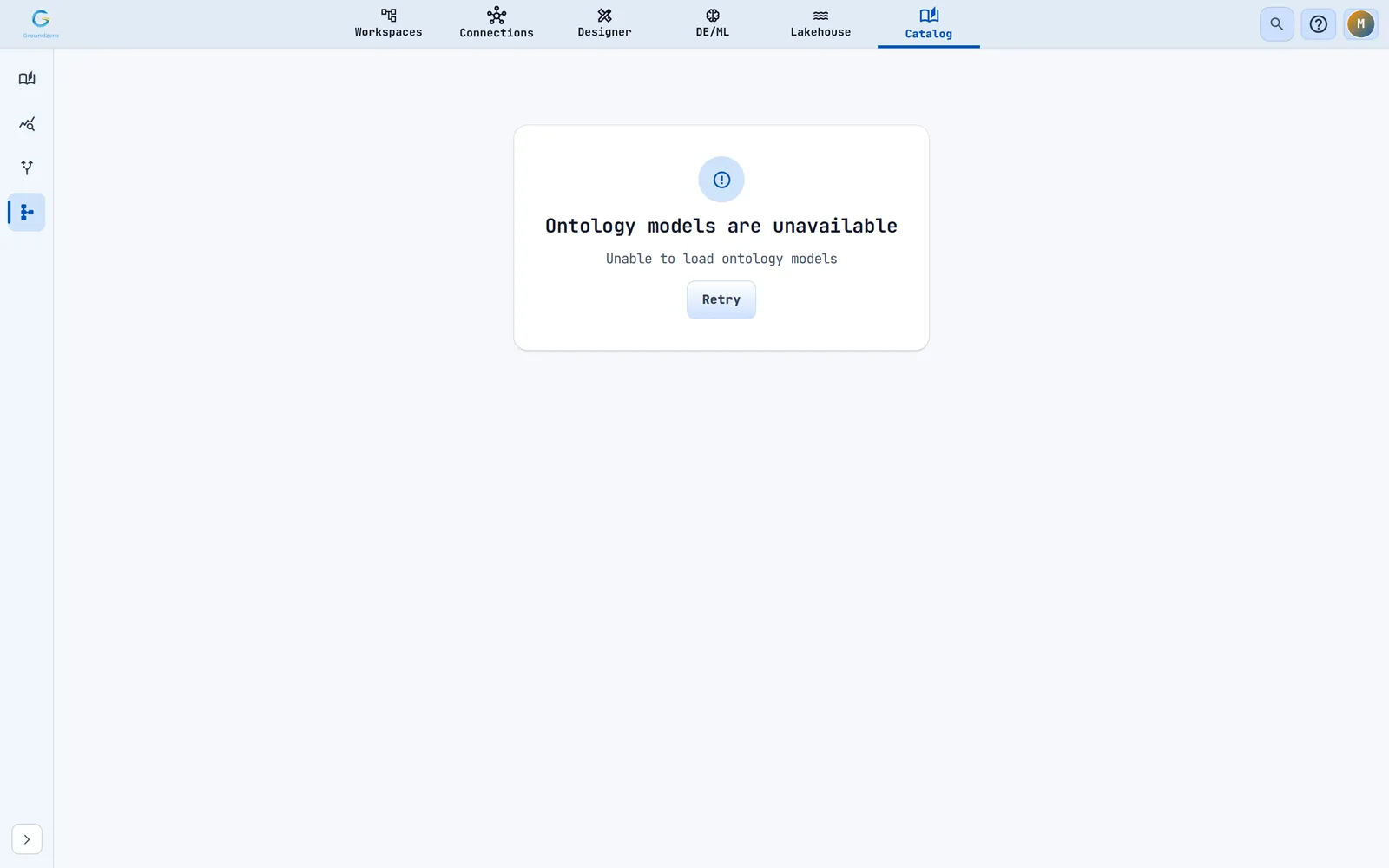
| "Ontology models are unavailable" | The list failed to load. Click Retry. |
| "Your account cannot view ontology releases for this site." | You lack list permission |
| "This ontology model is unavailable" | It failed to load or does not exist. Click Retry. |
| "You do not have permission to inspect this model." | Ask for access to its source connections |
| "The ontology service could not be reached. Check your connection and retry." | Try again |

Tips#
Tip
Start with the Needs review filter and the Review tab. The progress bar shows how close you are.
Tip
Give AI a specific business use case; it ranks and words candidates, but you approve each one.
Tip
Fix missing sources before you publish. The readiness popover links to the affected definitions.
Troubleshooting#
| Symptom | Cause | Fix |
|---|---|---|
| "No ontology model yet", but you expect one | You lack List or Read, or Describe on its connections |
Ask an administrator |
| Create ontology model is greyed out | No Create permission |
Ask an administrator |
| "No governed lineage sources match the requested scope" | The chosen tables have no lineage | Run the jobs that use them |
| Publish release is off | Something blocks it | Open Release needs attention and clear the blockers |
| Governed source missing | The source vanished | See "Fix a missing source" |
| Curate draft with AI is greyed out | Nothing to review, no Modify, or the model is published |
Use Create draft |
| AI curation errors | Not enabled, limit reached, or the draft changed | Refresh and try again |
| A lock on every definition | The model is published | Use Create draft |
Limits#
| Item | Limit |
|---|---|
| Model name, domain, definition name | 200 characters |
| Meaning, review notes | 4,000 characters |
| Expression | 8,000 characters |
| AI guidance, deprecation reason | 2,000 characters |
| Synonyms | 20 per definition |
| Bulk review | 1,000 definitions |
| AI curation pass | 100 items; source resolution 20 |
| A new model | Up to 100 connections and 1,000 tables |
Related#
- Data lineage: supplies the candidates; its Impact tab lists ontology definitions.
- Data source connections: the sources and their
DescribeandEditpermissions. - AI Chat and Agent Builder (Analyze and AI documentation): use the current published release.
- Users and roles and Budgets (Admin documentation): permissions and AI usage limits.