
4. Notebooks and runtimes
Notebooks are for exploring: you run code a cell at a time and see the result straight away. First you choose where your code runs.
Choose a runtime#
Groundzero runs your code on a runtime. You pick one wherever you create a dataset, a job or a notebook. There are three kinds.
| Standard | DuckDB | Spark | |
|---|---|---|---|
| Good for | Charts, dashboards and quick lookups | Fast analysis, joins and ETL on data of small to medium size | Large data and heavy ETL |
| Compute size | None to choose | You choose | You choose, plus the minimum number of workers |
| Connections | One SQL source or the lakehouse | Several | Several |
| Can write data | No, it reads only | Yes | Yes |
| Where you can use it | Datasets | Datasets, jobs, notebooks | Datasets, jobs, notebooks |
Work down this list and stop at the first match.
- One query on one SQL source or the lakehouse, for a chart or dashboard: choose Standard.
- Several connections, writes, or Python beyond a few lines of pandas: go on to the next question.
- The data is small to medium in size: choose DuckDB. It starts quickly.
- The data is large, or you need joins across a lot of data: choose Spark.
- You need scikit-learn, PyTorch or TensorFlow: choose the matching machine-learning version of DuckDB or Spark.
Start small
Try your idea on Standard or DuckDB, and move to Spark when a job outgrows it. The helper code for DuckDB and Spark has the same shape, so moving a job over is quick.
Pick a runtime and compute size#
The runtime picker is a compact control that shows the runtime name and a small badge for the compute size. Select it to open a panel.
| Field | What to choose |
|---|---|
| Runtime | The environment to run in. Standard is for datasets only. The rest are the runtimes your administrator made available. If the list is empty, it reads No RTEs Available. |
| Compute | A named size with memory and processors. If it reads Insufficient Permission, ask your administrator for access to compute. |
| Minimum Workers | Spark only: how many workers to start with, never fewer than 1. |
| GPU Size | How many GPUs to use. |
If you need extra Python packages, ask your administrator to build a custom runtime. It then appears in the same list.
Run your first notebook#
By the end of this task you have run code in a notebook and seen a data table appear under it.
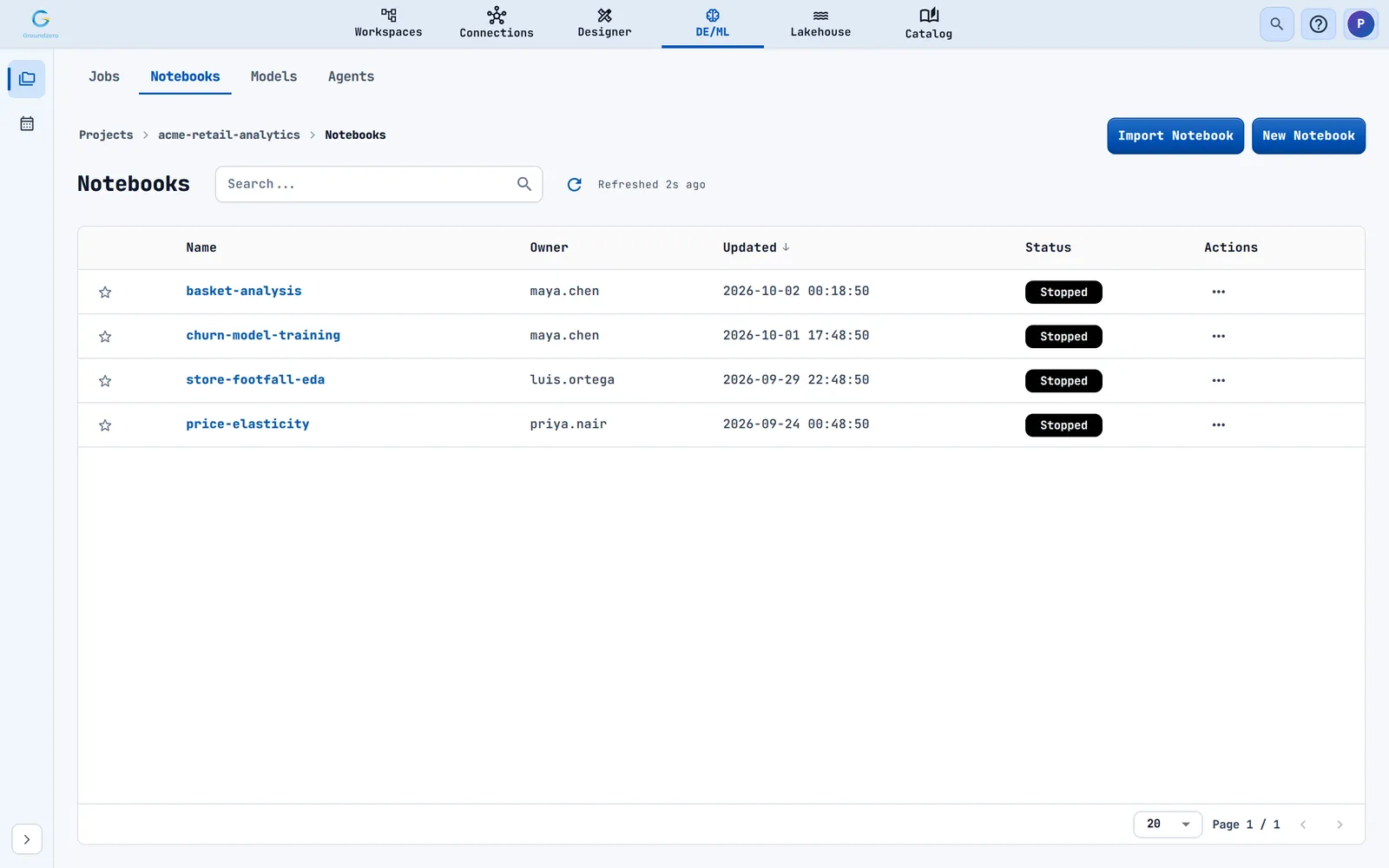
- Open a project and choose the Notebooks tab. Choose New Notebook, enter a name, and choose Add.
- Open the notebook. Open the runtime picker, and choose a DuckDB or Spark runtime and a compute size.
- In the left drawer, choose the Connections the notebook should use.
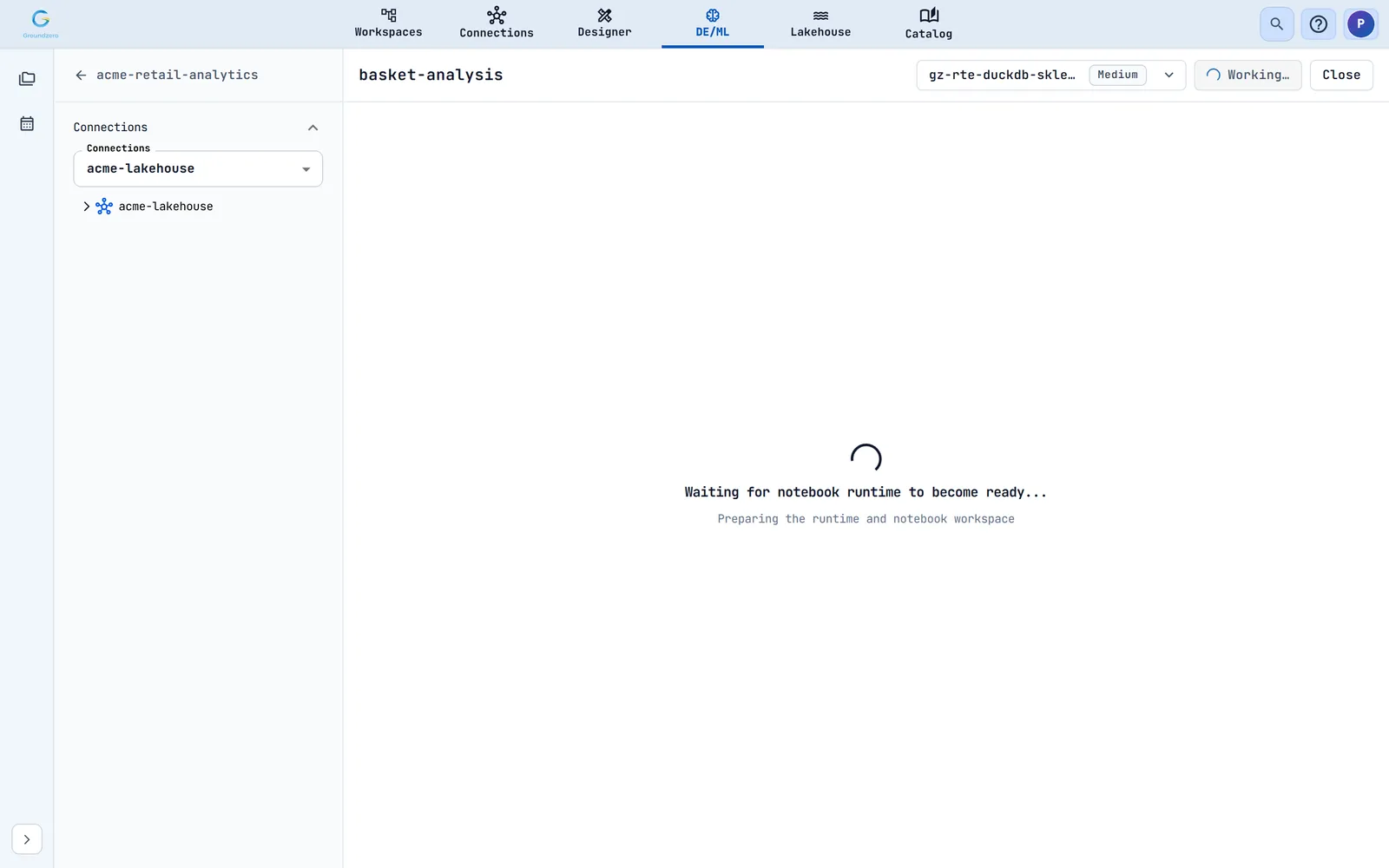
- Choose Start session. Groundzero shows Waiting for notebook runtime to become ready while the runtime starts.
- Type code in a cell and press Shift + Enter, or choose Run. The output, including data tables, appears under the cell.
- Choose Stop session when you are done, so the compute is released.
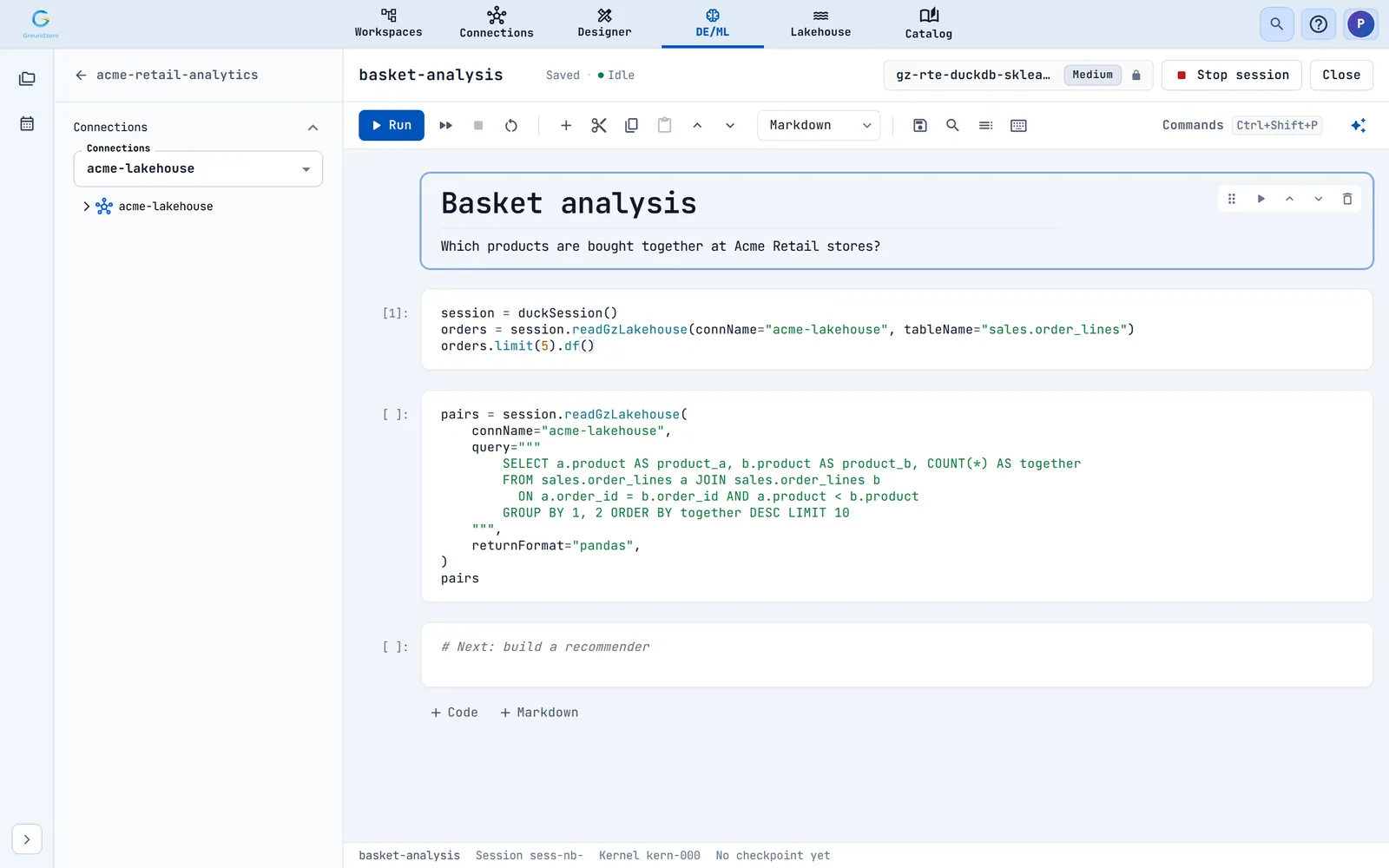

In a DuckDB or Spark notebook, the helper library is already loaded when the session starts (duckSession for DuckDB, sparkSession and executeJob for Spark), together with NumPy, pandas and boto3. This cell finds the products that are bought together most often.
session = duckSession()

pairs = session.readGzLakehouse(
    connName="acme-lakehouse",
    query="""
        SELECT a.product AS product_a, b.product AS product_b, COUNT(*) AS together
        FROM sales.order_lines a JOIN sales.order_lines b
          ON a.order_id = b.order_id AND a.product < b.product
        GROUP BY 1, 2 ORDER BY together DESC LIMIT 10
    """,
    returnFormat="pandas",
)
pairs
Notebook or job?
Use a notebook to explore. It stays interactive until you stop it. Use a job to repeat work: it runs your code once, stops when the code ends, and can run on a schedule.
Write the same job for DuckDB#
The helper library for DuckDB works much like the Spark one. This job reads a lakehouse table, adds up revenue by region with SQL and prints the result.
from GZ.DuckDBUtils import duckSession

session = duckSession(siteName="acme")

top = session.readGzLakehouse(
    connName="acme-lakehouse",
    query="""
        SELECT region, sum(quantity * unit_price) AS revenue
        FROM sales.orders
        GROUP BY region
    """,
    returnFormat="pandas",
)
print(top)
session.close()
Your code only ever names a connection. It never handles keys or passwords, and secret environment variables show as ****.