
2. Sign in and find your way around
Sign in#
You will sign in once, set up two-step verification, and land on the home page.
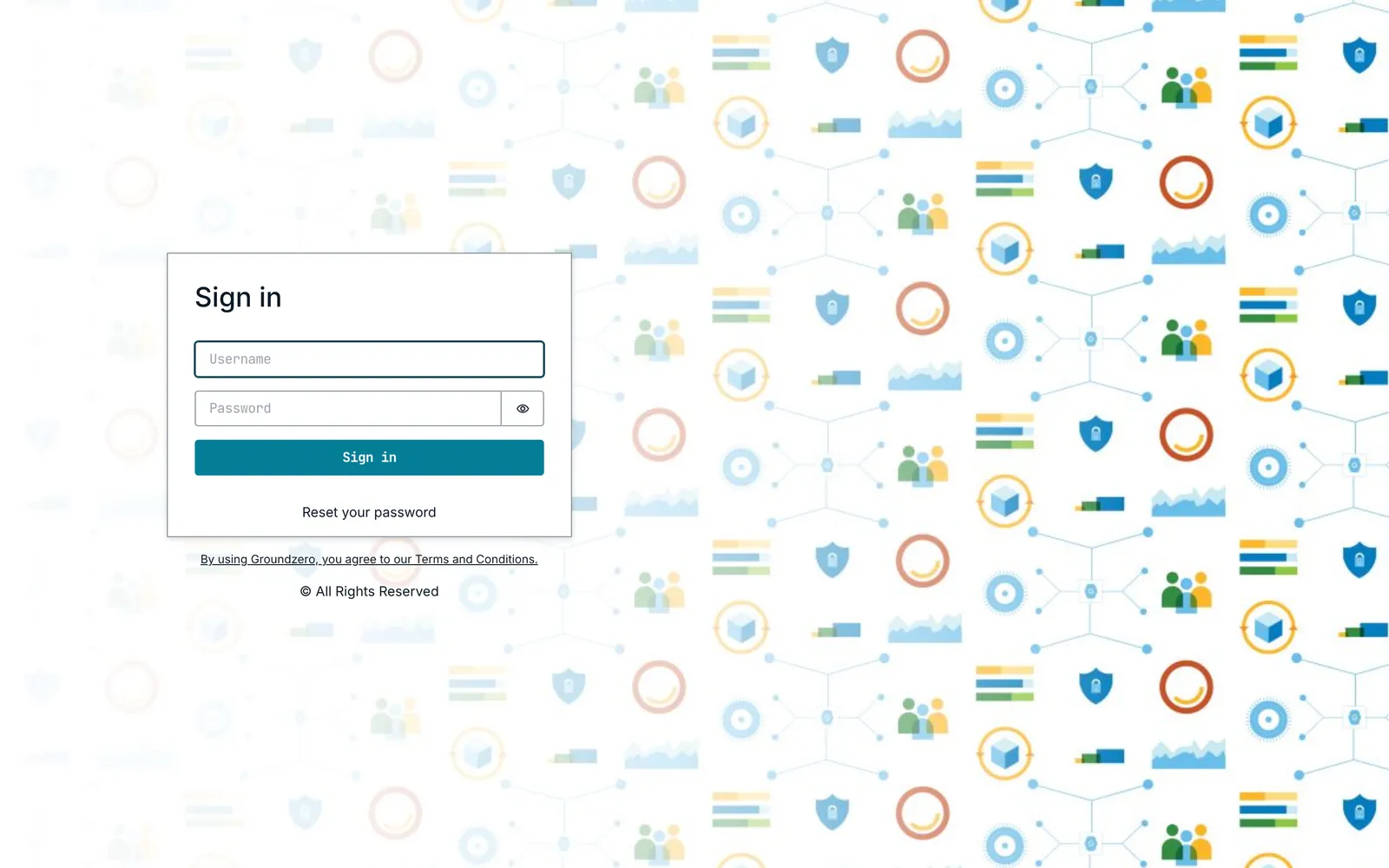
- Open your site's address in a browser. The sign-in page asks for your Username and Password.
- Enter them and choose Sign in. If you have forgotten your password, choose Reset your password.
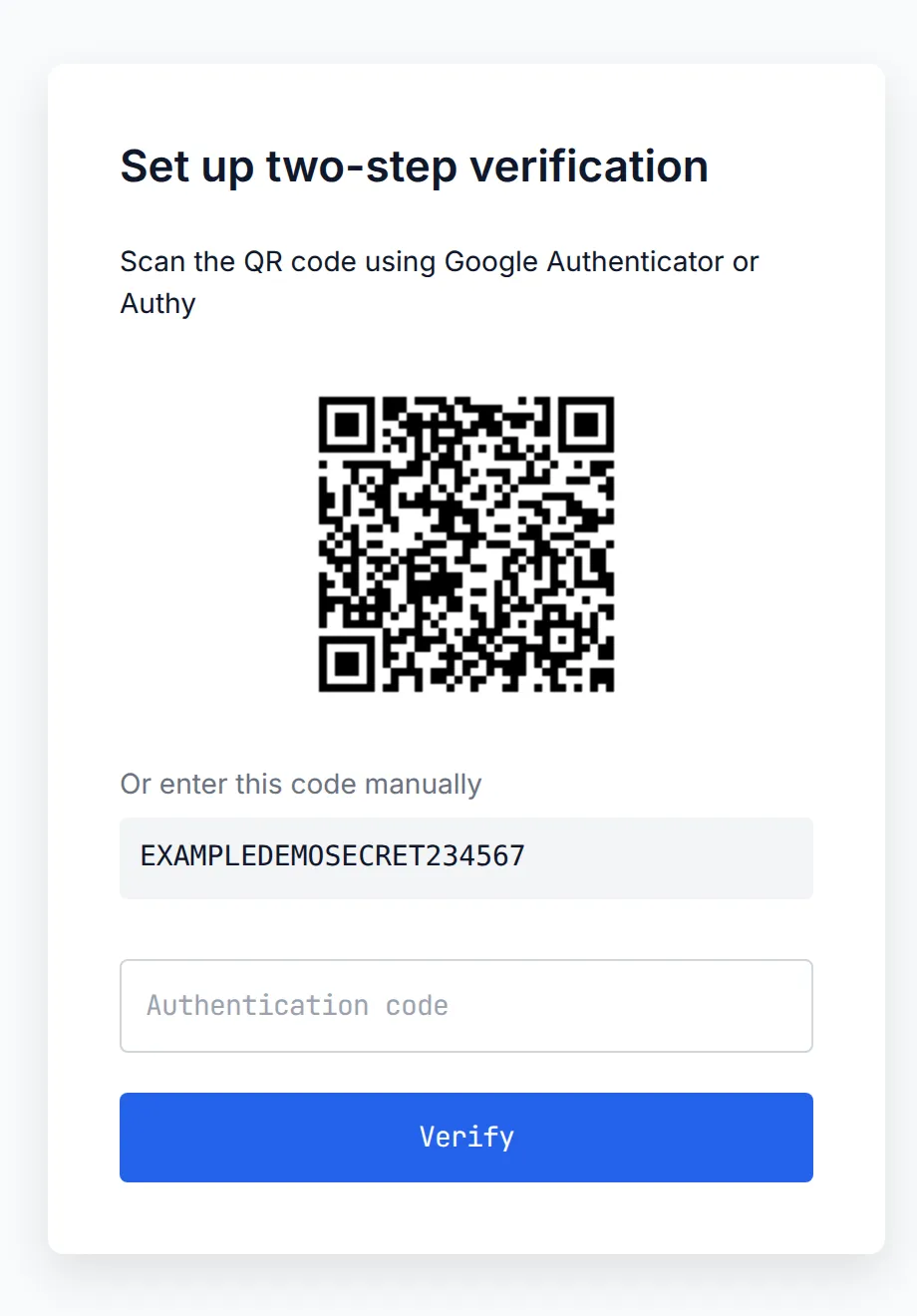
- The first time you sign in, Groundzero shows Set up two-step verification instead of the console. Scan the QR code with Google Authenticator or Authy, or type the code shown below it. Then type the six-digit Authentication code and choose Verify.
- On later sign-ins Groundzero shows Two-step verification. Type the current code from your app.
Keep your authenticator app safe
If you lose access to your authenticator app, ask your administrator for help. You cannot reset two-step verification yourself.
Start from the home page#
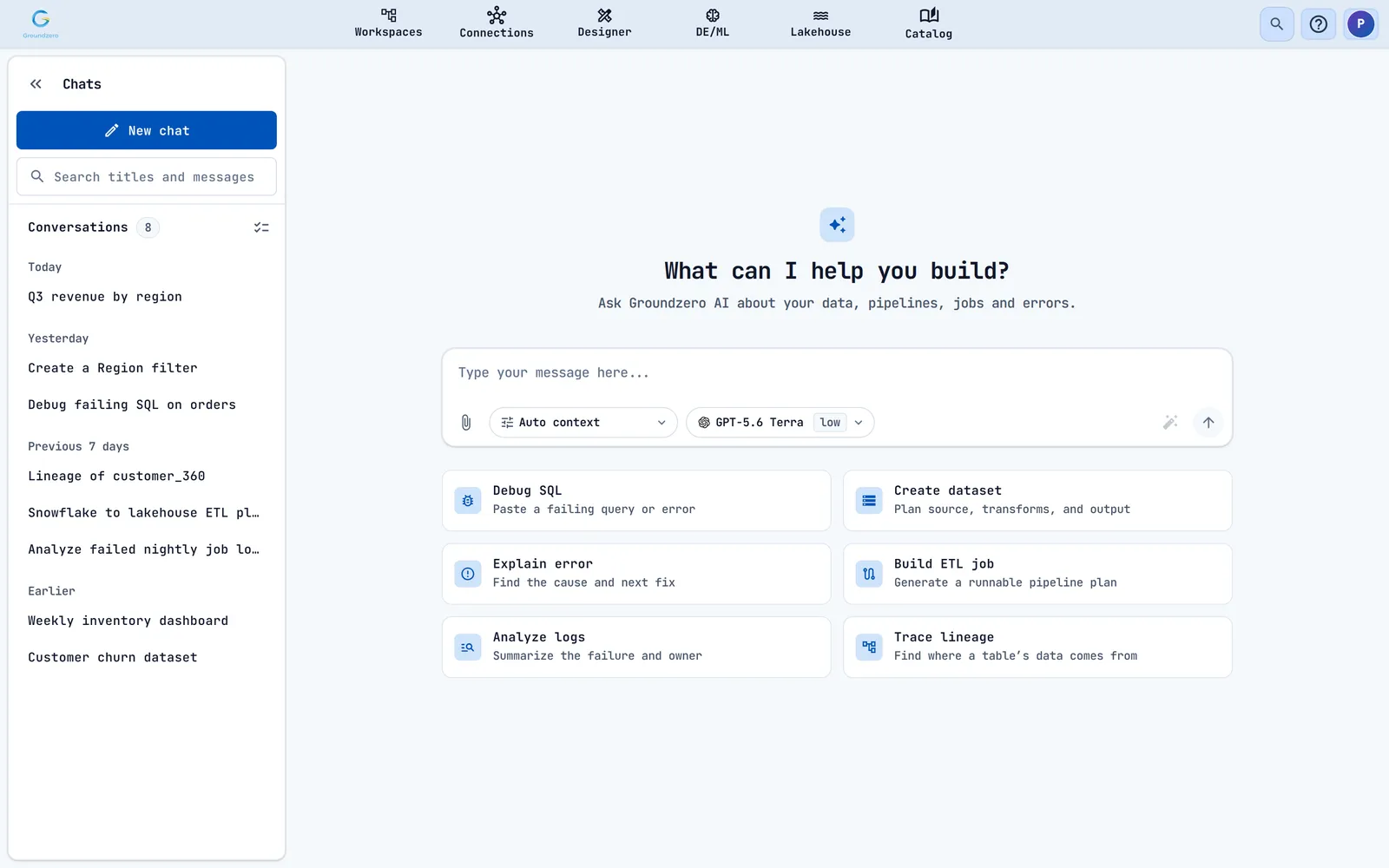
After you sign in you land on the home page, which is the AI assistant. Choose the Groundzero logo at the top left of any page to come back here.
You see a message box, six starter prompts (Debug SQL, Create dataset, Explain error, Build ETL job, Analyze logs and Trace lineage) and a Chats list of your earlier conversations. Chapter 5 shows how to use the assistant.
If the home page says you have no access to chat
Using the assistant needs the AI Chat permission. Without it the page shows You don't have access to chat. Everything else in this guide works without it.
Move around the console#
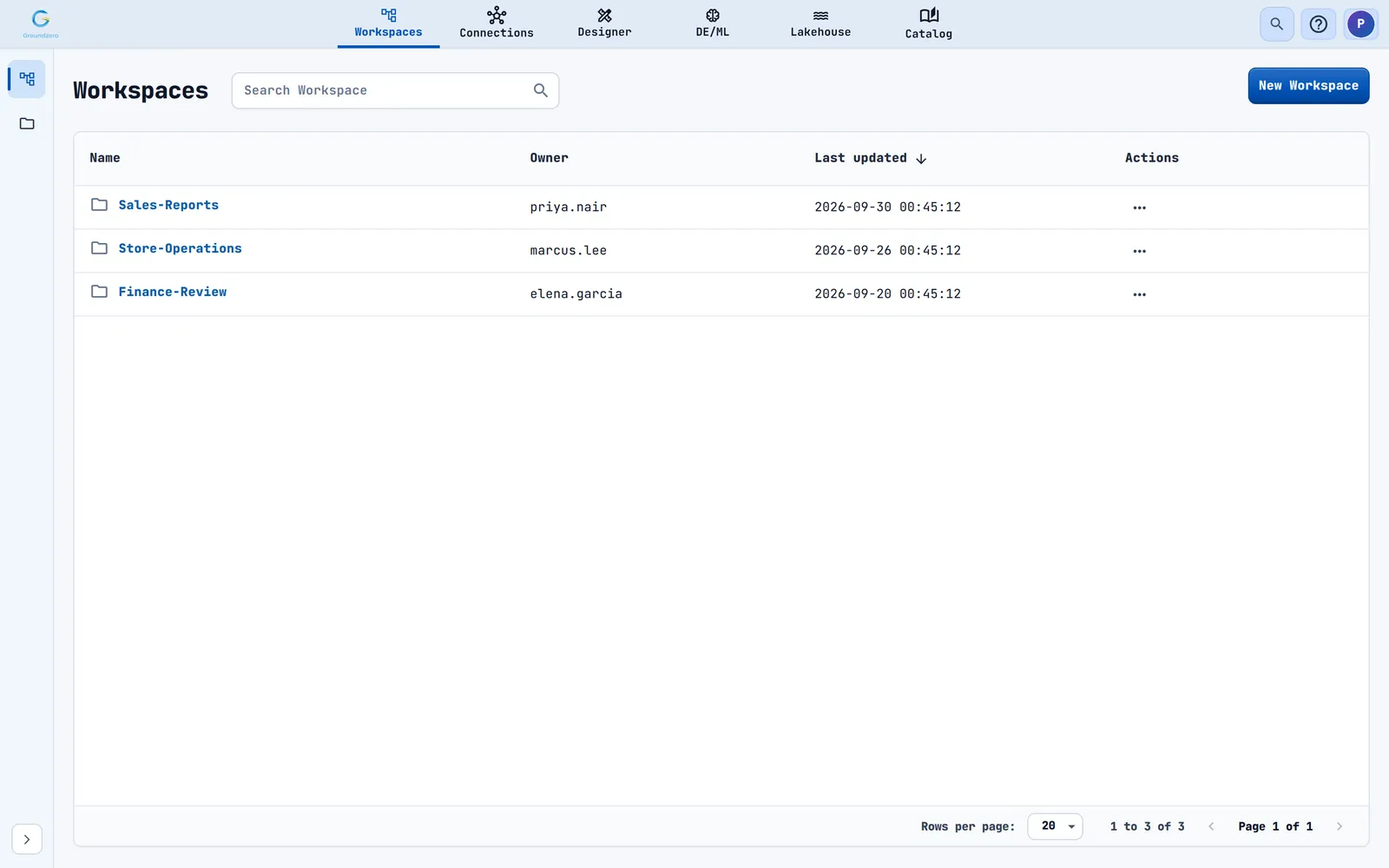
Open any area from the top bar. Inside an area, use the menu on the left.
| Area | What the left menu offers |
|---|---|
| Workspaces | Workspaces (folders of imported dashboards) and My Files (your storage buckets) |
| Connections | The list of connections, with search and Type, Owner and Updated filters |
| Designer | Datasets, Filters, Visualizations and Dashboards |
| DE/ML | Projects and the Scheduler. A project has the tabs Jobs, Notebooks, Models and Agents. |
| Lakehouse | Warehouses and Saved Queries |
| Catalog | Catalog, Consumption Metrics, Data Lineage and Ontology Studio |
Most list pages look alike: a title, a search box, a table, and a three-dot menu on each row with the actions you can take.
Find anything with search#
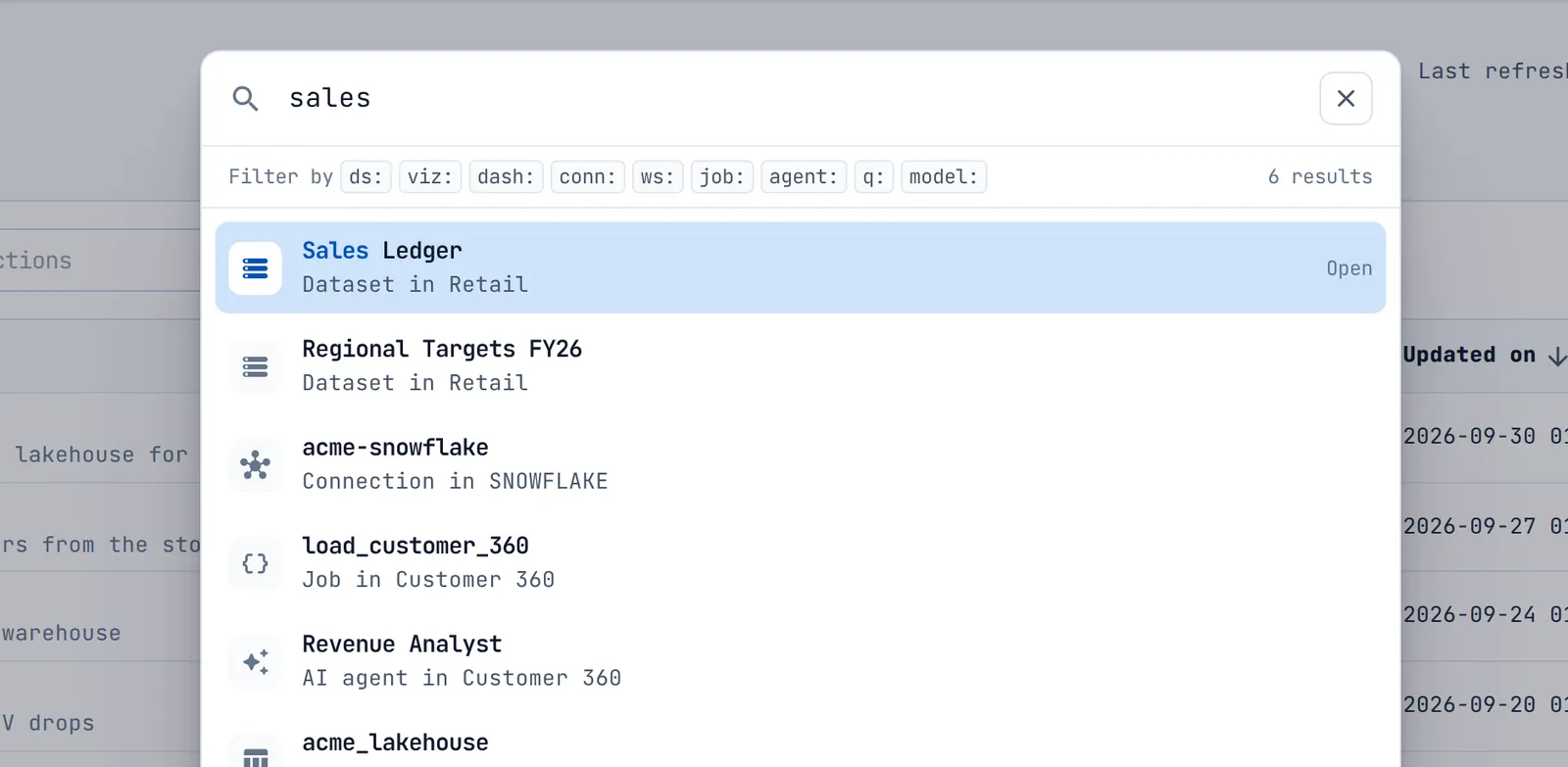
Press Ctrl + K, or choose the magnifier at the right of the top bar. Global search finds datasets, visualizations, dashboards, connections, workspaces, jobs, agents, saved queries, ontology models and pages such as Data Lineage.
To search one kind of item, start with a prefix: ds: (datasets), viz: (visualizations), dash: (dashboards), conn: (connections), ws: (workspaces), job: (jobs), agent: (agents), q: (saved queries) or model: (ontology models).
Get help and manage your account#
Two more buttons sit at the right of the top bar.
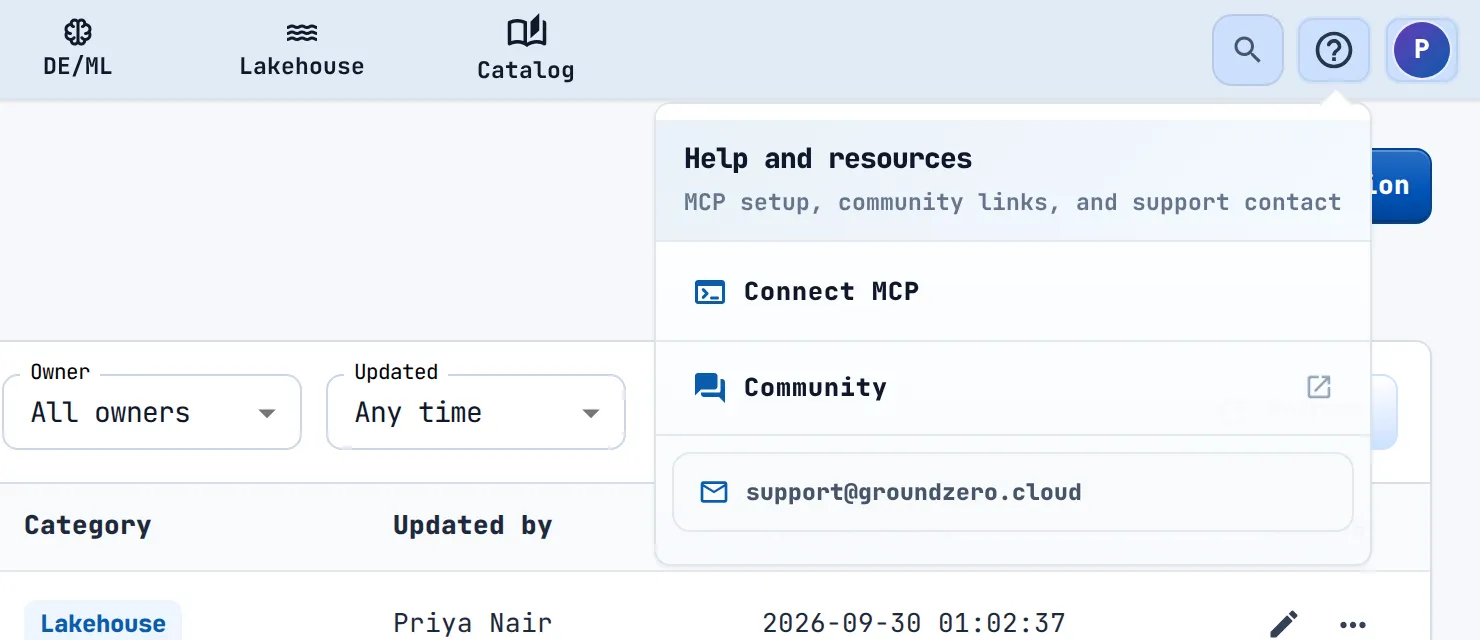
The Help button (question mark) opens Help and resources: Connect MCP, Community and a support e-mail link. Chapter 5 explains Connect MCP.
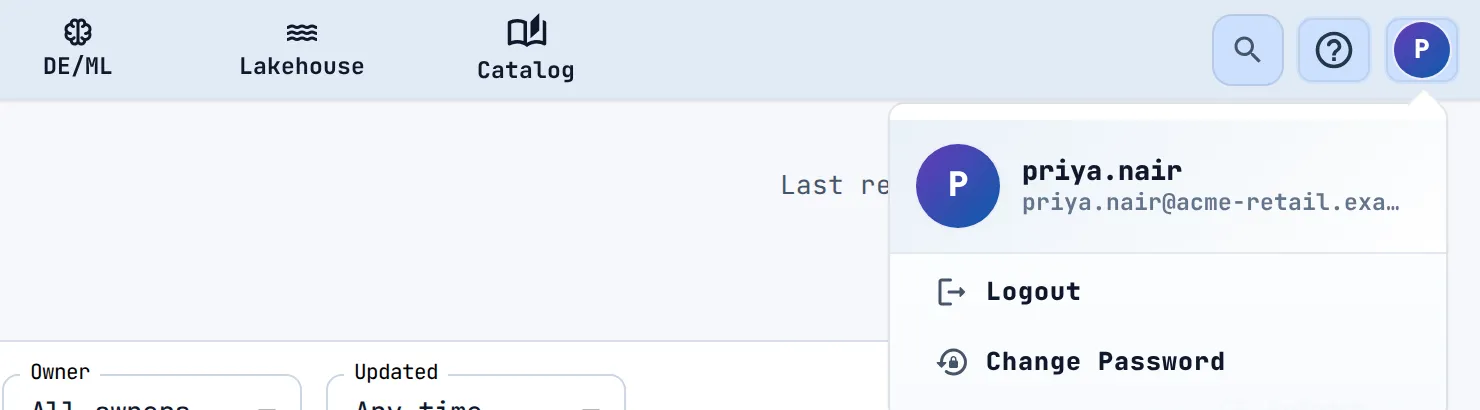
The Account button (your initial) shows your username and e-mail, with Logout and Change Password. A new password needs at least 8 characters, with an uppercase letter, a lowercase letter and a special character.
Name things the right way#
Almost everything you create follows one naming rule: datasets, visualizations, dashboards, projects, jobs and notebooks. A name starts with a letter and uses only letters, numbers and hyphens. It cannot end with a hyphen, contain two hyphens in a row, or contain spaces.
acme-weekly-sales works. Acme Weekly Sales does not.
If an action is refused, the message names the permission you need, for example You do not have "All" or "Add" permissions on Connection. Send that message to your administrator, who grants permissions in the Access Manager.