
5. The AI assistant and agents
Watch the 2 walkthrough videos for this chapter
The assistant helps you get things done faster: it answers questions, drafts SQL and jobs, and explains errors.
Ask Groundzero AI#
The home page is a chat with an assistant that knows Groundzero. Describe what you want in plain language. It answers with text, tables, charts and links to the things it creates, such as datasets, dashboards, ETL jobs and filters. Before it changes anything, it stops and asks you.
- Open the home page and click Message Groundzero AI, or pick a starter prompt. A starter prompt fills the box without sending it.
- Type your request. Enter sends, and Shift + Enter adds a line.
- To ask about a file, attach it with the paperclip. You can attach CSV, Excel, PDF, text and common image files, up to 50 MB each.
- Read the answer. Open Run details, Context used and Response details under it to see which tools ran, what context it used, and its token use, speed and cost.
- Use the Chats list to search earlier conversations or go back to one.
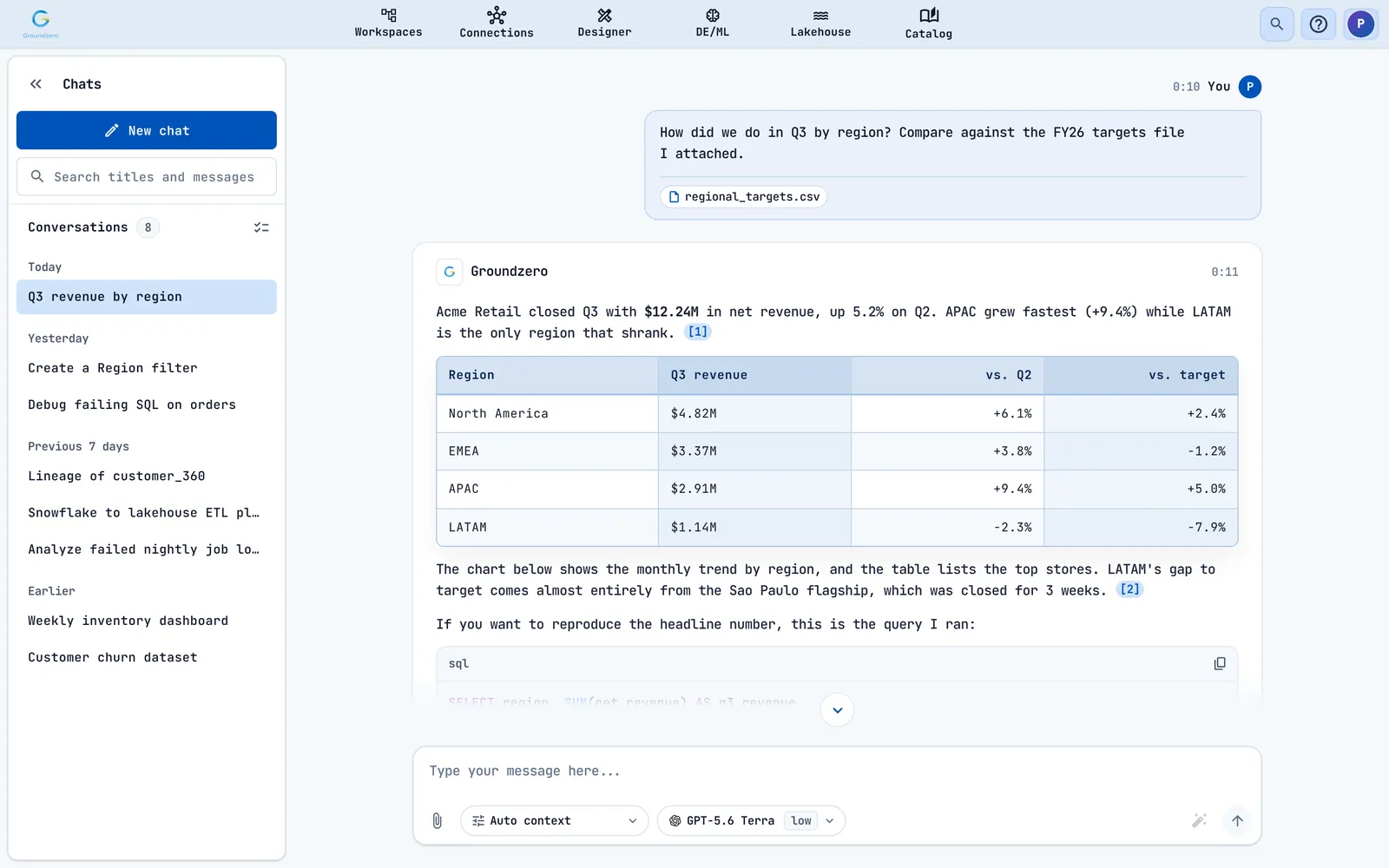
Good first prompts: List the datasets I can access, Explain this SQL error, Trace lineage for sales.revenue_daily and Build an ETL job that rolls up daily revenue by region.
Enhance prompt
The wand next to the send button (Enhance prompt with AI) rewrites your draft with the selected model before you send it.
Choose options and approve changes#
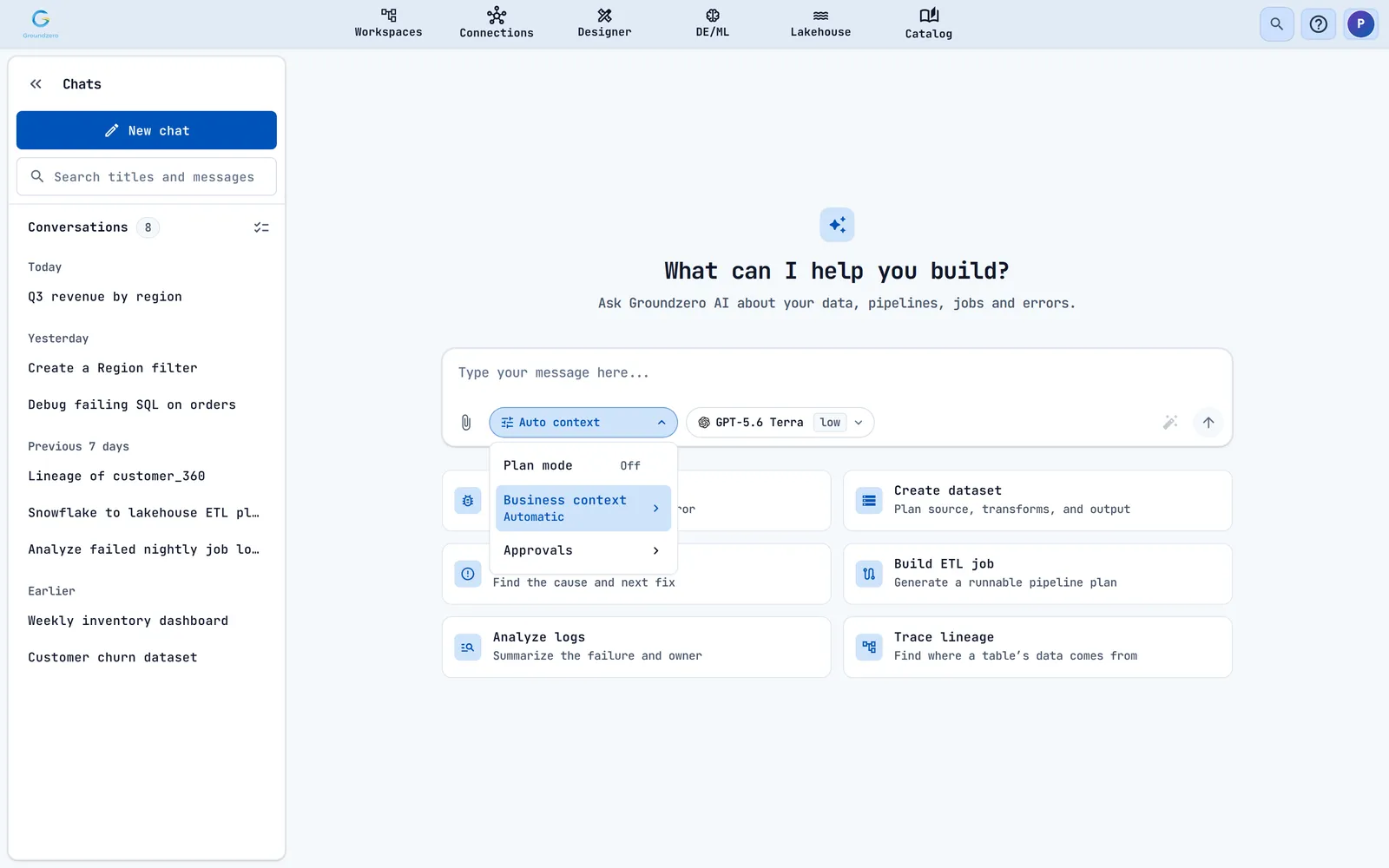
The pill next to the paperclip, normally Auto context, opens the chat options.
| Option | What it does |
|---|---|
| Plan mode | The assistant builds and tracks a plan, shown as a plan card. |
| Business context | Chooses whether answers use your published ontology (your shared business definitions): automatic, off, or chosen models. |
| Approvals | Shows the standing approvals you have granted, if your site has them turned on. |
The second pill shows the model and its thinking effort (Low to Max, depending on the model). Open it to pick another model.
When the assistant wants to change something, such as creating a filter, it shows an approval card with the proposed input, a countdown and the buttons Deny and Allow once. Nothing happens until you decide.
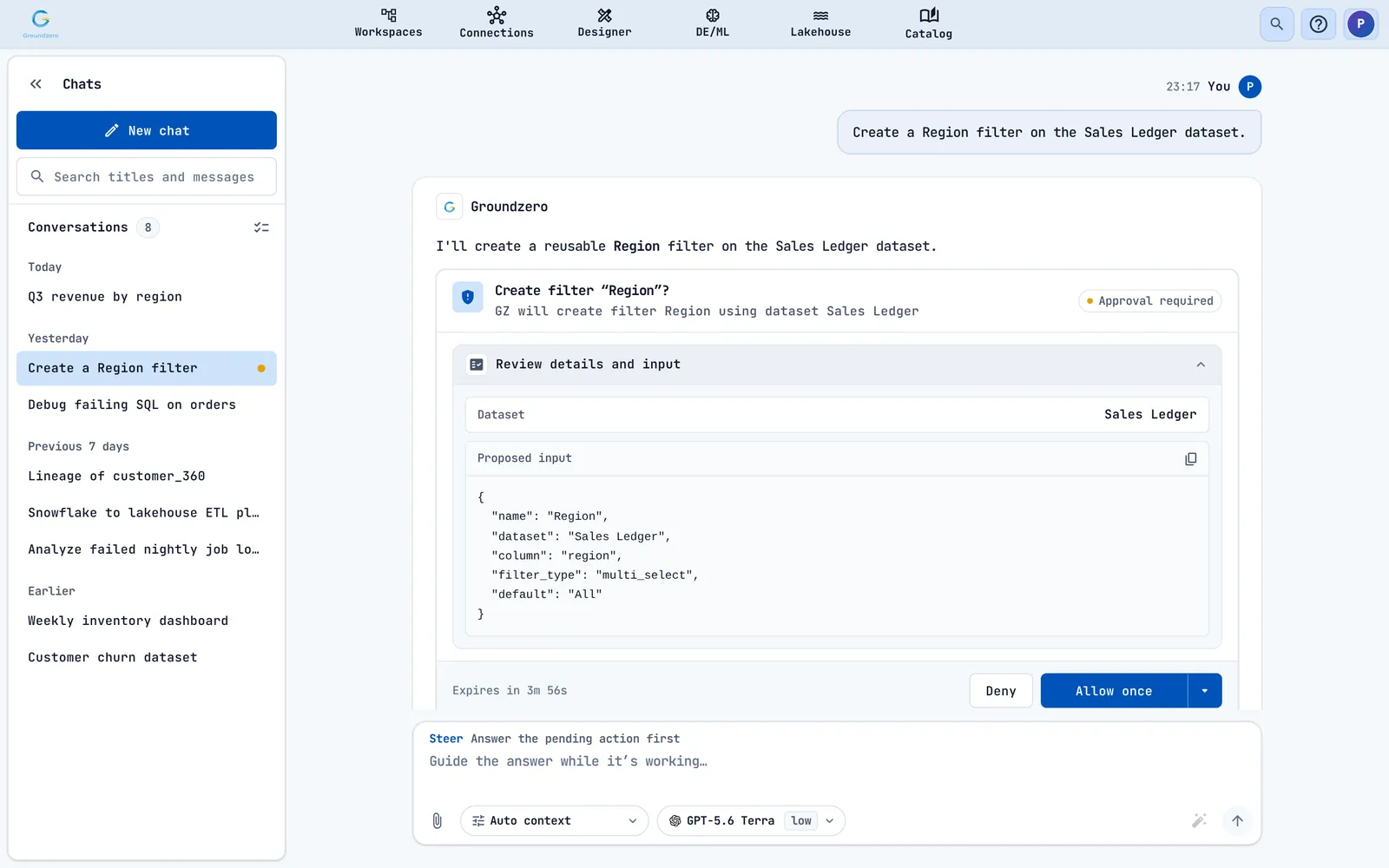
Review before you allow
Open Review details and input and read what the assistant proposes before you choose Allow once. The assistant acts with your permissions.
Get code help inside editors#
The dataset, job and notebook editors each have a sparkle button in the toolbar (Generate code with GZ). It opens a CodeGenie panel that knows what you are editing. Ask it to write SQL, Spark or notebook code, to explain an error from the editor, or to build a focused transformation. Then insert the result and run it. In a job, type @logs to give it the latest log lines.
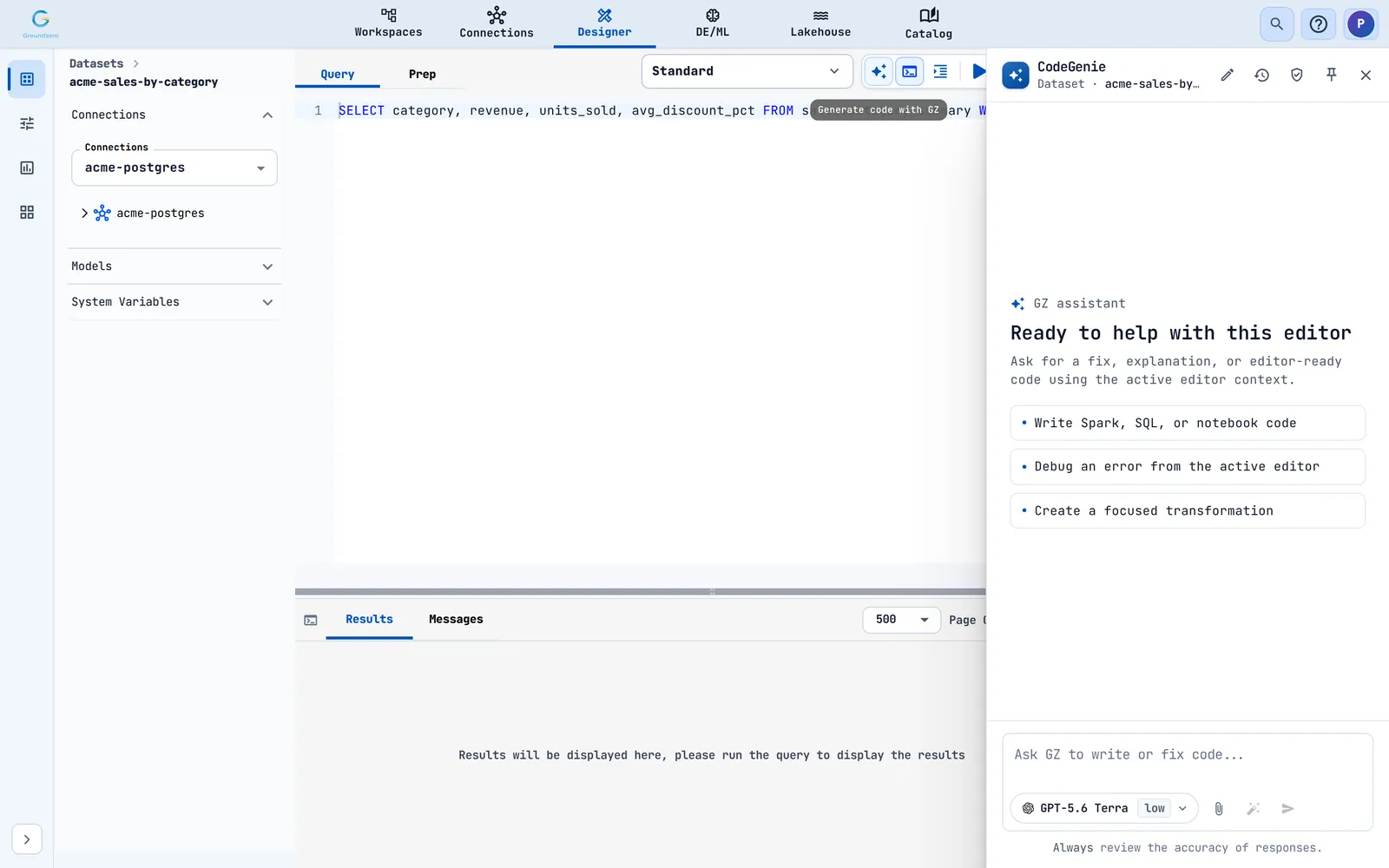
Always review generated code
The panel reminds you to check the answers. Run the code on a small input first.
Create an AI agent#
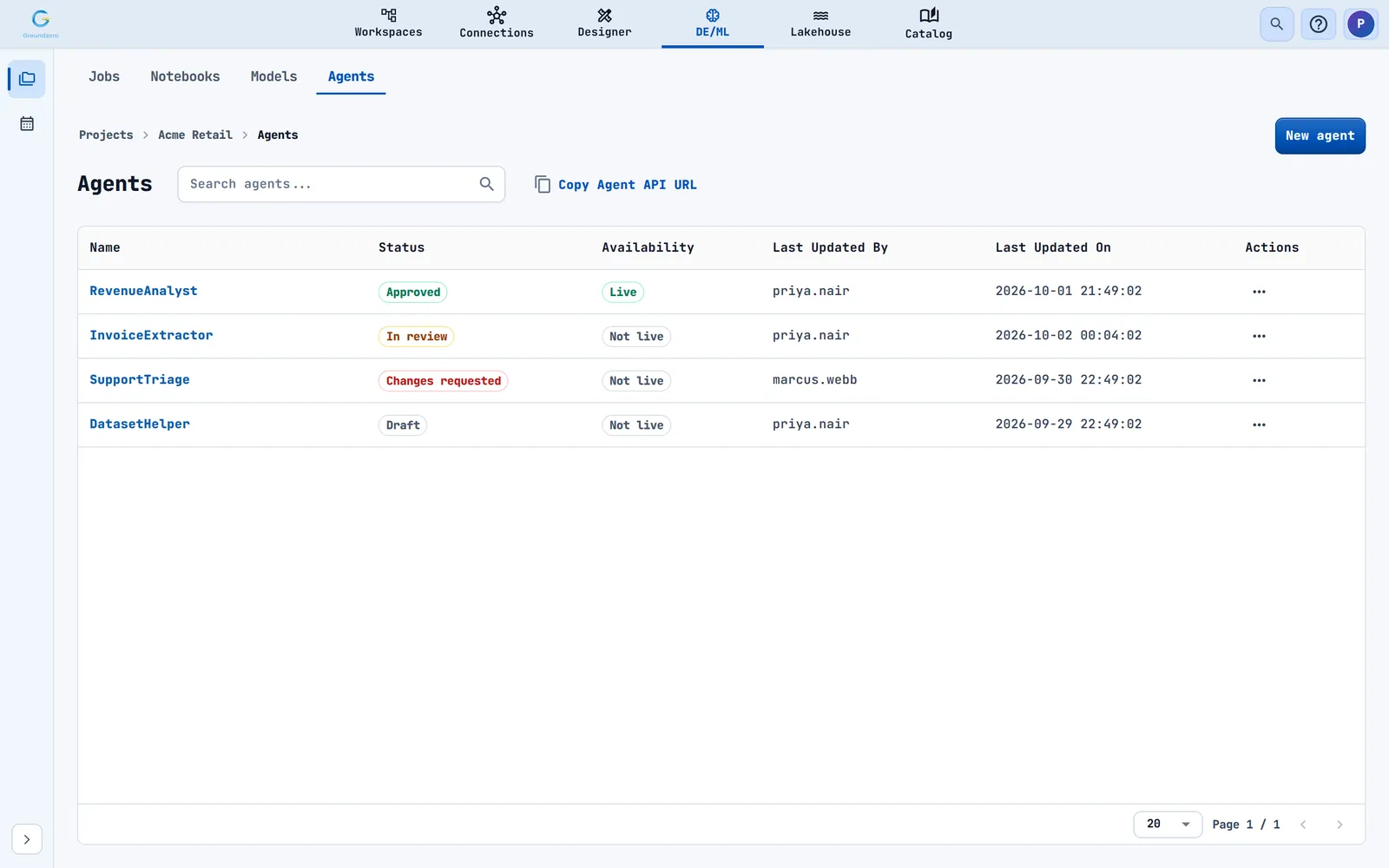
An agent is a saved assistant with one fixed job: instructions, a model and a narrow set of tools. Once a reviewer approves a version, other systems you control can call it. Use chat to explore, and use an agent for work that repeats and must behave the same way each time.
- Open DE/ML, choose a project and open the Agents tab. The list shows each agent's Status (Draft, In review, Approved or Changes requested) and Availability (Live or Not live).
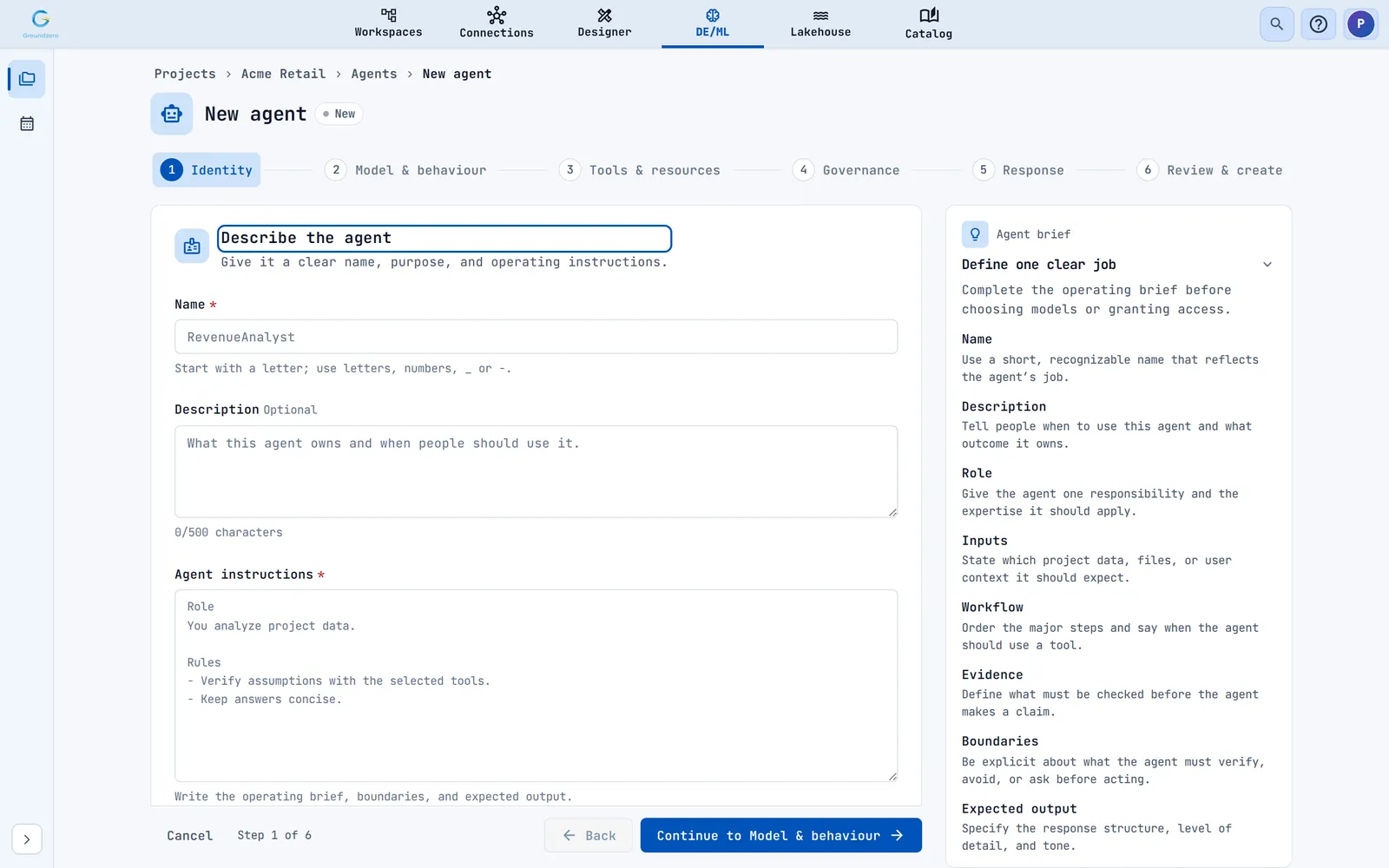
- Choose New agent. The builder has six steps: Identity, Model & behaviour, Tools & resources, Governance, Response and Review & create. A guide panel on the right explains each field.
- Test the agent with a prompt, then submit it for approval.
Use Groundzero from your own tools#
MCP (Model Context Protocol) lets coding assistants and similar tools work with Groundzero for you.
- Open the Help menu and choose Connect MCP.
- Pick your client: Codex, Claude Code, Cursor, VS Code or Generic HTTP MCP.
- Copy the commands shown and run them in your tool.
- Sign in through your browser when asked. There is no key to paste.
Tools that change data still ask for your approval.
